Vue3入门 认识Vue3 1. Vue3组合式API体验
通过 Counter 案例 体验Vue3新引入的组合式API
并且需要注意的是Vue3是向下兼容的,也就是说你可以在Vue3的项目中继续写Vue2的代码
<script>
export default {
  data(){
    return {
      count:0
    }
  },
  methods:{
    addCount(){
      this.count++
    }
  }
}
</script>
<script setup>
import { ref } from 'vue'
const count = ref(0)
const addCount = ()=> count.value++
</script>
特点:
代码量变少
分散式维护变成集中式维护
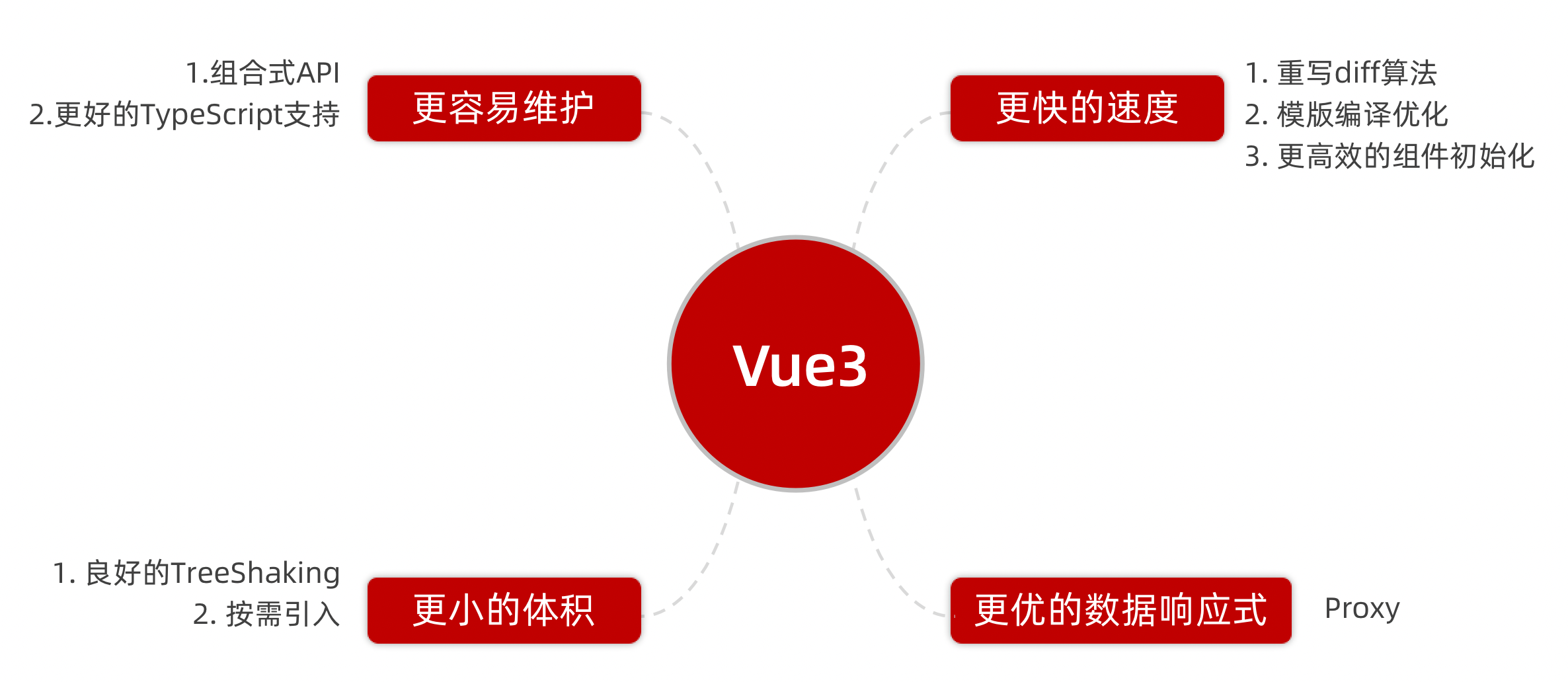
2. Vue3更多的优势
使用create-vue搭建Vue3项目 1. 认识create-vue
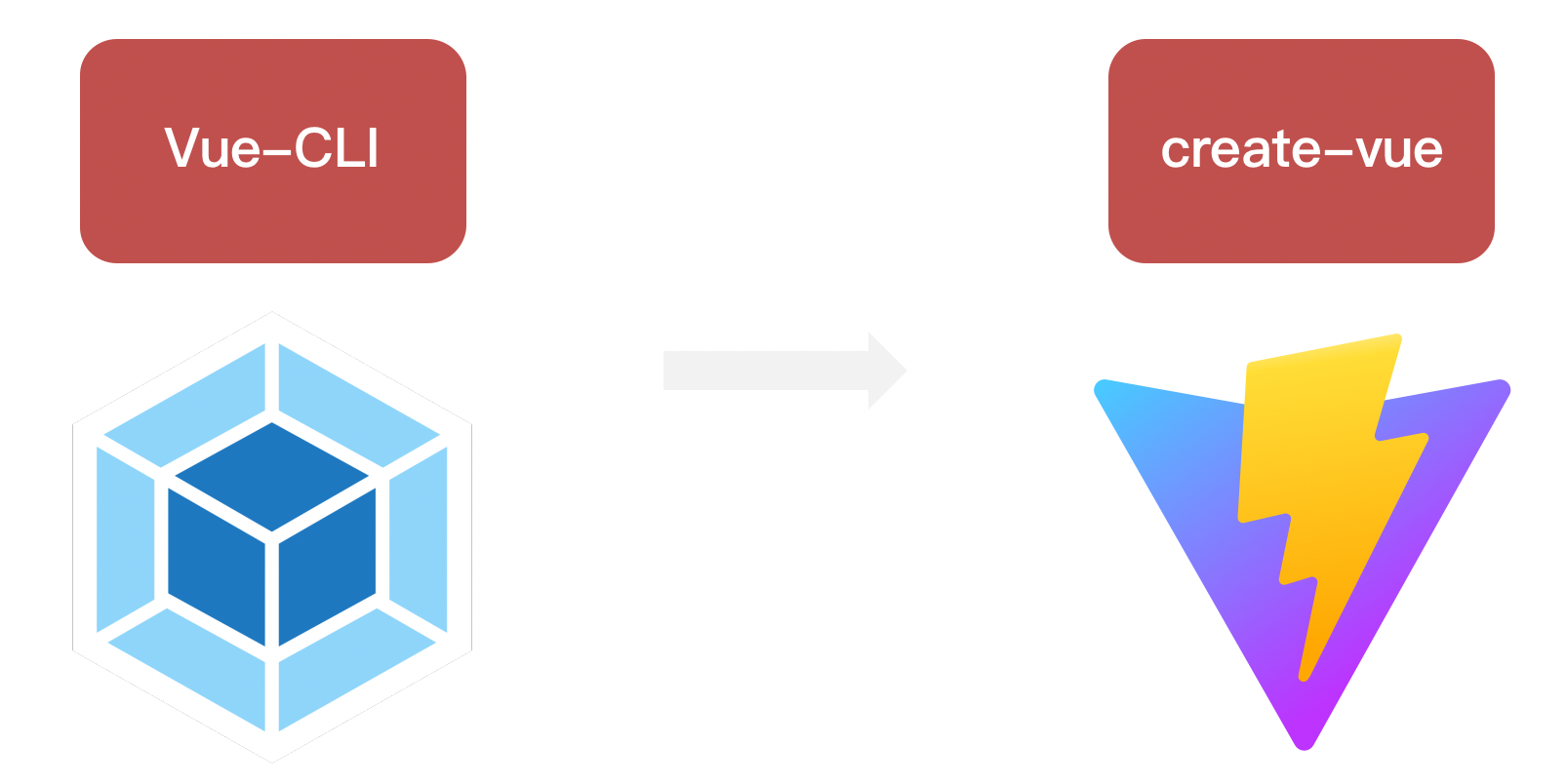
create-vue是Vue官方新的脚手架工具,底层切换到了 vite (下一代前端工具链),为开发提供极速响应
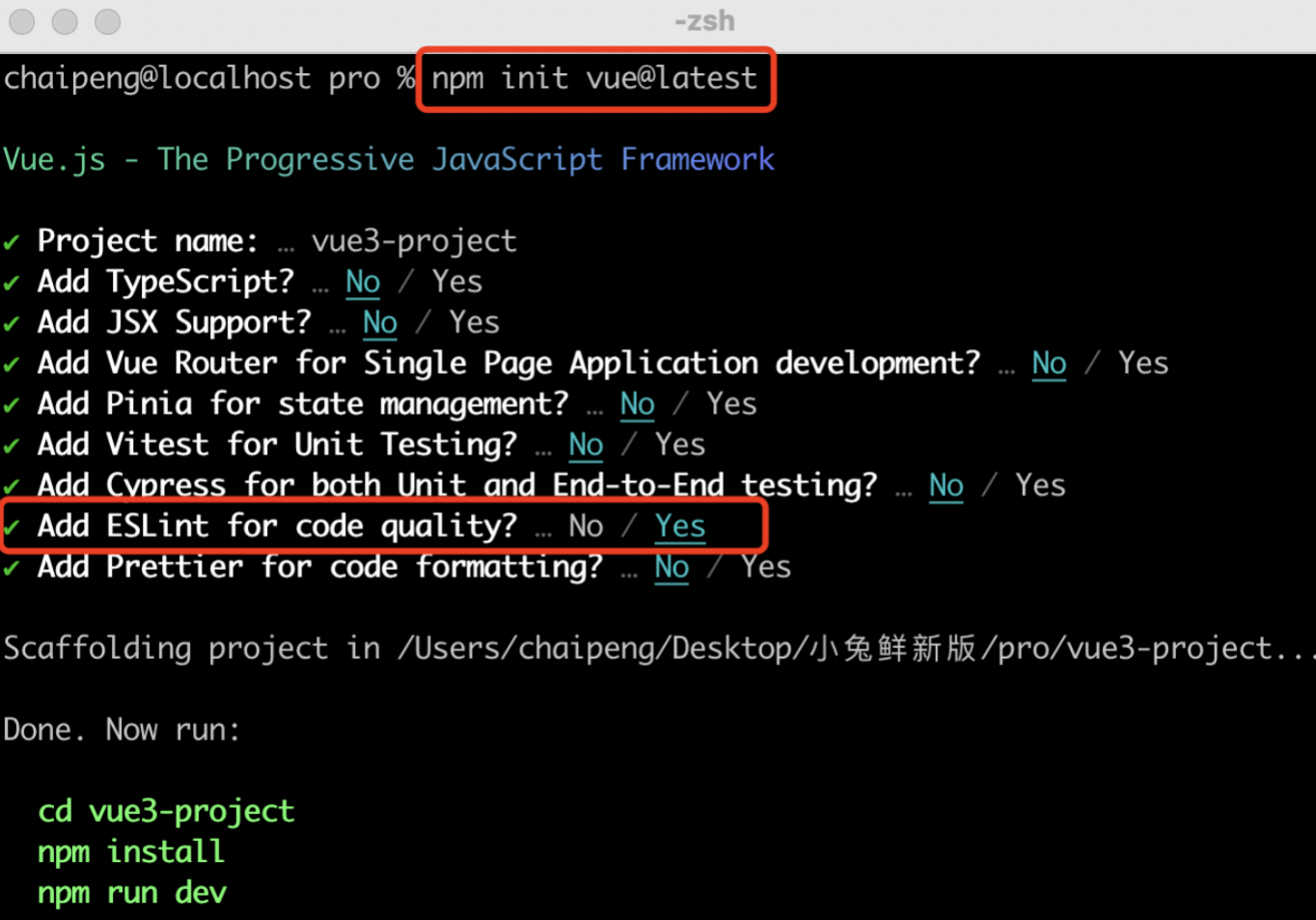
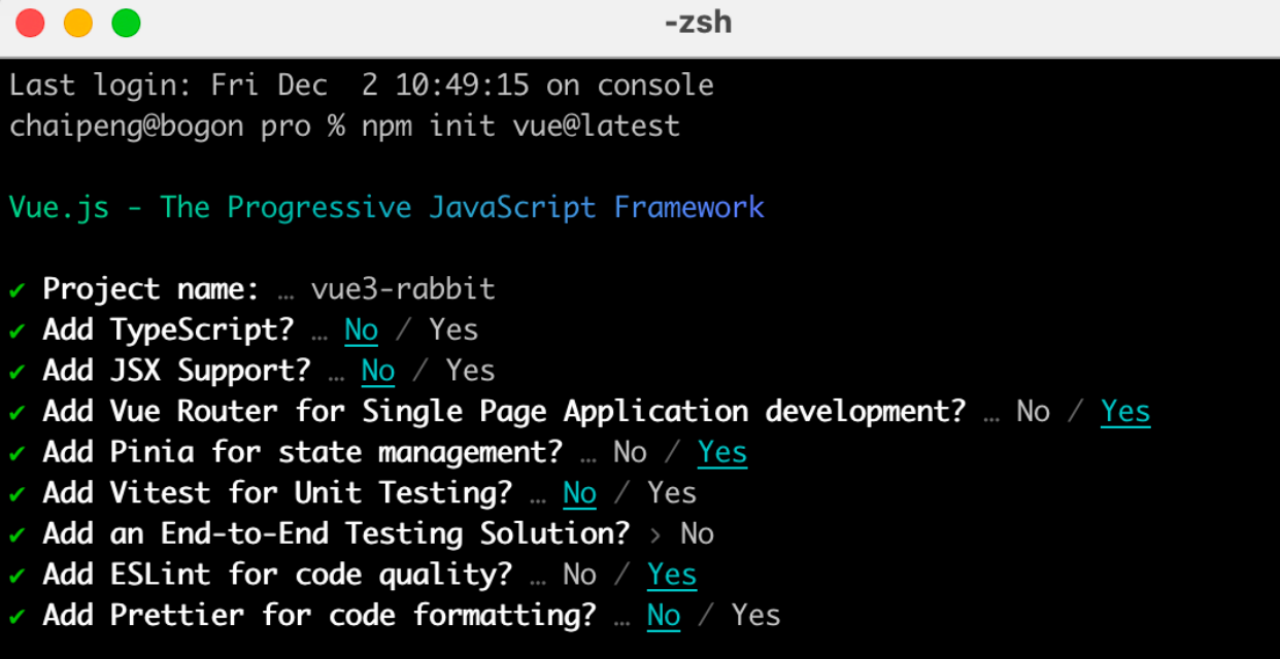
2. 使用create-vue创建项目
前置条件 - 已安装16.0或更高版本的Node.js,
C:\Users\Xu>node -v
可以看到这里我是16.16版本,希望不会出现依赖冲突
执行如下命令,这一指令将会安装并执行 create-vue
我去,这看着比vue2页面高级多了
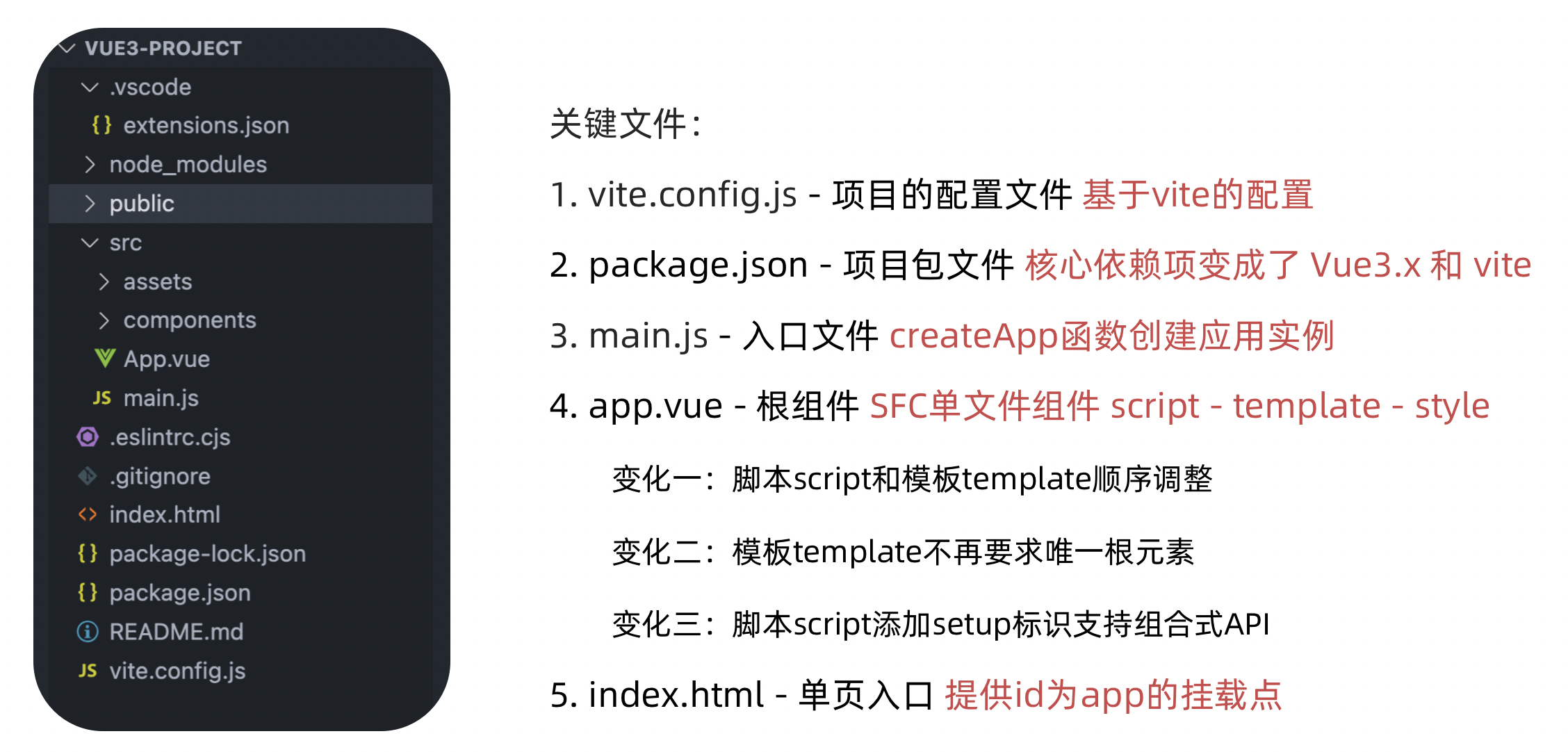
熟悉项目和关键文件
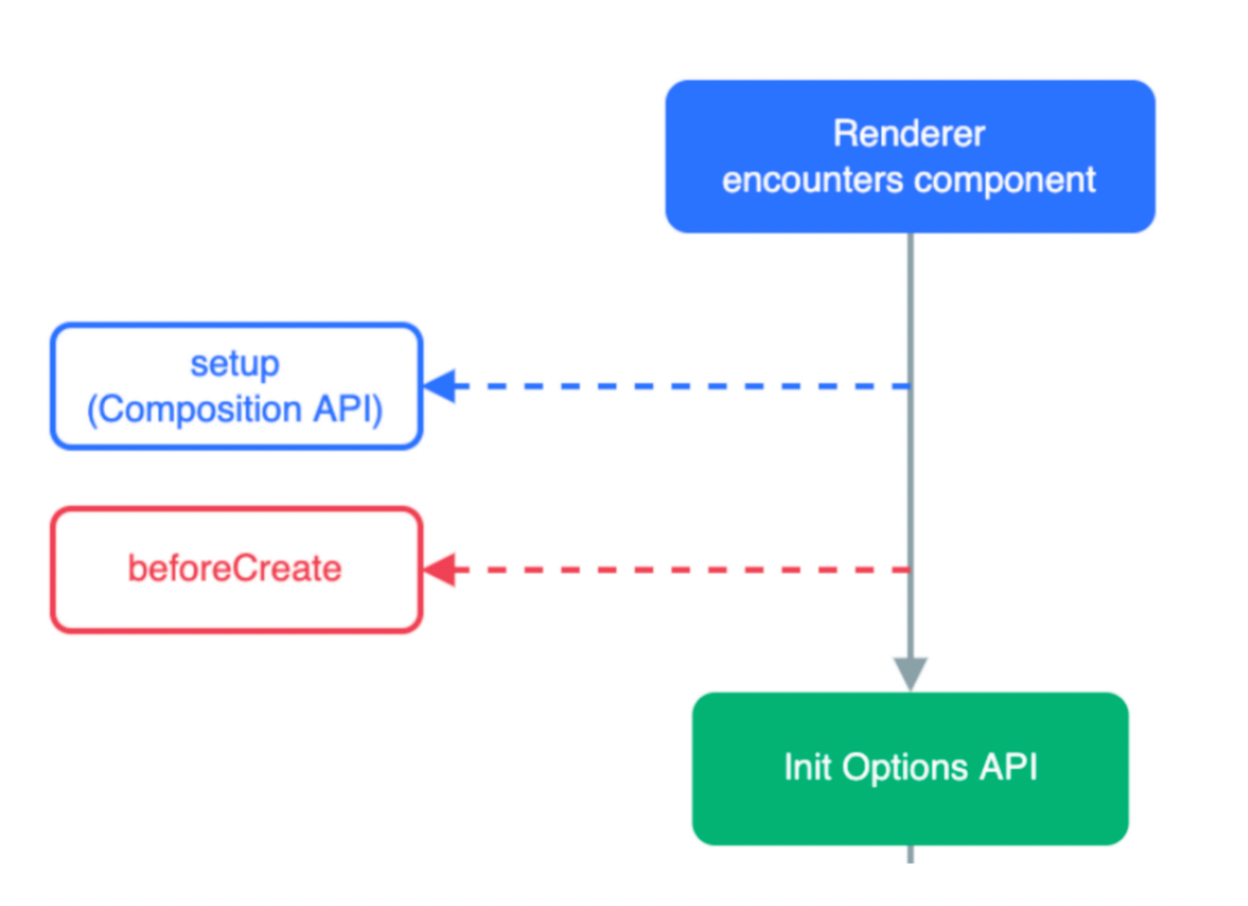
组合式API - setup选项 1. setup选项的写法和执行时机 写法
<script>
  export default {
    setup(){

    },
    beforeCreate(){

    }
  }
</script>
执行时机
在beforeCreate钩子之前执行
2. setup中写代码的特点
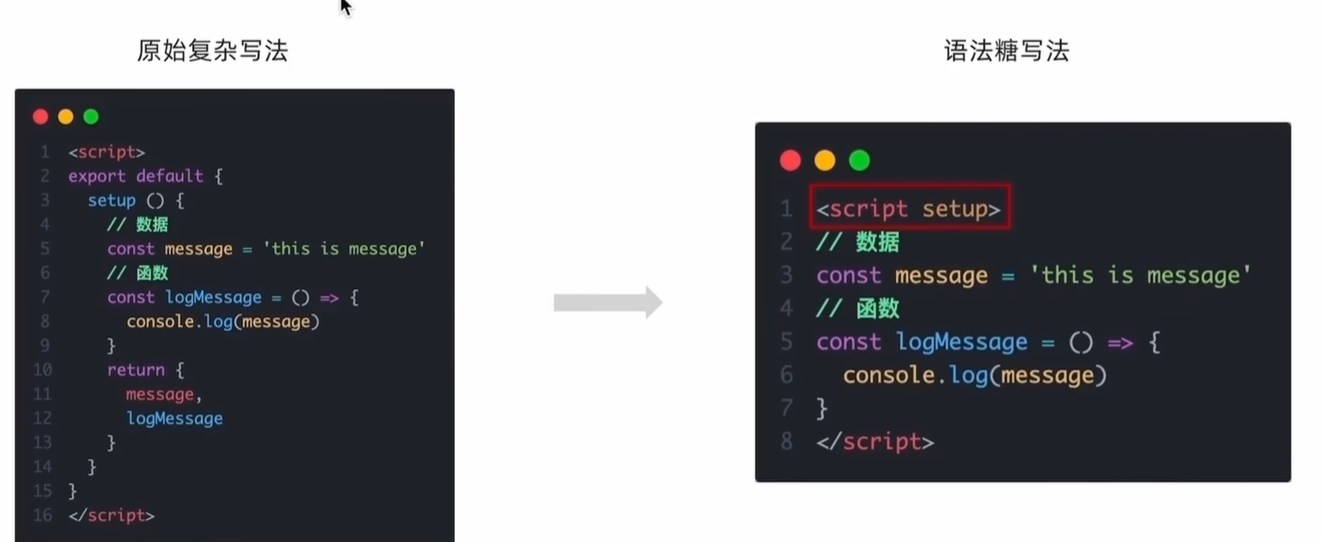
在setup函数中写的数据和方法需要在末尾以对象的方式return,才能给模版使用
<script>
  export default {
    setup(){
      const message = 'this is message'
      const logMessage = ()=>{
        console.log(message)
      }
      // 必须return才可以
      return {
        message,
        logMessage
      }
    }
  }
</script>
3. <script setup>语法糖
script标签添加 setup标记,不需要再写导出语句,默认会添加导出语句
<script setup>
  const message = 'this is message'
  const logMessage = ()=>{
    console.log(message)
  }
</script>
需要注意的是。setup中的this已经不指向组件实例啦,指向的undefined。
组合式API - reactive和ref函数 1. reactive
接受对象类型数据 的参数传入并返回一个响应式的对象
<script setup>
 // 导入
 import { reactive } from 'vue'
 // 执行函数 传入参数 变量接收
 const state = reactive({
   msg:'this is msg'
 })
 const setSate = ()=>{
   // 修改数据更新视图
   state.msg = 'this is new msg'
 }
</script>

<template>
  {{ state.msg }}
  <button @click="setState">change msg</button>
</template>
2. ref
接收简单类型 或者对象类型 的数据传入并返回一个响应式的对象
<script setup>
 // 导入
 import { ref } from 'vue'
 // 执行函数 传入参数 变量接收
 const count = ref(0)
 const setCount = ()=>{
   // 修改数据更新视图必须加上.value
   count.value++
 }
</script>

<template>
  <button @click="setCount">{{count}}</button>
</template>
3. reactive 对比 ref
都是用来生成响应式数据
不同点
reactive不能处理简单类型的数据
ref参数类型支持更好,但是必须通过.value做访问修改
ref函数内部的实现依赖于reactive函数
在实际工作中的推荐
推荐使用ref函数,减少记忆负担,小兔鲜项目都使用ref
组合式API - computed
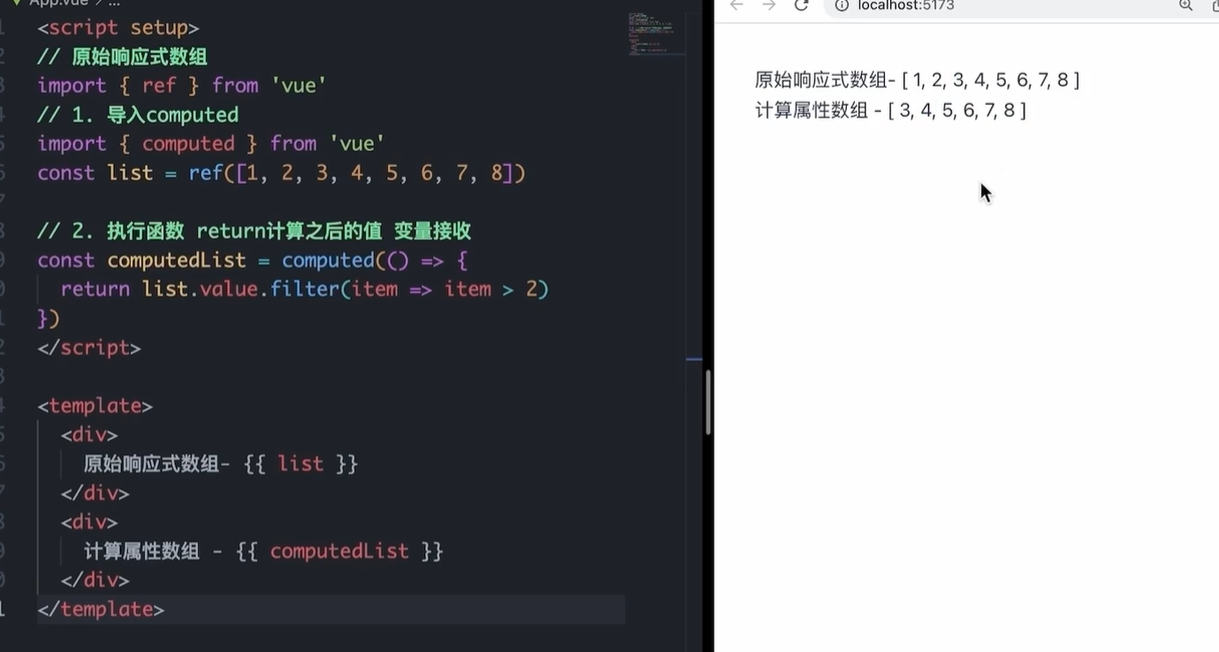
计算属性基本思想和Vue2保持一致,组合式API下的计算属性只是修改了API写法
下面这个计算属性会检测原始数据的变化,如果原始数据改变了,那么计算属性也会被调用!
组合式API - watch
侦听一个或者多个数据的变化,数据变化时执行回调函数,两个额外参数
immediate控制立刻执行
deep开启深度侦听
1. 侦听单个数据 <script setup> // 1. 导入watch import { ref, watch } from 'vue' const count = ref(0) // 2. 调用watch 侦听变化 watch(count, (newValue, oldValue)=>{//一个是变化之前的老值,一个是变化之后的新值 console.log(`count发生了变化,老值为${oldValue},新值为${newValue}`) }) </script>
2. 侦听多个数据
侦听多个数据,第一个参数可以改写成数组的写法
这两个数据任何一个变化都会引起函数的触发!
<script setup>
  // 1. 导入watch
  import { ref, watch } from 'vue'
  const count = ref(0)
  const name = ref('cp')
  // 2. 调用watch 侦听变化
  watch([count, name], ([newCount, newName],[oldCount,oldName])=>{
    console.log(`count或者name变化了,[newCount, newName],[oldCount,oldName])
  })
</script>
在侦听器创建时立即触发回调(第一次就执行),响应式数据变化之后继续执行回调
<script setup>
  // 1. 导入watch
  import { ref, watch } from 'vue'
  const count = ref(0)
  // 2. 调用watch 侦听变化
  watch(count, (newValue, oldValue)=>{
    console.log(`count发生了变化,老值为${oldValue},新值为${newValue}`)
  },{
    immediate: true
  })
</script>
4. deep
通过watch监听的ref对象默认是浅层侦听的,直接修改嵌套的对象属性不会触发回调执行,需要开启deep
需要注意的是deep有性能损耗,尽量不要使用deep
<script setup>
  // 1. 导入watch
  import { ref, watch } from 'vue'
  const state = ref({ count: 0 })
  // 2. 监听对象state
  watch(state, ()=>{
    console.log('数据变化了')
  })
  const changeStateByCount = ()=>{
    // 直接修改不会引发回调执行
    state.value.count++
  }
</script>
添加deep属性就可以触发了
<script setup>
  // 1. 导入watch
  import { ref, watch } from 'vue'
  const state = ref({ count: 0 })
  // 2. 监听对象state 并开启deep
  watch(state, ()=>{
    console.log('数据变化了')
  },{deep:true})
  const changeStateByCount = ()=>{
    // 此时修改可以触发回调
    state.value.count++
  }
</script>
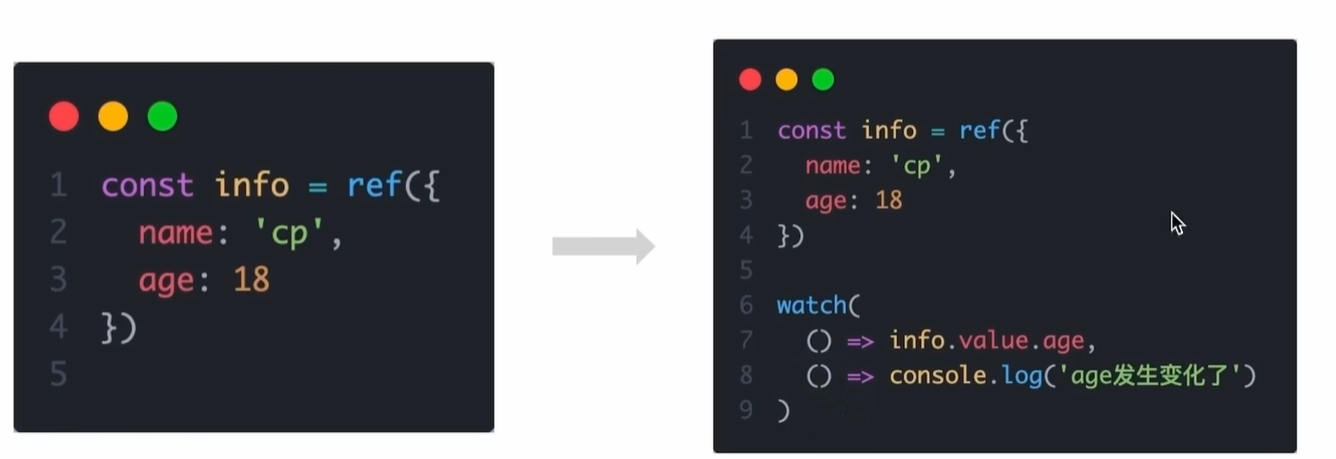
5.精确侦听对象的某个属性 需求:在不开启deep的前提下,侦听age的变化,只有age变化时才执行回调
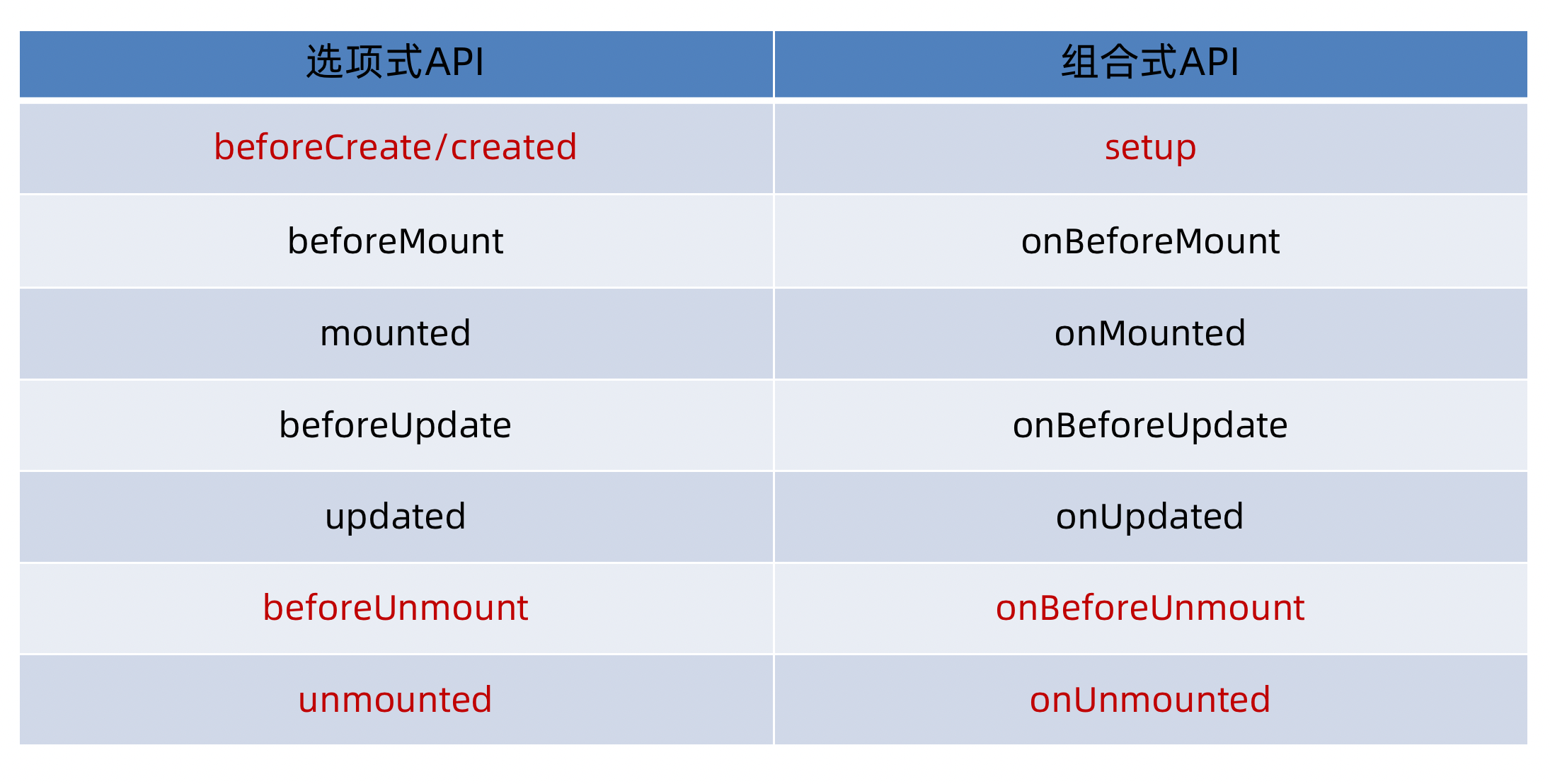
组合式API - 生命周期函数 1. 选项式对比组合式
2. 生命周期函数基本使用
导入生命周期函数
执行生命周期函数,传入回调
<scirpt setup>
import { onMounted } from 'vue'
onMounted(()=>{
  // 自定义逻辑
})
</script>
3. 执行多次
生命周期函数执行多次的时候,会按照顺序依次执行
<scirpt setup>
import { onMounted } from 'vue'
onMounted(()=>{
  // 自定义逻辑
})

onMounted(()=>{
  // 自定义逻辑
})
</script>
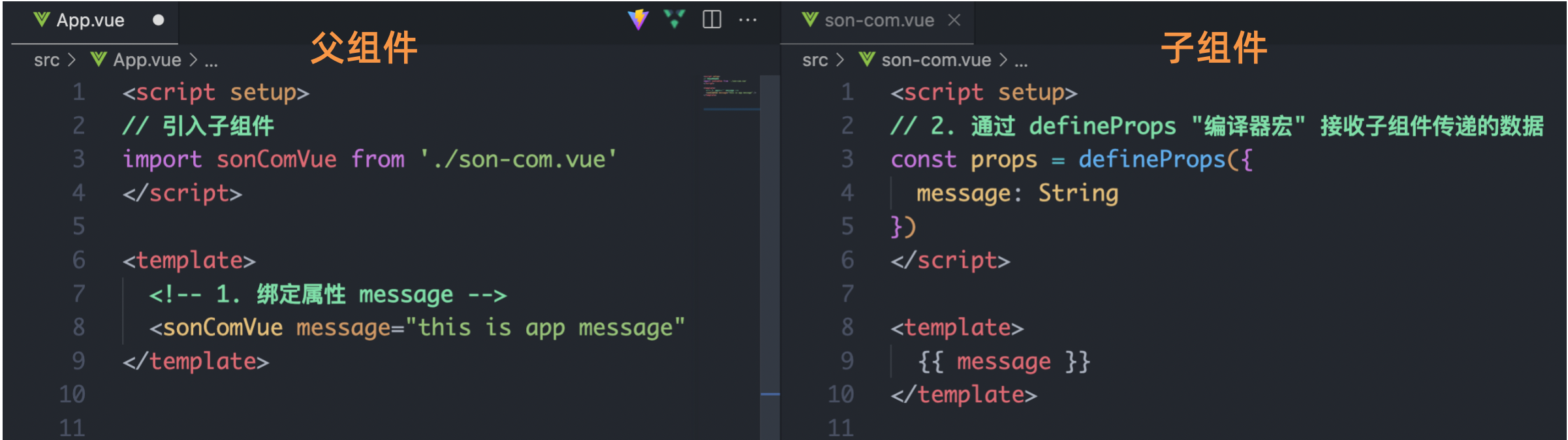
组合式API - 父子通信 1. 父传子 这里注意setup语法糖自动为我们注册了组件,所以我们不用在写components进行注册啦
基本思想
父组件中给子组件绑定属性
子组件内部通过props选项接收数据
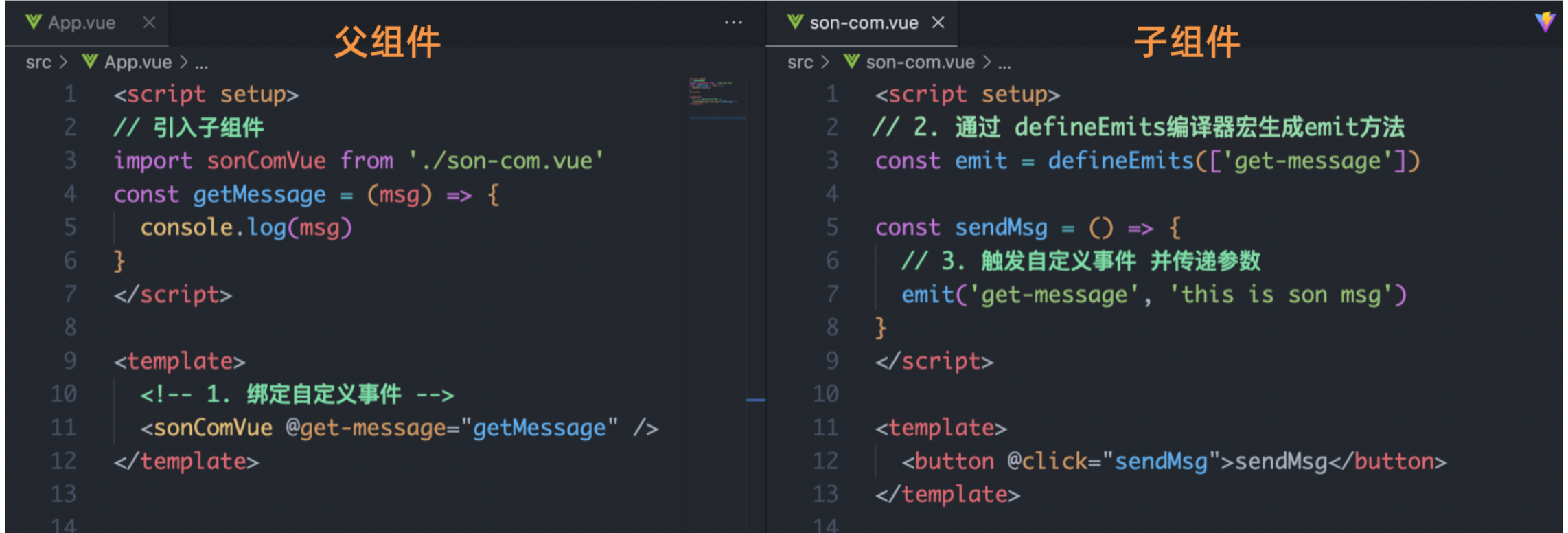
2. 子传父
基本思想
父组件中给子组件标签通过@绑定事件
子组件内部通过 emit 方法触发事件
组合式API - 模版引用
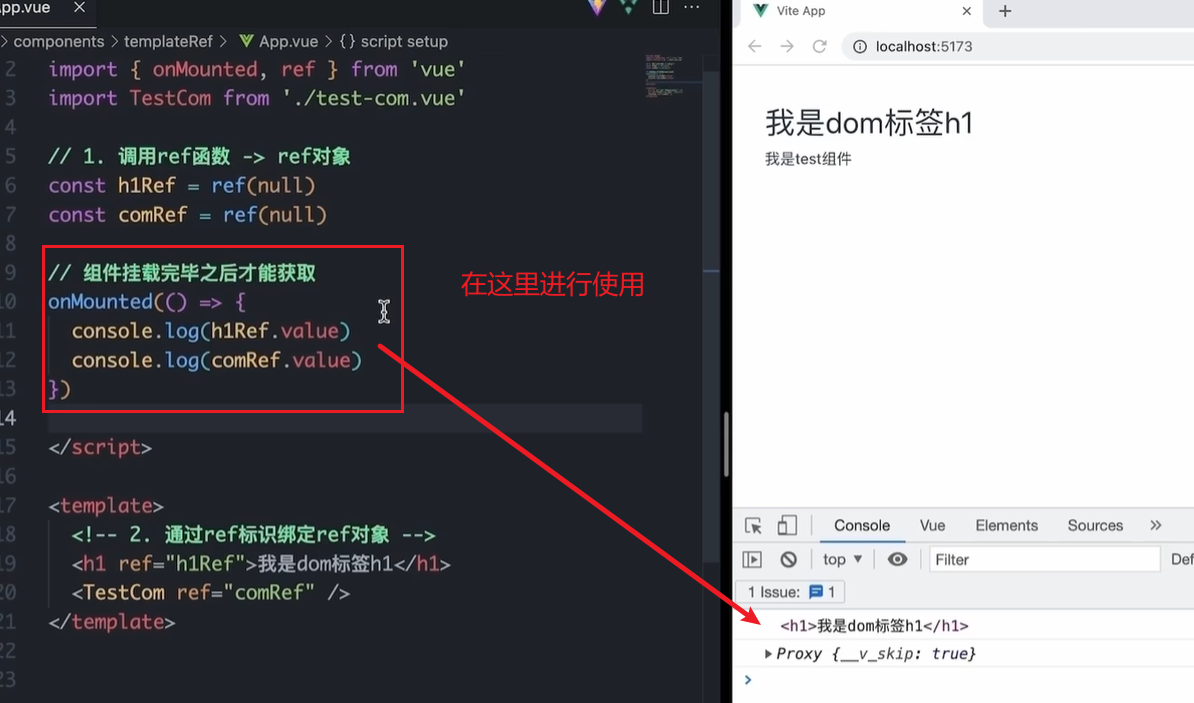
概念:通过 ref标识 获取真实的 dom对象或者组件实例对象
1. 基本使用
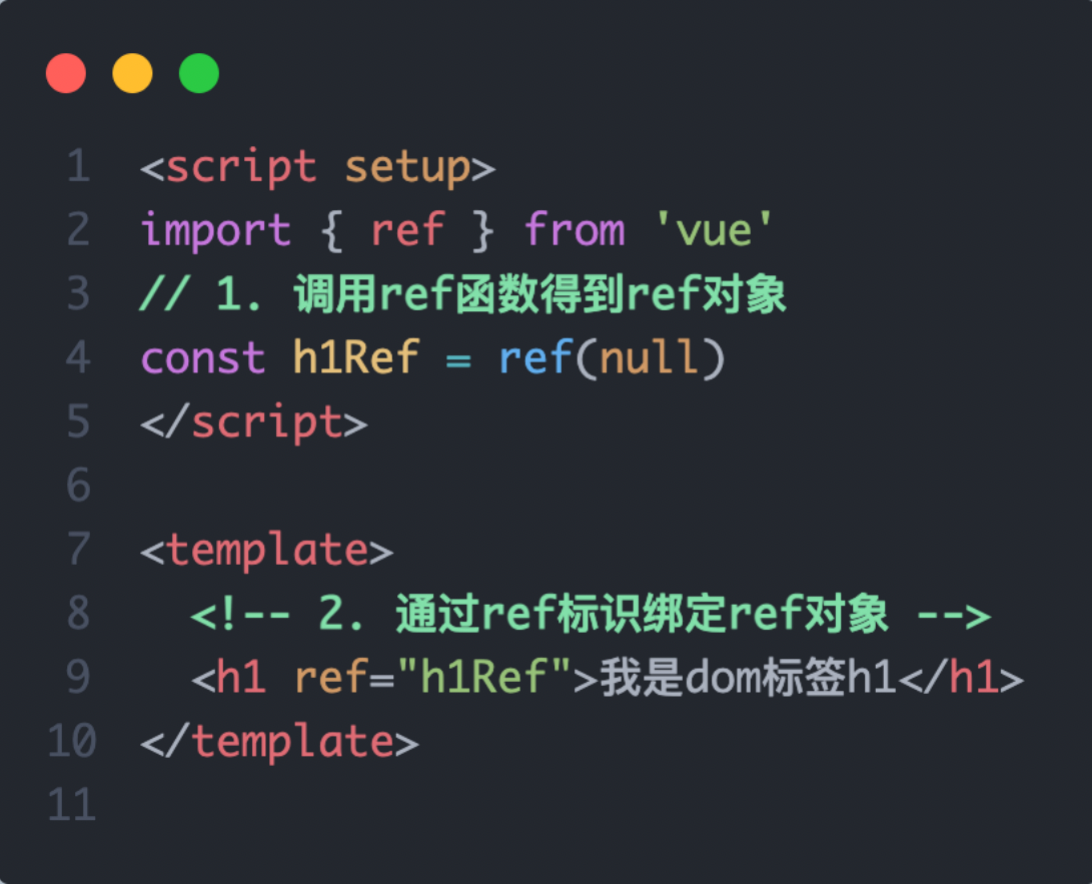
实现步骤:
调用ref函数生成一个ref对象
通过ref标识绑定ref对象到标签
之后这个dom就被绑定到h1Ref对象身上了,同理也可以得到组件实例对象
2. defineExpose
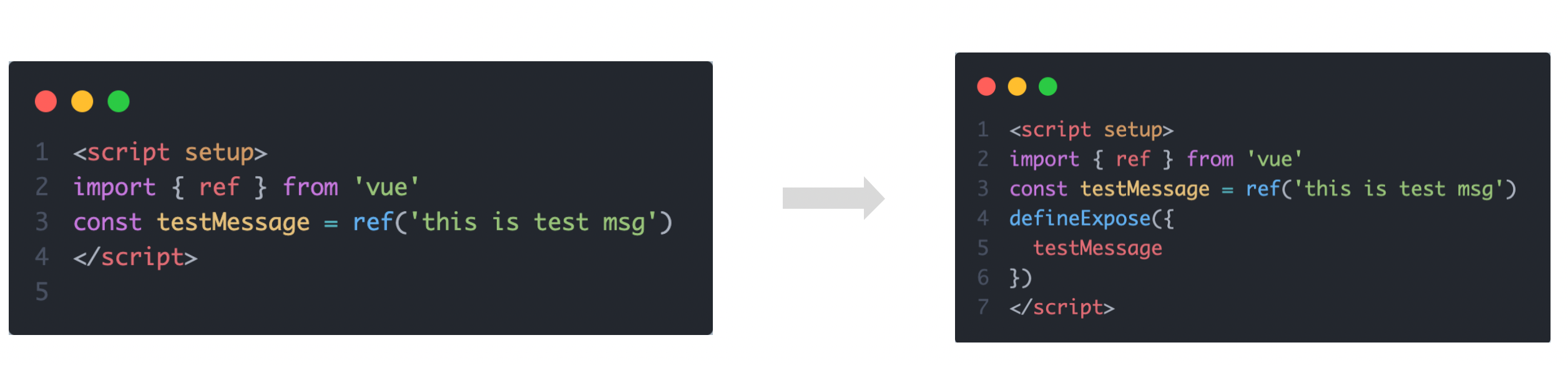
默认情况下在 <script setup>语法糖下组件内部的属性和方法是不开放给父组件 (也就是说这个defineExpose是写在子组件里面的)访问的,可以通过defineExpose编译宏指定哪些属性和方法容许访问
说明:下面的代码将子组件里面的testMessage属性暴露出来,使之可以被父组件访问到
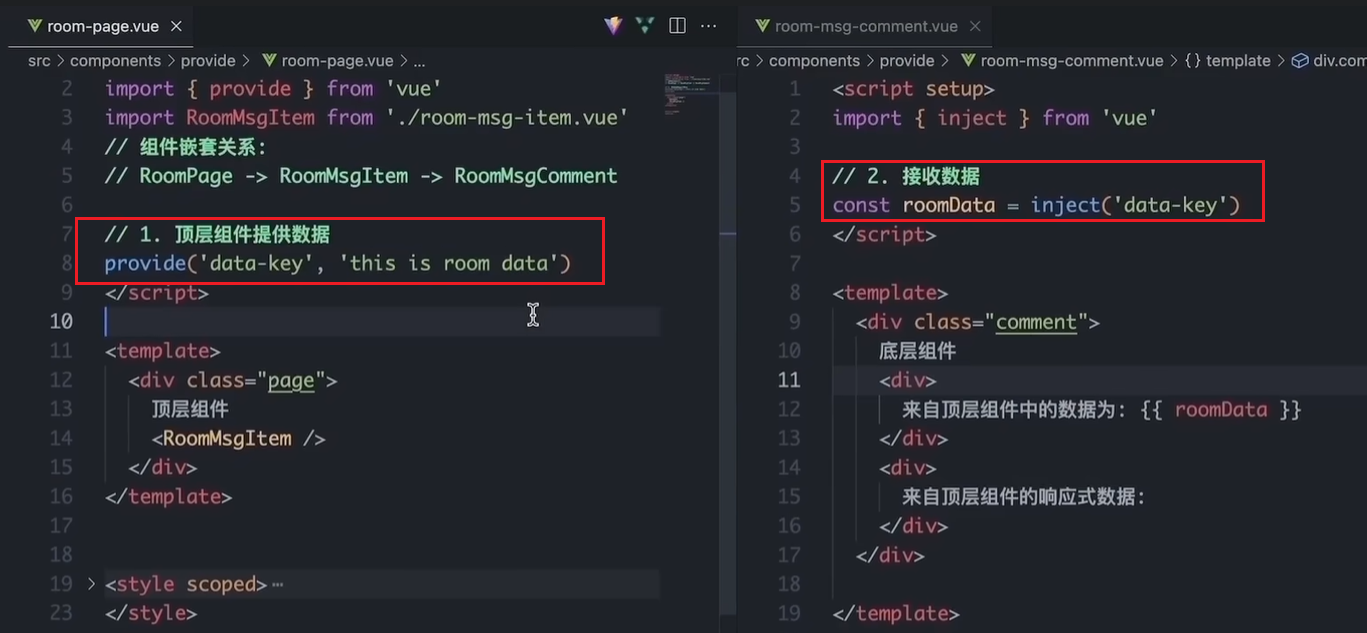
组合式API - provide和inject 1. 作用和场景
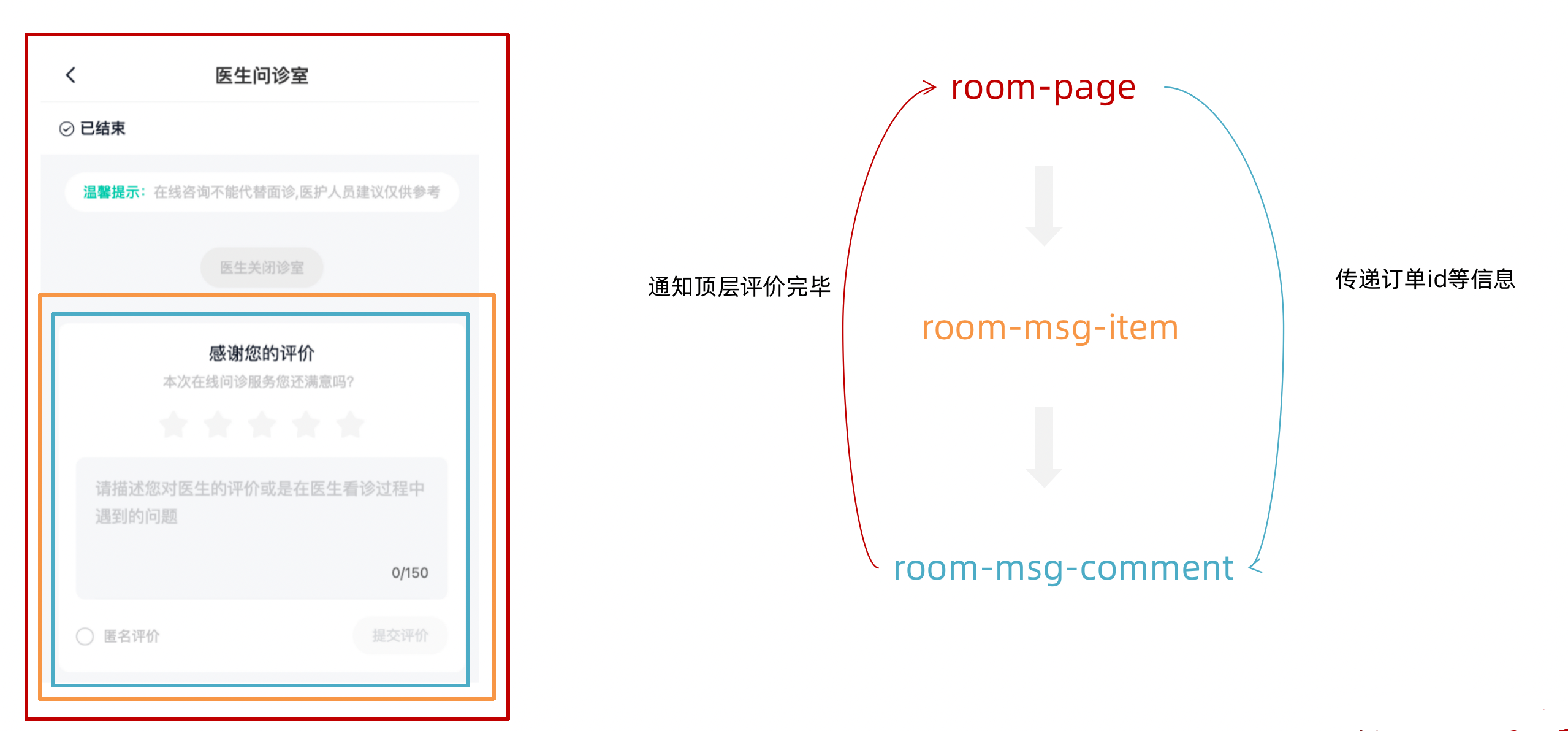
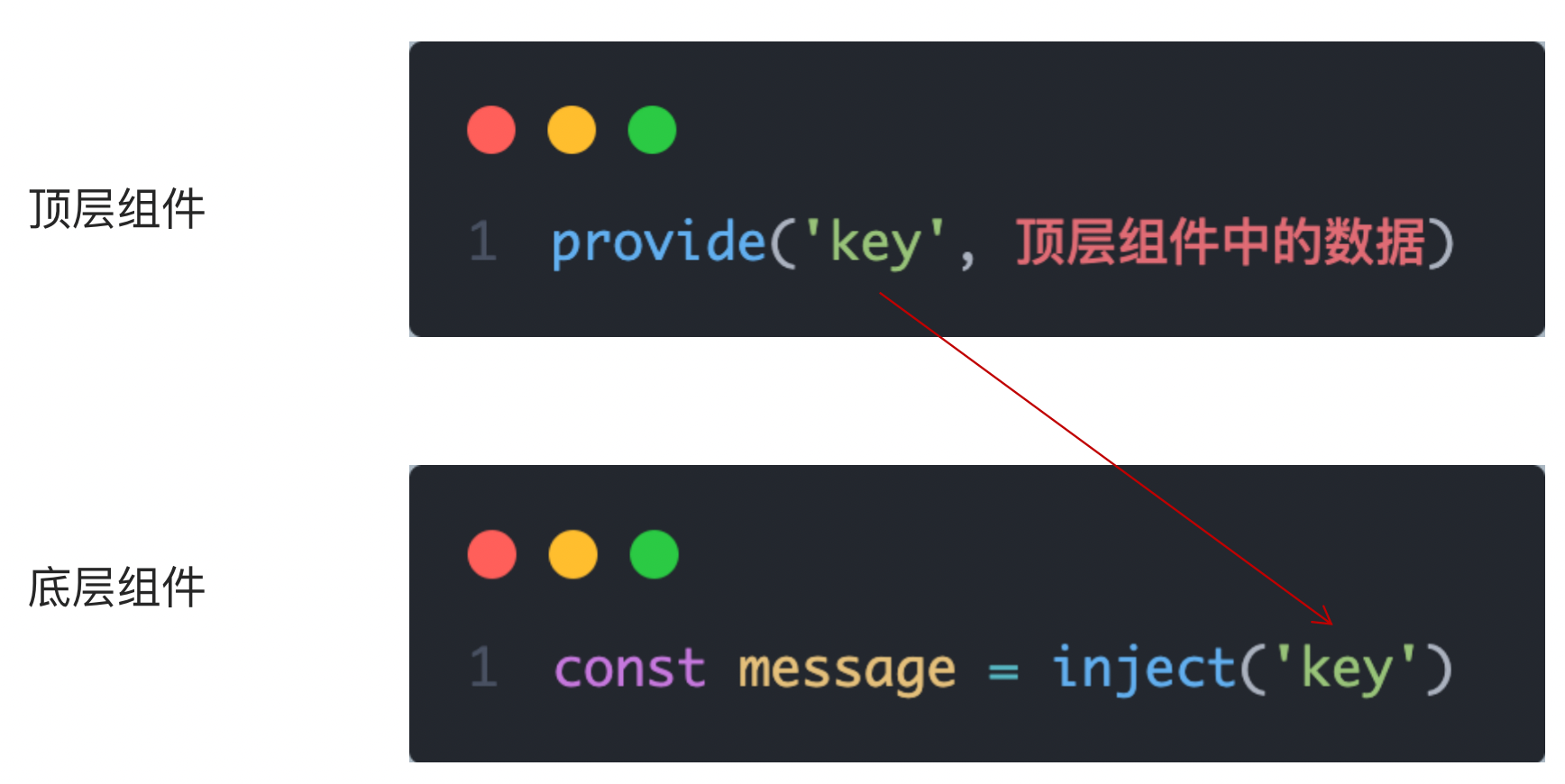
顶层组件向任意的底层组件传递数据和方法,实现跨层组件通信
2. 跨层传递普通数据
实现步骤
顶层组件通过 provide 函数提供数据
底层组件通过 inject 函数提供数据
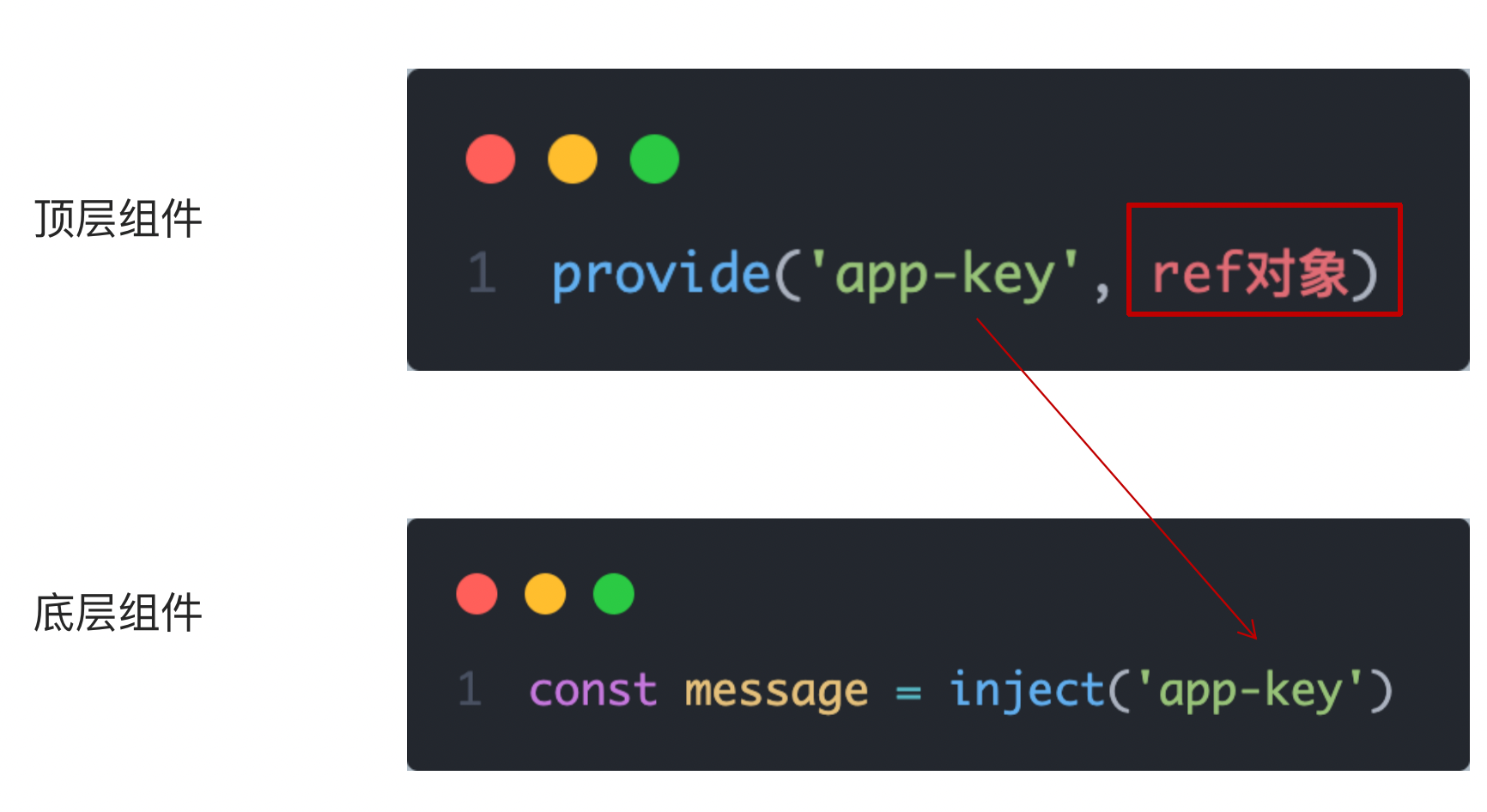
3. 跨层传递响应式数据
在调用provide函数时,第二个参数设置为ref对象
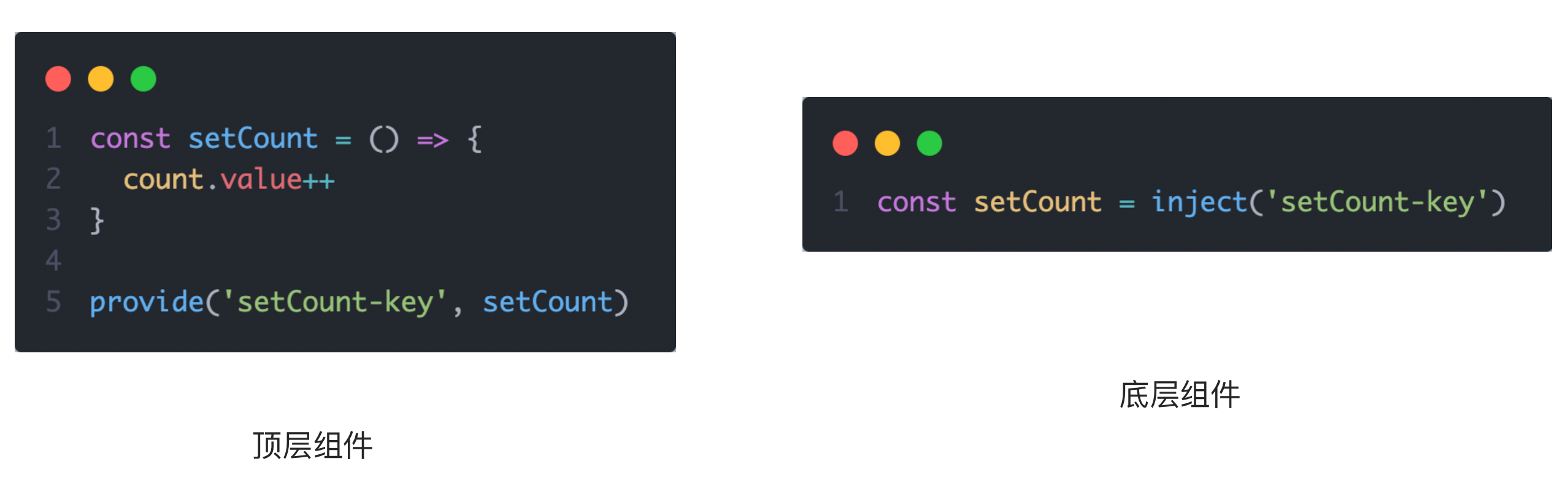
4. 跨层传递方法
顶层组件可以向底层组件传递方法,底层组件调用方法修改顶层组件的数据
Pinia入门 什么是pinia Pinia 是 Vue 的专属状态管理库,可以实现跨组件或页面共享状态,是 vuex 状态管理工具的替代品,和 Vuex相比,具备以下优势
提供更加简单的API (去掉了 mutation )
提供符合组合式API风格的API (和 Vue3 新语法统一)
去掉了modules的概念,每一个store都是一个独立的模块
搭配 TypeScript 一起使用提供可靠的类型推断
创建空Vue项目并安装Pinia 1. 创建空Vue项目 2. 安装Pinia并注册 import { createPinia } from 'pinia' const app = createApp (App )app.use (createPinia ()) app.use (router) app.mount ('#app' )
实现counter
核心步骤:
定义store
组件使用store
1- 定义store
@/stores/counter.js
import { defineStore } from 'pinia' import { ref } from 'vue' export const useCounterStore = defineStore ('counter' , ()=> { const count = ref (0 ) const increment = ( count.value ++ } return { count, increment } })
2- 组件使用store
<script setup>
  // 1. 导入use方法
  import { useCounterStore } from '@/stores/counter'
  // 2. 执行方法得到store, store里有数据和方法
  const counterStore = useCounterStore()
</script>

<template>
	<button @click="counterStore.increment">
    {{ counterStore.count }}
  </button>
</template>
实现getters
getters直接使用计算属性即可实现
const count = ref (0 )const doubleCount = computed (() => count.value * 2 )
异步action
思想:action函数既支持同步也支持异步,和在组件中发送网络请求写法保持一致
store中定义action
组件中触发action
1- store中定义action
const API_URL = 'http://geek.itheima.net/v1_0/channels' export const useCounterStore = defineStore ('counter' , ()=> { const list = ref ([]) const loadList = async ( const res = await axios.get (API_URL ) list.value = res.data .data .channels } return { list, loadList } })
2- 组件中调用action
<script setup>
	import { useCounterStore } from '@/stores/counter'
  const counterStore = useCounterStore()
  // 调用异步action
  counterStore.loadList()
</script>

<template>
	<ul>
    <li v-for="item in counterStore.list" :key="item.id">{{ item.name }}</li>
  </ul>
</template>
storeToRefs保持响应式解构
直接基于store进行解构赋值,响应式数据(state和getter)会丢失响应式特性。
但是我们还是想用解构赋值,那么我们就可以使用storeToRefs辅助保持响应式
<script setup>
  import { storeToRefs } from 'pinia'
  import { useCounterStore } from '@/stores/counter'
  const counterStore = useCounterStore()
  // 使用它storeToRefs包裹之后解构保持响应式,
  // 注意,这里只能解构赋值数据,不管是对象类型还是基本数据类型都可以,但是不能解构赋值方法
  const { count } = storeToRefs(counterStore)
  // 如果想要解构赋值方法,使用这种方法解构就好啦
  const { increment } = counterStore

</script>

<template>
	<button @click="increment">
    {{ count }}
  </button>
</template>
项目起步 创建项目并整理目录
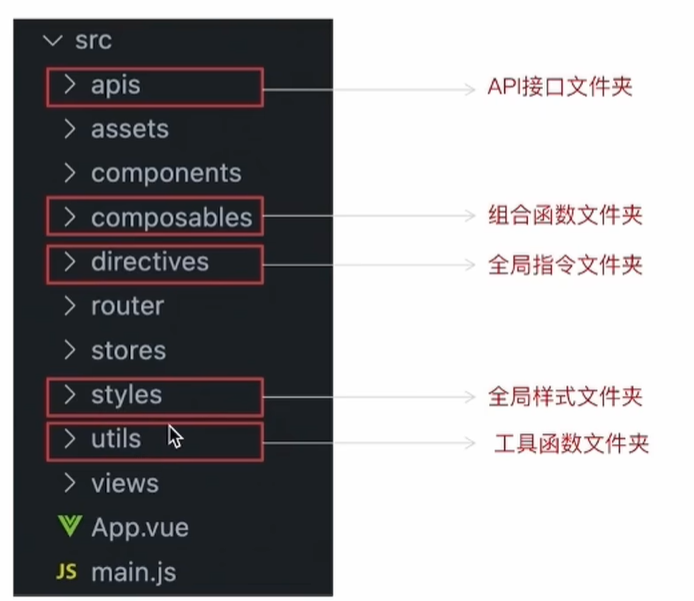
src目录调整
jsconfig.json配置别名路径
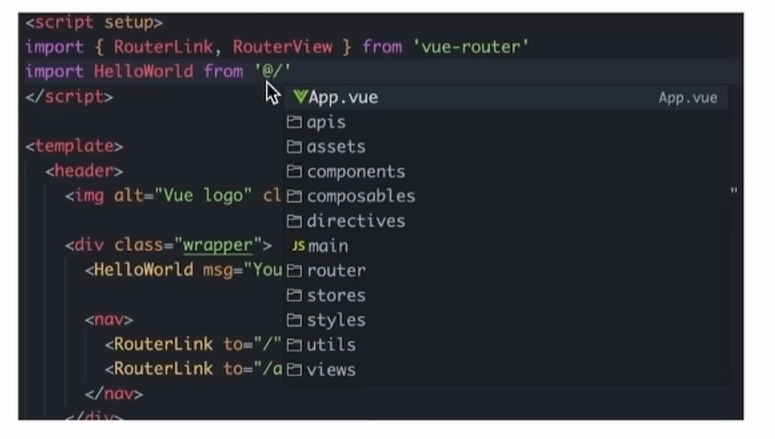
配置别名路径可以在写代码时联想提示路径,也就是说,在编写代码的过程中,一旦输入@/,VSCode会立刻联想出src下的所有子目录和文件,统一文件路径访问不容易出错
不过我下载了插件,这个就不用配置了
那么如何进行配置呢?
在项目的根目录下新增jsconfig.json文件
添加json格式的配置项,如下:
{ "compilerOptions" : { "baseUrl" : "./" , "paths" : { "@/*" : [ "src/*" ] } } }
elementPlus引入 1. 安装elementPlus和自动导入插件 npm install element-plus --save npm install -D unplugin-vue-components unplugin-auto-import
2. 配置自动按需导入 import { defineConfig } from 'vite' import AutoImport from 'unplugin-auto-import/vite' import Components from 'unplugin-vue-components/vite' import { ElementPlusResolver } from 'unplugin-vue-components/resolvers' export default defineConfig ({ plugins : [ AutoImport ({ resolvers : [ElementPlusResolver ()], }), Components ({ resolvers : [ElementPlusResolver ()], }), ], })
3. 测试组件 <template> <el-button type="primary">i am button</el-button> </template>
定制elementPlus主题 1. 安装sass
基于vite的项目默认不支持css预处理器,需要开发者单独安装
2. 准备定制化的样式文件 styles/element/index.scss
@forward 'element-plus/theme-chalk/src/common/var.scss' with ( $colors : ( 'primary' : ( 'base' : #27ba9b, ), 'success' : ( 'base' : #1dc779, ), 'warning' : ( 'base' : #ffb302, ), 'danger' : ( 'base' : #e26237, ), 'error' : ( 'base' : #cf4444, ), ) )
3. 自动导入配置
这里自动导入需要深入到elementPlus的组件中,按照官方的配置文档来
自动导入定制化样式文件进行样式覆盖
按需定制主题配置 (需要安装 unplugin-element-plus)
vite.config.js
import { fileURLToPath, URL } from "node:url" ;import { defineConfig } from "vite" ;import vue from "@vitejs/plugin-vue" ;import AutoImport from "unplugin-auto-import/vite" ;import Components from "unplugin-vue-components/vite" ;import { ElementPlusResolver } from "unplugin-vue-components/resolvers" ;export default defineConfig ({ plugins : [ vue (), AutoImport ({ resolvers : [ElementPlusResolver ()], }), Components ({ resolvers : [ElementPlusResolver ({ importStyle : "sass" })], }), ], resolve : { alias : { "@" : fileURLToPath (new URL ("./src" , import .meta .url )), }, }, css : { preprocessorOptions : { scss : { additionalData : ` @use "@/styles/element/index.scss" as *; ` , }, }, }, });
axios安装并简单封装 1. 安装axios 2. 基础配置
官方文档地址:https://axios-http.com/zh/docs/intro
实例化 - baseURL + timeout
拦截器 - 携带token 401拦截等
utils/http.js
import axios from 'axios' const httpInstance = axios.create ({ baseURL : 'http://pcapi-xiaotuxian-front-devtest.itheima.net' , timeout : 5000 }) httpInstance.interceptors .request .use (config => return config }, e =>Promise .reject (e)) httpInstance.interceptors .response .use (res =>data , e => return Promise .reject (e) }) export default httpInstance
3. 封装请求函数 apis/testAPI.js
import httpInstance from '@/utils/http' export function getCategoryAPI () { return httpInstance ({ url : 'home/category/head' }) }
4.进行测试 测试在哪进行都可以
import { getCategoryAPI } from "@/apis/testAPI.js" ;getCategoryAPI ().then ((res ) => { console .log (res); });
添加不在强制组件重命名的配置 这个是对eslint的配置
.eslintrc.cjs
module .exports = { root : true , 'extends' : [ 'plugin:vue/vue3-essential' , 'eslint:recommended' ], parserOptions : { ecmaVersion : 'latest' }, rules :{ 'vue/multi-word-component-names' :0 , } }
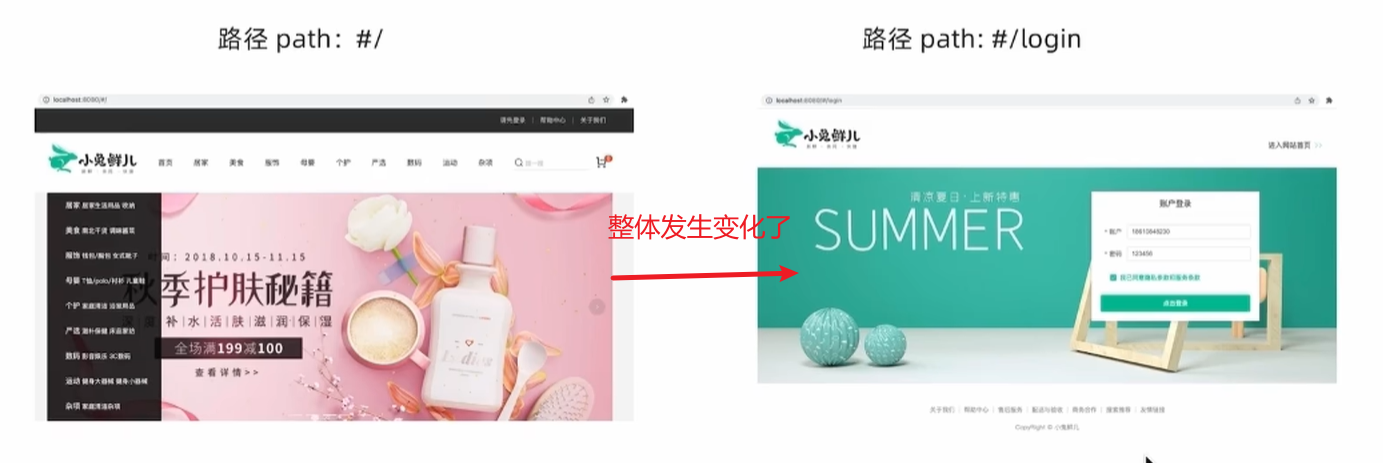
路由整体设计 路由设计原则:找页面的切换方式,如果是整体切换 ,则为一级路由,如果是在一级路由的内部进行的内容切换,则为二级路由
view/Login/index.vue
<template > 我是Login </template >
views/Layout/index.vue
<template > 我是Layout </template >
二级路由:如果是在一级路由的内部进行的内容切换,则为二级路由
views/Home/index.vue
<template > 我是home </template >
views/Category/index.vue
<template > 我是Category </template >
router/index.js
import { createRouter, createWebHistory } from "vue-router" ;import Login from "@/views/Login/index.vue" ;import Layout from "@/views/Layout/index.vue" ;import Home from "@/views/Home/index.vue" ;import Category from "@/views/Category/index.vue" ;const router = createRouter ({ history : createWebHistory (import .meta .env .BASE_URL ), routes : [ { path : "/" , component : Layout , children : [ { path : "" , component : Home , }, { path : "category" , component : Category , }, ], }, { path : "/login" , component : Login , }, ], }); export default router;
添加一级路由出口
App.vue
<script setup></script>
<template>
  <!-- 添加一级路由出口 -->
  <router-view></router-view>
</template>

<style scoped></style>
添加二级路由出口
view/Layout/index.vue
<template>
  <div>我是layout</div>
  <!-- 添加二级路由出口 -->
  <router-view />
</template>

<script>
export default {};
</script>

<style></style>
静态资源引入和Error Lens安装 1. 静态资源引入
图片资源 - 把 images 文件夹放到 assets 目录下
样式资源 - 把 common.scss 文件放到 styles 目录下,然后在main.js中引入
2. Error Lens插件安装 error lens是一个试试提供错误警告信息的VSCode插件,方便开发
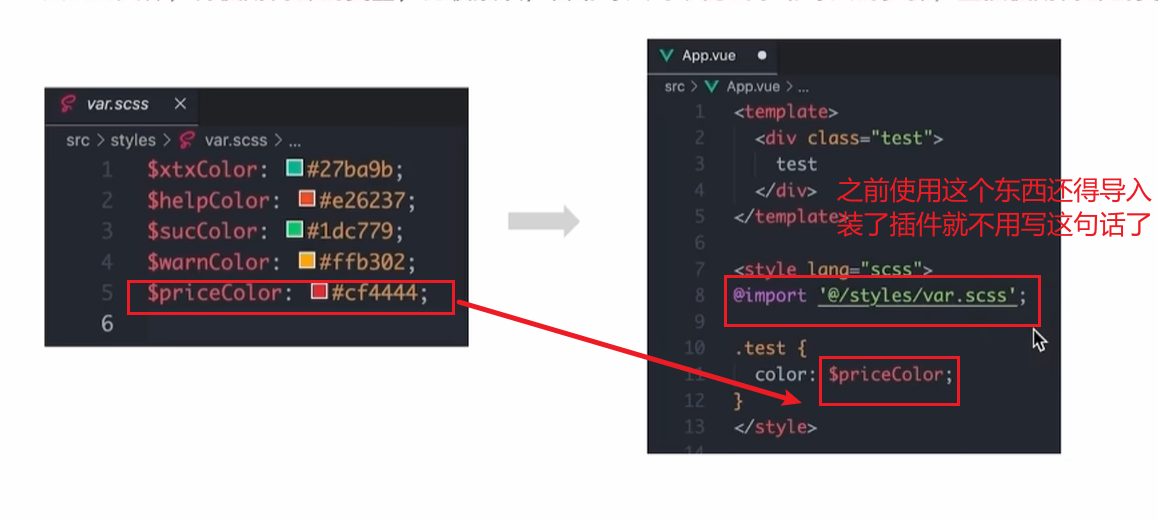
scss变量自动导入 为什么要自动导入?
在项目里一些组件共享的色值会以scss变量的方式统一放到一个名叫var.scss的文件中,正常组件中使用这些变量的时候,需要先导入var.scss文件。再使用内部的变量,比较繁琐,自动导入可以免去手动导入的步骤,直接使用内部的变量
styles/var.scss
$xtxColor: #27ba9b ; $helpColor: #e26237 ; $sucColor: #1dc779 ; $warnColor: #ffb302 ; $priceColor: #cf4444 ;
vite.config.js
css: { preprocessorOptions: { scss: { additionalData: ` @use "@/styles/element/index.scss" as *; @use "@/styles/var.scss" as *; `, } } }
测试:
<template>
  <div class="test">我是layout</div>
  <!-- 添加二级路由出口 -->
  <router-view />
</template>

<script>
export default {};
</script>

<!-- 这里注意要加lang -->
<style scoped lang="scss">
.test {
  // 直接在这里使用就可以了
  color: $priceColor;
}
</style>
Layout页
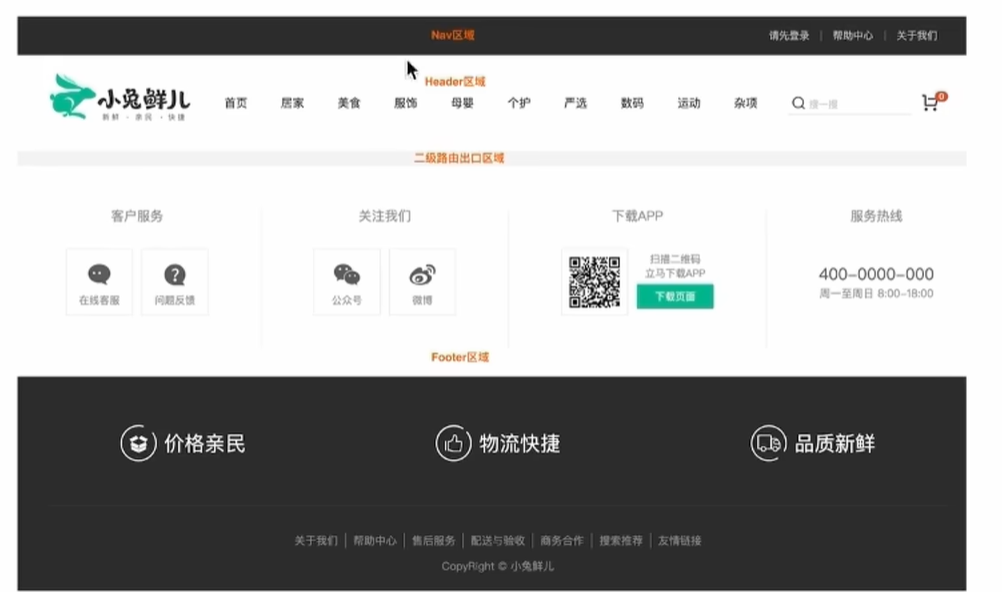
组件结构快速搭建 view/Latout/components/LayoutNav.vue
<script setup>

</script>

<template>
  <nav class="app-topnav">
    <div class="container">
      <ul>
        <template v-if="true">
          <li><a href="javascript:;"><i class="iconfont icon-user"></i>周杰伦</a></li>
          <li>
            <el-popconfirm title="确认退出吗?" confirm-button-text="确认" cancel-button-text="取消">
              <template #reference>
                <a href="javascript:;">退出登录</a>
              </template>
            </el-popconfirm>
          </li>
          <li><a href="javascript:;">我的订单</a></li>
          <li><a href="javascript:;">会员中心</a></li>
        </template>
        <template v-else>
          <li><a href="javascript:;">请先登录</a></li>
          <li><a href="javascript:;">帮助中心</a></li>
          <li><a href="javascript:;">关于我们</a></li>
        </template>
      </ul>
    </div>
  </nav>
</template>


<style scoped lang="scss">
.app-topnav {
  background: #333;
  ul {
    display: flex;
    height: 53px;
    justify-content: flex-end;
    align-items: center;
    li {
      a {
        padding: 0 15px;
        color: #cdcdcd;
        line-height: 1;
        display: inline-block;

        i {
          font-size: 14px;
          margin-right: 2px;
        }

        &:hover {
          color: $xtxColor;
        }
      }

      ~li {
        a {
          border-left: 2px solid #666;
        }
      }
    }
  }
}
</style>
view/Latout/components/LayoutHeader.vue
<script setup>

</script>

<template>
  <header class='app-header'>
    <div class="container">
      <h1 class="logo">
        <RouterLink to="/">小兔鲜</RouterLink>
      </h1>
      <ul class="app-header-nav">
        <li class="home">
          <RouterLink to="/">首页</RouterLink>
        </li>
        <li> <RouterLink to="/">居家</RouterLink> </li>
        <li> <RouterLink to="/">美食</RouterLink> </li>
        <li> <RouterLink to="/">服饰</RouterLink> </li>
      </ul>
      <div class="search">
        <i class="iconfont icon-search"></i>
        <input type="text" placeholder="搜一搜">
      </div>
      <!-- 头部购物车 -->

    </div>
  </header>
</template>


<style scoped lang='scss'>
.app-header {
  background: #fff;

  .container {
    display: flex;
    align-items: center;
  }

  .logo {
    width: 200px;

    a {
      display: block;
      height: 132px;
      width: 100%;
      text-indent: -9999px;
      background: url('@/assets/images/logo.png') no-repeat center 18px / contain;
    }
  }

  .app-header-nav {
    width: 820px;
    display: flex;
    padding-left: 40px;
    position: relative;
    z-index: 998;

    li {
      margin-right: 40px;
      width: 38px;
      text-align: center;

      a {
        font-size: 16px;
        line-height: 32px;
        height: 32px;
        display: inline-block;

        &:hover {
          color: $xtxColor;
          border-bottom: 1px solid $xtxColor;
        }
      }

      .active {
        color: $xtxColor;
        border-bottom: 1px solid $xtxColor;
      }
    }
  }

  .search {
    width: 170px;
    height: 32px;
    position: relative;
    border-bottom: 1px solid #e7e7e7;
    line-height: 32px;

    .icon-search {
      font-size: 18px;
      margin-left: 5px;
    }

    input {
      width: 140px;
      padding-left: 5px;
      color: #666;
    }
  }

  .cart {
    width: 50px;

    .curr {
      height: 32px;
      line-height: 32px;
      text-align: center;
      position: relative;
      display: block;

      .icon-cart {
        font-size: 22px;
      }

      em {
        font-style: normal;
        position: absolute;
        right: 0;
        top: 0;
        padding: 1px 6px;
        line-height: 1;
        background: $helpColor;
        color: #fff;
        font-size: 12px;
        border-radius: 10px;
        font-family: Arial;
      }
    }
  }
}
</style>
view/Latout/components/LayoutFooter.vue
<template>
  <footer class="app_footer">
    <!-- 联系我们 -->
    <div class="contact">
      <div class="container">
        <dl>
          <dt>客户服务</dt>
          <dd><i class="iconfont icon-kefu"></i> 在线客服</dd>
          <dd><i class="iconfont icon-question"></i> 问题反馈</dd>
        </dl>
        <dl>
          <dt>关注我们</dt>
          <dd><i class="iconfont icon-weixin"></i> 公众号</dd>
          <dd><i class="iconfont icon-weibo"></i> 微博</dd>
        </dl>
        <dl>
          <dt>下载APP</dt>
          <dd class="qrcode"><img src="@/assets/images/qrcode.jpg" /></dd>
          <dd class="download">
            <span>扫描二维码</span>
            <span>立马下载APP</span>
            <a href="javascript:;">下载页面</a>
          </dd>
        </dl>
        <dl>
          <dt>服务热线</dt>
          <dd class="hotline">400-0000-000 <small>周一至周日 8:00-18:00</small></dd>
        </dl>
      </div>
    </div>
    <!-- 其它 -->
    <div class="extra">
      <div class="container">
        <div class="slogan">
          <a href="javascript:;">
            <i class="iconfont icon-footer01"></i>
            <span>价格亲民</span>
          </a>
          <a href="javascript:;">
            <i class="iconfont icon-footer02"></i>
            <span>物流快捷</span>
          </a>
          <a href="javascript:;">
            <i class="iconfont icon-footer03"></i>
            <span>品质新鲜</span>
          </a>
        </div>
        <!-- 版权信息 -->
        <div class="copyright">
          <p>
            <a href="javascript:;">关于我们</a>
            <a href="javascript:;">帮助中心</a>
            <a href="javascript:;">售后服务</a>
            <a href="javascript:;">配送与验收</a>
            <a href="javascript:;">商务合作</a>
            <a href="javascript:;">搜索推荐</a>
            <a href="javascript:;">友情链接</a>
          </p>
          <p>CopyRight © 小兔鲜儿</p>
        </div>
      </div>
    </div>
  </footer>
</template>

<style scoped lang='scss'>
.app_footer {
  overflow: hidden;
  background-color: #f5f5f5;
  padding-top: 20px;

  .contact {
    background: #fff;

    .container {
      padding: 60px 0 40px 25px;
      display: flex;
    }

    dl {
      height: 190px;
      text-align: center;
      padding: 0 72px;
      border-right: 1px solid #f2f2f2;
      color: #999;

      &:first-child {
        padding-left: 0;
      }

      &:last-child {
        border-right: none;
        padding-right: 0;
      }
    }

    dt {
      line-height: 1;
      font-size: 18px;
    }

    dd {
      margin: 36px 12px 0 0;
      float: left;
      width: 92px;
      height: 92px;
      padding-top: 10px;
      border: 1px solid #ededed;

      .iconfont {
        font-size: 36px;
        display: block;
        color: #666;
      }

      &:hover {
        .iconfont {
          color: $xtxColor;
        }
      }

      &:last-child {
        margin-right: 0;
      }
    }

    .qrcode {
      width: 92px;
      height: 92px;
      padding: 7px;
      border: 1px solid #ededed;
    }

    .download {
      padding-top: 5px;
      font-size: 14px;
      width: auto;
      height: auto;
      border: none;

      span {
        display: block;
      }

      a {
        display: block;
        line-height: 1;
        padding: 10px 25px;
        margin-top: 5px;
        color: #fff;
        border-radius: 2px;
        background-color: $xtxColor;
      }
    }

    .hotline {
      padding-top: 20px;
      font-size: 22px;
      color: #666;
      width: auto;
      height: auto;
      border: none;

      small {
        display: block;
        font-size: 15px;
        color: #999;
      }
    }
  }

  .extra {
    background-color: #333;
  }

  .slogan {
    height: 178px;
    line-height: 58px;
    padding: 60px 100px;
    border-bottom: 1px solid #434343;
    display: flex;
    justify-content: space-between;

    a {
      height: 58px;
      line-height: 58px;
      color: #fff;
      font-size: 28px;

      i {
        font-size: 50px;
        vertical-align: middle;
        margin-right: 10px;
        font-weight: 100;
      }

      span {
        vertical-align: middle;
        text-shadow: 0 0 1px #333;
      }
    }
  }

  .copyright {
    height: 170px;
    padding-top: 40px;
    text-align: center;
    color: #999;
    font-size: 15px;

    p {
      line-height: 1;
      margin-bottom: 20px;
    }

    a {
      color: #999;
      line-height: 1;
      padding: 0 10px;
      border-right: 1px solid #999;

      &:last-child {
        border-right: none;
      }
    }
  }
}
</style>
view/Latout/index.vue
<script setup>
import LayoutNav from './components/LayoutNav.vue'
import LayoutHeader from './components/LayoutHeader.vue'
import LayoutFooter from './components/LayoutFooter.vue'
</script>

<template>
  <LayoutNav />
  <LayoutHeader />
  <RouterView />
  <LayoutFooter />
</template>
字体图标渲染
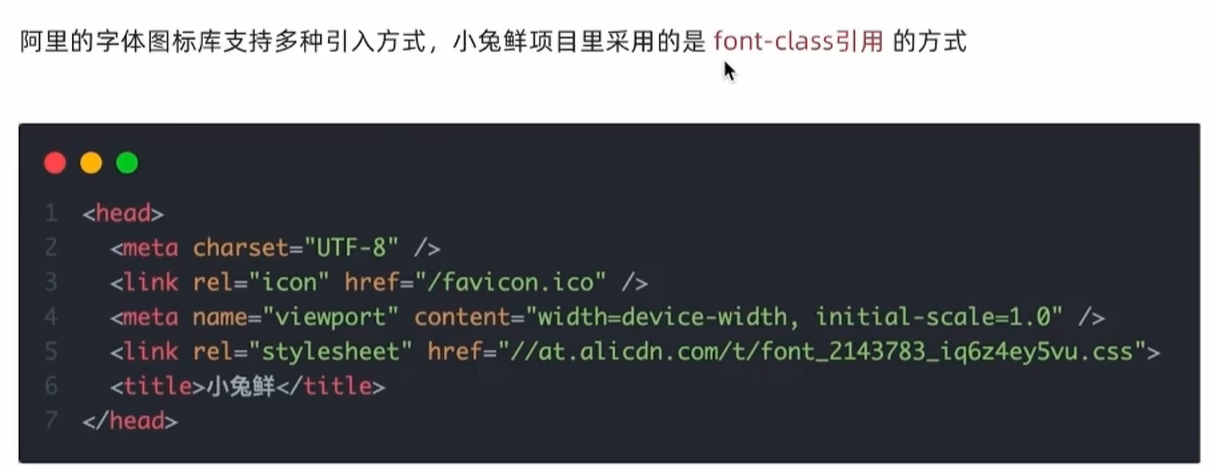
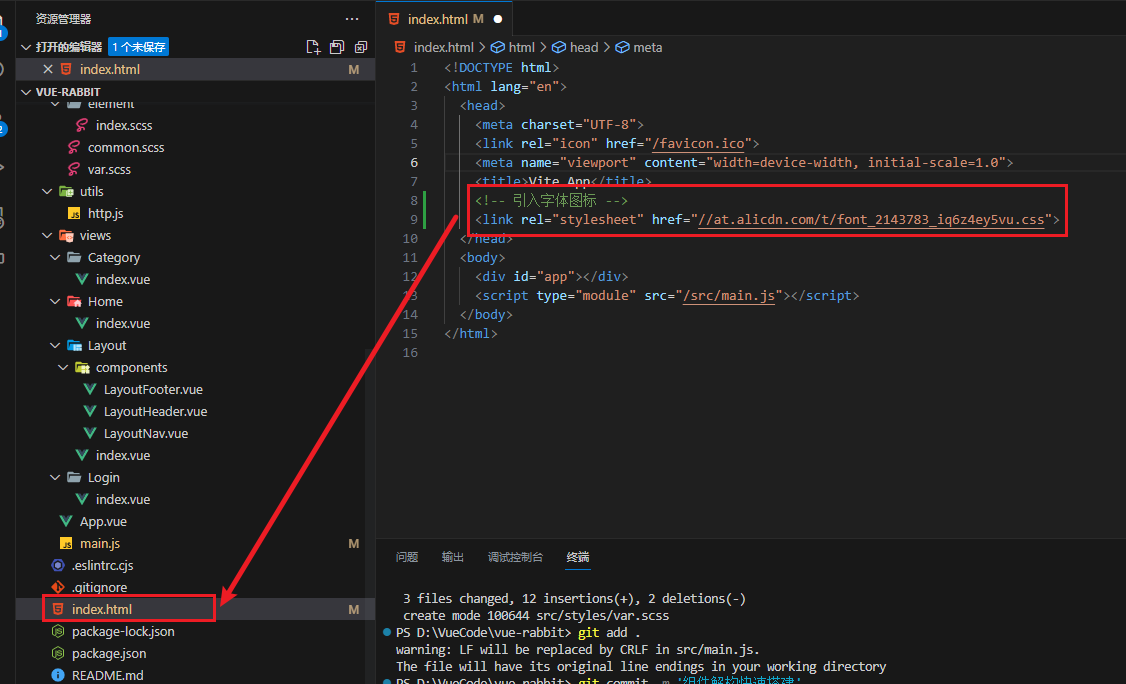
字体图标采用的是阿里的字体图标库,样式文件已经准备好,在 index.html文件中引入即可
<link rel ="stylesheet" href ="//at.alicdn.com/t/font_2143783_iq6z4ey5vu.css" >
效果:
一级导航渲染 要把上面的导航信息根据后端传过来的数据进行渲染
实现步骤
封装接口函数
调用接口函数
v-for渲染模版
代码落地
apis/layout.js
import httpInstance from '@/utils/http' export function getCategoryAPI () { return httpInstance ({ url : '/home/category/head' }) }
views/components/LayoutHeader.vue
<script setup>
// 引入api
import { getCategoryAPI } from "@/apis/layout";
import { onMounted, ref } from "vue";

const categoryList = ref([]);
const getCategory = async () => {
  const res = await getCategoryAPI();
  // 赋值
  categoryList.value = res.result;
};

onMounted(() => getCategory());
</script>

<template>
  <header class="app-header">
    <div class="container">
      <h1 class="logo">
        <RouterLink to="/">小兔鲜</RouterLink>
      </h1>
      <ul class="app-header-nav">
        <!-- 遍历list中的数据,渲染列表 -->
        <li class="home" v-for="item in categoryList" :key="item.id">
          <RouterLink to="/">{{ item.name }}</RouterLink>
        </li>
      </ul>
      <div class="search">
        <i class="iconfont icon-search"></i>
        <input type="text" placeholder="搜一搜" />
      </div>
      <!-- 头部购物车 -->
    </div>
  </header>
</template>
吸顶导航交互实现 需求:浏览器在上下滚动的过程中,如果距离顶部的滚动距离大于78px,吸顶导航就显示,如果小于78px就隐藏
1. 准备组件静态结构 view/Layout/components/LayoutFixed.vue
<script setup>

</script>

<template>
  <div class="app-header-sticky show">
    <div class="container">
      <RouterLink class="logo" to="/" />
      <!-- 导航区域 -->
      <ul class="app-header-nav ">
        <li class="home">
          <RouterLink to="/">首页</RouterLink>
        </li>
        <li>
          <RouterLink to="/">居家</RouterLink>
        </li>
        <li>
          <RouterLink to="/">美食</RouterLink>
        </li>
        <li>
          <RouterLink to="/">服饰</RouterLink>
        </li>
        <li>
          <RouterLink to="/">母婴</RouterLink>
        </li>
        <li>
          <RouterLink to="/">个护</RouterLink>
        </li>
        <li>
          <RouterLink to="/">严选</RouterLink>
        </li>
        <li>
          <RouterLink to="/">数码</RouterLink>
        </li>
        <li>
          <RouterLink to="/">运动</RouterLink>
        </li>
        <li>
          <RouterLink to="/">杂项</RouterLink>
        </li>
      </ul>

      <div class="right">
        <RouterLink to="/">品牌</RouterLink>
        <RouterLink to="/">专题</RouterLink>
      </div>
    </div>
  </div>
</template>


<style scoped lang='scss'>
.app-header-sticky {
  width: 100%;
  height: 80px;
  position: fixed;
  left: 0;
  top: 0;
  z-index: 999;
  background-color: #fff;
  border-bottom: 1px solid #e4e4e4;
  // 此处为关键样式!!!
  // 状态一:往上平移自身高度 + 完全透明
  transform: translateY(-100%);
  opacity: 0;

  // 状态二:移除平移 + 完全不透明
  &.show {
    transition: all 0.3s linear;
    transform: none;
    opacity: 1;
  }

  .container {
    display: flex;
    align-items: center;
  }

  .logo {
    width: 200px;
    height: 80px;
    background: url("@/assets/images/logo.png") no-repeat right 2px;
    background-size: 160px auto;
  }

  .right {
    width: 220px;
    display: flex;
    text-align: center;
    padding-left: 40px;
    border-left: 2px solid $xtxColor;

    a {
      width: 38px;
      margin-right: 40px;
      font-size: 16px;
      line-height: 1;

      &:hover {
        color: $xtxColor;
      }
    }
  }
}

.app-header-nav {
  width: 820px;
  display: flex;
  padding-left: 40px;
  position: relative;
  z-index: 998;

  li {
    margin-right: 40px;
    width: 38px;
    text-align: center;

    a {
      font-size: 16px;
      line-height: 32px;
      height: 32px;
      display: inline-block;

      &:hover {
        color: $xtxColor;
        border-bottom: 1px solid $xtxColor;
      }
    }

    .active {
      color: $xtxColor;
      border-bottom: 1px solid $xtxColor;
    }
  }
}
</style>
然后引入到
2. 获取滚动距离 安装vueuse
npm i @vueuse/core
用vueuse的函数来实现获取滚动的距离
3. 以滚动距离做判断条件控制组件盒子显示隐藏
核心逻辑:根据滚动距离判断当前show类名是否显示,大于78显示,小于78,不显示
view/Layout/components/LayoutFixed.vue
<script setup>
// vueUse
import { useScroll } from '@vueuse/core'
const { y } = useScroll(window)
</script>

<template>
  <!-- 以滚动距离做判断条件控制组件盒子显示隐藏 -->
  <div class="app-header-sticky" :class="{ show: y > 78 }">
    <!-- 省略部分代码 -->
  </div>
</template>
Pinia优化重复请求
store/category.js
import { ref } from 'vue' import { defineStore } from 'pinia' import { getCategoryAPI } from '@/apis/layout' export const useCategoryStore = defineStore ('category' , () => { const categoryList = ref ([]) const getCategory = async ( const res = await getCategoryAPI () categoryList.value = res.result } return { categoryList, getCategory } })
在index页面中调用action初始化数据
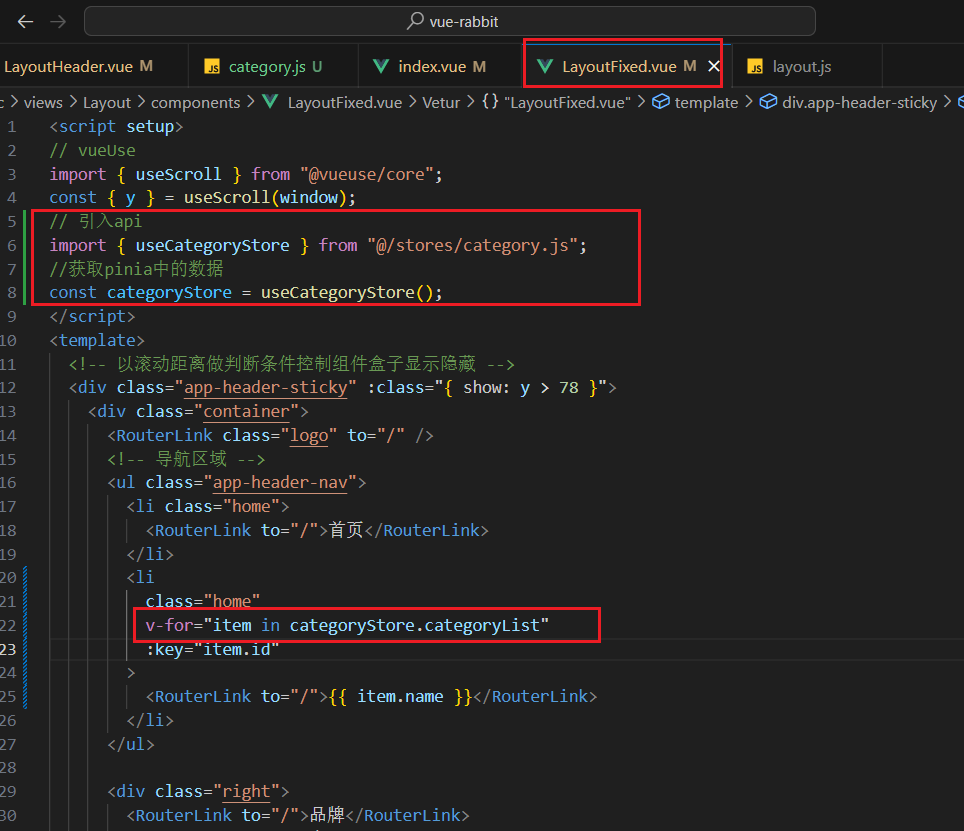
然后就是在两个组件中使用了
另一个组件同理
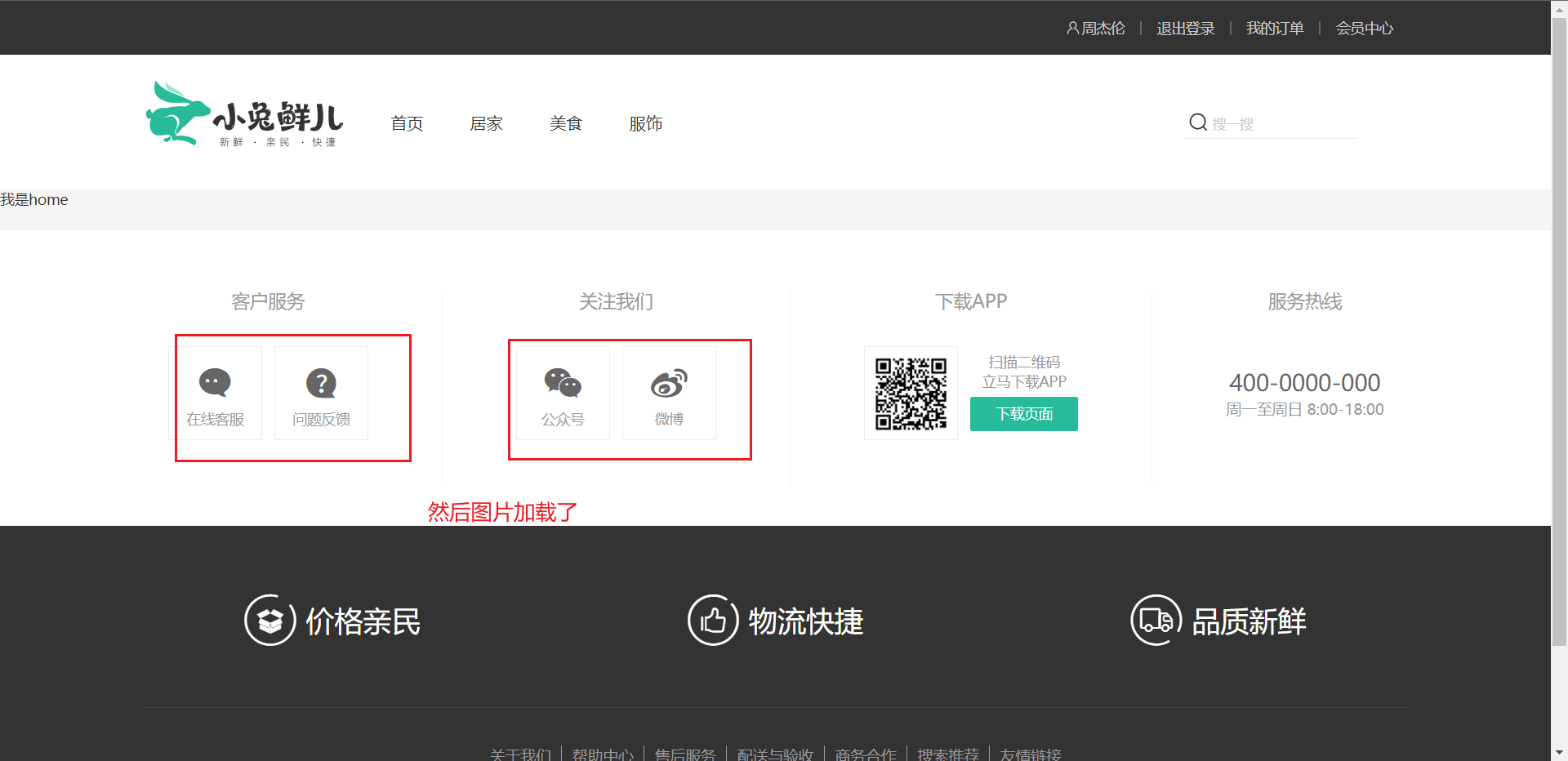
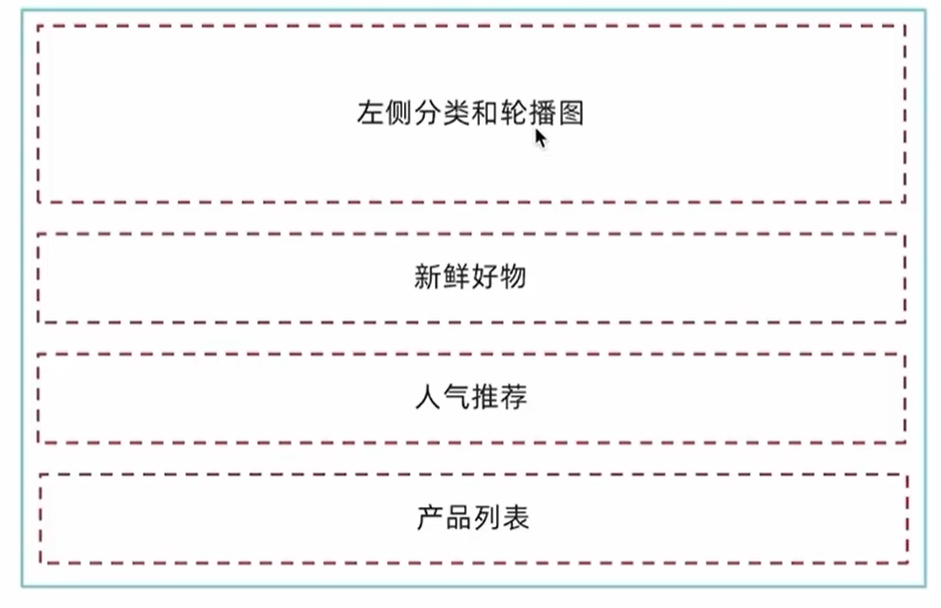
Home页 静态结构搭建和分类实现 1. 整体结构创建
1- 按照结构新增五个组件,准备最简单的模版,分别在Home模块的入口组件中引入
HomeCategory 轮播图左侧分类
HomeBanner 轮播图
HomeNew 新鲜好物
HomeHot 人气推荐
HomeProduct 产品列表
<script setup>
</script>

<template>
  <div> HomeCategory </div>
</template>
剩下的四个省略
2- Home模块入口组件中引入并渲染
views/Home/index.vue
<script setup>
import HomeCategory from './components/HomeCategory.vue'
import HomeBanner from './components/HomeBanner.vue'
import HomeNew from './components/HomeNew.vue'
import HomeHot from './components/HomeHot.vue'
import homeProduct from './components/HomeProduct.vue'
</script>

<template>
  <div class="container">
    <HomeCategory />
    <HomeBanner />
  </div>
  <HomeNew />
  <HomeHot />
  <homeProduct />
</template>
2. 分类实现 1- 准备详细模版
HomeCategory.vue
<script setup>

</script>

<template>
  <div class="home-category">
    <ul class="menu">
      <li v-for="item in 9" :key="item">
        <RouterLink to="/">居家</RouterLink>
        <RouterLink v-for="i in 2" :key="i" to="/">南北干货</RouterLink>
        <!-- 弹层layer位置 -->
        <div class="layer">
          <h4>分类推荐 <small>根据您的购买或浏览记录推荐</small></h4>
          <ul>
            <li v-for="i in 5" :key="i">
              <RouterLink to="/">
                <img alt="" />
                <div class="info">
                  <p class="name ellipsis-2">
                    男士外套
                  </p>
                  <p class="desc ellipsis">男士外套,冬季必选</p>
                  <p class="price"><i>¥</i>200.00</p>
                </div>
              </RouterLink>
            </li>
          </ul>
        </div>
      </li>
    </ul>
  </div>
</template>


<style scoped lang='scss'>
.home-category {
  width: 250px;
  height: 500px;
  background: rgba(0, 0, 0, 0.8);
  position: relative;
  z-index: 99;

  .menu {
    li {
      padding-left: 40px;
      height: 55px;
      line-height: 55px;

      &:hover {
        background: $xtxColor;
      }

      a {
        margin-right: 4px;
        color: #fff;

        &:first-child {
          font-size: 16px;
        }
      }

      .layer {
        width: 990px;
        height: 500px;
        background: rgba(255, 255, 255, 0.8);
        position: absolute;
        left: 250px;
        top: 0;
        display: none;
        padding: 0 15px;

        h4 {
          font-size: 20px;
          font-weight: normal;
          line-height: 80px;

          small {
            font-size: 16px;
            color: #666;
          }
        }

        ul {
          display: flex;
          flex-wrap: wrap;

          li {
            width: 310px;
            height: 120px;
            margin-right: 15px;
            margin-bottom: 15px;
            border: 1px solid #eee;
            border-radius: 4px;
            background: #fff;

            &:nth-child(3n) {
              margin-right: 0;
            }

            a {
              display: flex;
              width: 100%;
              height: 100%;
              align-items: center;
              padding: 10px;

              &:hover {
                background: #e3f9f4;
              }

              img {
                width: 95px;
                height: 95px;
              }

              .info {
                padding-left: 10px;
                line-height: 24px;
                overflow: hidden;

                .name {
                  font-size: 16px;
                  color: #666;
                }

                .desc {
                  color: #999;
                }

                .price {
                  font-size: 22px;
                  color: $priceColor;

                  i {
                    font-size: 16px;
                  }
                }
              }
            }
          }
        }
      }

      // 关键样式  hover状态下的layer盒子变成block
      &:hover {
        .layer {
          display: block;
        }
      }
    }
  }
}
</style>
2- 完成代码
HomeCategory.vue
<script setup>
import { useCategoryStore } from "@/stores/category";

const categoryStore = useCategoryStore();
</script>

<template>
  <div class="home-category">
    <ul class="menu">
      <li v-for="item in categoryStore.categoryList" :key="item.id">
        <!-- 一级标题 -->
        <RouterLink to="/">{{ item.name }}</RouterLink>
        <!-- 二级标题,但是只需要显示两个就可以了 -->
        <RouterLink v-for="i in item.children.slice(0, 2)" :key="i" to="/">{{
          i.name
        }}</RouterLink>
        <!-- 弹层layer位置 -->
        <div class="layer">
          <h4>分类推荐 <small>根据您的购买或浏览记录推荐</small></h4>
          <ul>
            <!-- 遍历goods信息 -->
            <li v-for="i in item.goods" :key="i.id">
              <RouterLink to="/">
                <img :src="i.picture" alt="" />
                <div class="info">
                  <p class="name ellipsis-2">
                    {{ i.name }}
                  </p>
                  <p class="desc ellipsis">{{ i.desc }}</p>
                  <p class="price"><i>¥</i>{{ i.price }}</p>
                </div>
              </RouterLink>
            </li>
          </ul>
        </div>
      </li>
    </ul>
  </div>
</template>
banner轮播图实现 1. 熟悉组件 这里直接使用elment-ui的组件进行完成
src\views\Home\components\HomeBanner.vue
<script setup>

</script>


<template>
  <div class="home-banner">
    <el-carousel height="500px">
      <el-carousel-item v-for="item in 4" :key="item">
        <img src="http://yjy-xiaotuxian-dev.oss-cn-beijing.aliyuncs.com/picture/2021-04-15/6d202d8e-bb47-4f92-9523-f32ab65754f4.jpg" alt="">
      </el-carousel-item>
    </el-carousel>
  </div>
</template>


<style scoped lang='scss'>
.home-banner {
  width: 1240px;
  height: 500px;
  position: absolute;
  left: 0;
  top: 0;
  z-index: 98;

  img {
    width: 100%;
    height: 500px;
  }
}
</style>
2. 获取数据渲染组件 1- 封装接口
src\apis\home.js
import httpInstance from "@/utils/http" ;export function getBannerAPI ( return httpInstance ({ url : "home/banner" , }); }
2- 获取数据渲染模版
src\views\Home\components\HomeBanner.vue
<script setup>
import { getBannerAPI } from '@/apis/home'
import { onMounted, ref } from 'vue'

const bannerList = ref([])

const getBanner = async () => {
  const res = await getBannerAPI()
  console.log(res)
  bannerList.value = res.result
}

onMounted(() => getBanner())

</script>


<template>
  <div class="home-banner">
    <el-carousel height="500px">
      <el-carousel-item v-for="item in bannerList" :key="item.id">
        <img :src="item.imgUrl" alt="">
      </el-carousel-item>
    </el-carousel>
  </div>
</template>
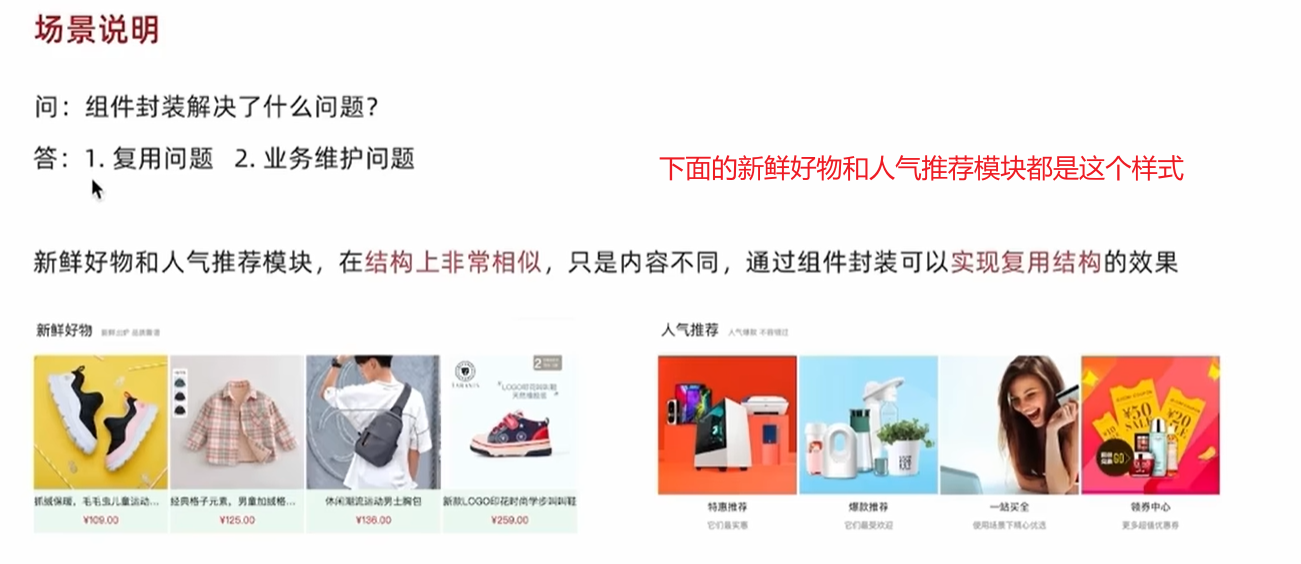
面板组件封装
并且我们把需要改变的部分可以抽象成组件参数(插槽/props)
1. 纯静态结构 HomePanel.vue
<script setup>

</script>


<template>
  <div class="home-panel">
    <div class="container">
      <div class="head">
         <!-- 主标题和副标题 -->
        <h3>
          新鲜好物<small>新鲜出炉 品质靠谱</small>
        </h3>
      </div>
      <!-- 主体内容区域 -->
      <div> 主体内容 </div>
    </div>
  </div>
</template>

<style scoped lang='scss'>
.home-panel {
  background-color: #fff;

  .head {
    padding: 40px 0;
    display: flex;
    align-items: flex-end;

    h3 {
      flex: 1;
      font-size: 32px;
      font-weight: normal;
      margin-left: 6px;
      height: 35px;
      line-height: 35px;

      small {
        font-size: 16px;
        color: #999;
        margin-left: 20px;
      }
    }
  }
}
</style>
2. 完整代码 HomePanel.vue
<script setup>

defineProps({
  title: {
    type: String,
    default: ''
  },
  subTitle: {
    type: String,
    default: ''
  }
})

</script>


<template>
  <div class="home-panel">
    <div class="container">
      <div class="head">
        <!-- 主标题和副标题 -->
        <h3>
          {{ title }}
            <small>{{ subTitle }}</small>
        </h3>
      </div>
      <!-- 主体内容区域 -->
      <slot name="main" />
    </div>
  </div>
</template>


<style scoped lang='scss'>
.home-panel {
  background-color: #fff;

  .head {
    padding: 40px 0;
    display: flex;
    align-items: flex-end;

    h3 {
      flex: 1;
      font-size: 32px;
      font-weight: normal;
      margin-left: 6px;
      height: 35px;
      line-height: 35px;

      small {
        font-size: 16px;
        color: #999;
        margin-left: 20px;
      }
    }
  }
}
</style>
新鲜好物实现 1. 准备模版 src\views\Home\components\HomeNew.vue
<script setup> </script> <template> <div></div> <!-- 下面是插槽主体内容模版 <ul class="goods-list"> <li v-for="item in newList" :key="item.id"> <RouterLink to="/"> <img :src="item.picture" alt="" /> <p class="name">{{ item.name }}</p> <p class="price">¥{{ item.price }}</p> </RouterLink> </li> </ul> --> </template> <style scoped lang='scss'> .goods-list { display: flex; justify-content: space-between; height: 406px; li { width: 306px; height: 406px; background: #f0f9f4; transition: all .5s; &:hover { transform: translate3d(0, -3px, 0); box-shadow: 0 3px 8px rgb(0 0 0 / 20%); } img { width: 306px; height: 306px; } p { font-size: 22px; padding-top: 12px; text-align: center; text-overflow: ellipsis; overflow: hidden; white-space: nowrap; } .price { color: $priceColor; } } } </style>
2. 封装接口 home.js
export const findNewAPI = ( return httpInstance ({ url :'/home/new' }) }
3. 获取数据渲染模版 src\views\Home\components\HomeNew.vue
<script setup> import HomePanel from "./HomePanel.vue"; import { findNewAPI } from "@/apis/home"; import { ref } from "vue"; const newList = ref([]); const getNewList = async () => { const res = await findNewAPI(); newList.value = res.result; }; getNewList(); </script> <template> <HomePanel title="新鲜好物" sub-title="新鲜出炉 品质靠谱"> <template #main> <ul class="goods-list"> <li v-for="item in newList" :key="item.id"> <RouterLink :to="`/detail/${item.id}`"> <img :src="item.picture" alt="" /> <p class="name">{{ item.name }}</p> <p class="price">¥{{ item.price }}</p> </RouterLink> </li> </ul> </template> </HomePanel> </template> <style scoped lang="scss"> .goods-list { display: flex; justify-content: space-between; height: 406px; li { width: 306px; height: 406px; background: #f0f9f4; transition: all 0.5s; &:hover { transform: translate3d(0, -3px, 0); box-shadow: 0 3px 8px rgb(0 0 0 / 20%); } img { width: 306px; height: 306px; } p { font-size: 22px; padding-top: 12px; text-align: center; text-overflow: ellipsis; overflow: hidden; white-space: nowrap; } .price { color: $priceColor; } } } </style>
人气推荐实现 1. 封装接口 src\apis\home.js
export const getHotAPI = ( return httpInstance ('home/hot' , 'get' , {}) }
2. 获取数据渲染模版 src\views\Home\components\HomeHot.vue
<script setup>
import HomePanel from "./HomePanel.vue";
import { getHotAPI } from "@/apis/home";
import { ref } from "vue";
const hotList = ref([]);
const getHotList = async () => {
  const res = await getHotAPI();
  hotList.value = res.result;
};
getHotList();
</script>

<template>
  <HomePanel title="人气推荐" sub-title="人气爆款 不容错过">
    <template #main>
      <ul class="goods-list">
        <li v-for="item in hotList" :key="item.id">
          <RouterLink to="/">
            <img :src="item.picture" alt="" />
            <p class="name">{{ item.title }}</p>
            <p class="desc">{{ item.alt }}</p>
          </RouterLink>
        </li>
      </ul>
    </template>
  </HomePanel>
</template>

<style scoped lang="scss">
.goods-list {
  display: flex;
  justify-content: space-between;
  height: 426px;

  li {
    width: 306px;
    height: 406px;
    transition: all 0.5s;

    &:hover {
      transform: translate3d(0, -3px, 0);
      box-shadow: 0 3px 8px rgb(0 0 0 / 20%);
    }

    img {
      width: 306px;
      height: 306px;
    }

    p {
      font-size: 22px;
      padding-top: 12px;
      text-align: center;
    }

    .desc {
      color: #999;
      font-size: 18px;
    }
  }
}
</style>
懒加载指令实现 1. 封装全局指令 import { useIntersectionObserver } from "@vueuse/core" ;export const lazyPlugin = { install (app ) { app.directive ("img-lazy" , { mounted (el, binding ) { console .log (el, binding.value ); const { stop } = useIntersectionObserver (el, ([{ isIntersecting }] ) => { console .log (isIntersecting); if (isIntersecting) { el.src = binding.value ; stop (); } }); }, }); }, };
2. 注册全局指令 import { lazyPlugin } from "@/directives" ;app.use (lazyPlugin);
3.修改HomeHot <template> <HomePanel title="人气推荐" sub-title="人气爆款 不容错过"> <template #main> <ul class="goods-list"> <li v-for="item in hotList" :key="item.id"> <RouterLink to="/"> <!-- 这里使用了懒加载 --> <img :src="item.picture" alt="" /> <p class="name">{{ item.title }}</p> <p class="desc">{{ item.alt }}</p> </RouterLink> </li> </ul> </template> </HomePanel> </template>
Product产品列表实现 1. 基础数据渲染 1- 准备静态模版
HomeProduct.vue
<script setup> import HomePanel from './HomePanel.vue' </script> <template> <div class="home-product"> <!-- <HomePanel :title="cate.name" v-for="cate in goodsProduct" :key="cate.id"> <div class="box"> <RouterLink class="cover" to="/"> <img :src="cate.picture" /> <strong class="label"> <span>{{ cate.name }}馆</span> <span>{{ cate.saleInfo }}</span> </strong> </RouterLink> <ul class="goods-list"> <li v-for="good in cate.goods" :key="good.id"> <RouterLink to="/" class="goods-item"> <img :src="good.picture" alt="" /> <p class="name ellipsis">{{ good.name }}</p> <p class="desc ellipsis">{{ good.desc }}</p> <p class="price">¥{{ good.price }}</p> </RouterLink> </li> </ul> </div> </HomePanel> --> </div> </template> <style scoped lang='scss'> .home-product { background: #fff; margin-top: 20px; .sub { margin-bottom: 2px; a { padding: 2px 12px; font-size: 16px; border-radius: 4px; &:hover { background: $xtxColor; color: #fff; } &:last-child { margin-right: 80px; } } } .box { display: flex; .cover { width: 240px; height: 610px; margin-right: 10px; position: relative; img { width: 100%; height: 100%; } .label { width: 188px; height: 66px; display: flex; font-size: 18px; color: #fff; line-height: 66px; font-weight: normal; position: absolute; left: 0; top: 50%; transform: translate3d(0, -50%, 0); span { text-align: center; &:first-child { width: 76px; background: rgba(0, 0, 0, 0.9); } &:last-child { flex: 1; background: rgba(0, 0, 0, 0.7); } } } } .goods-list { width: 990px; display: flex; flex-wrap: wrap; li { width: 240px; height: 300px; margin-right: 10px; margin-bottom: 10px; &:nth-last-child(-n + 4) { margin-bottom: 0; } &:nth-child(4n) { margin-right: 0; } } } .goods-item { display: block; width: 220px; padding: 20px 30px; text-align: center; transition: all .5s; &:hover { transform: translate3d(0, -3px, 0); box-shadow: 0 3px 8px rgb(0 0 0 / 20%); } img { width: 160px; height: 160px; } p { padding-top: 10px; } .name { font-size: 16px; } .desc { color: #999; height: 29px; } .price { color: $priceColor; font-size: 20px; } } } } </style>
2- 封装接口
src\apis\home.js
export const getGoodsAPI = ( return httpInstance ({ url : '/home/goods' }) }
3- 获取并渲染数据
<script setup> import HomePanel from "./HomePanel.vue"; import { getGoodsAPI } from "@/apis/home"; import { ref, onMounted } from "vue"; const goodsProduct = ref([]); const getGoods = async () => { const { result } = await getGoodsAPI(); goodsProduct.value = result; }; onMounted(() => getGoods()); </script> <template> <div class="home-product"> <HomePanel :title="cate.name" v-for="cate in goodsProduct" :key="cate.id"> <template #main> <div class="box"> <RouterLink class="cover" to="/"> <img :src="cate.picture" /> <strong class="label"> <span>{{ cate.name }}馆</span> <span>{{ cate.saleInfo }}</span> </strong> </RouterLink> <ul class="goods-list"> <li v-for="goods in cate.goods" :key="goods.id"> <RouterLink to="/" class="goods-item"> <img :src="goods.picture" alt="" /> <p class="name ellipsis">{{ goods.name }}</p> <p class="desc ellipsis">{{ goods.desc }}</p> <p class="price">¥{{ goods.price }}</p> </RouterLink> </li> </ul> </div> </template> </HomePanel> </div> </template>
2. 图片懒加载 <div class ="home-product" > <HomePanel :title ="cate.name" v-for ="cate in goodsProduct" :key ="cate.id" > <div class ="box" > <RouterLink class ="cover" to ="/" > <img v-img-lazy ="cate.picture" /> </RouterLink > <ul class ="goods-list" > <li v-for ="goods in cate.goods" :key ="goods.id" > <RouterLink to ="/" class ="goods-item" > <img v-img-lazy ="goods.picture" alt ="" /> </RouterLink > </li > </ul > </div > </HomePanel > </div >
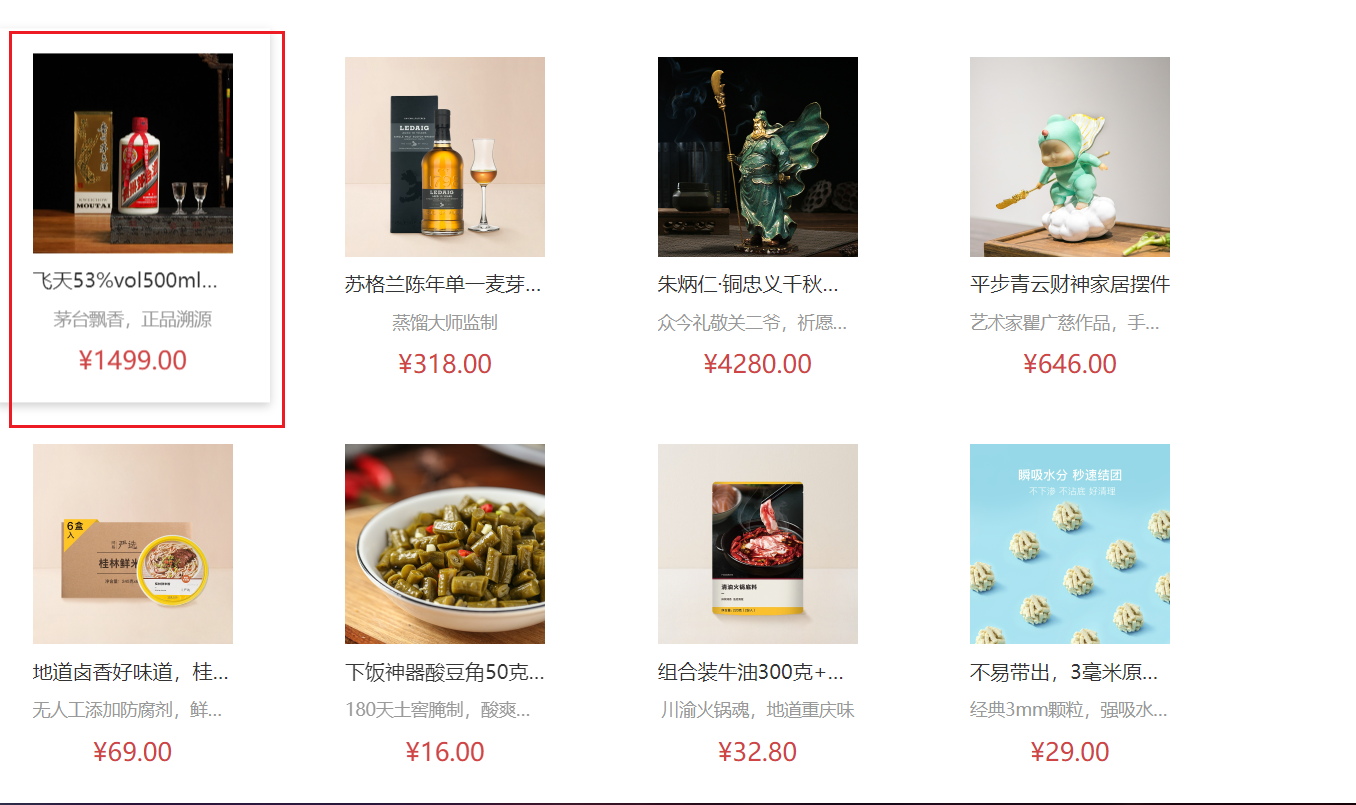
GoodsItem组件封装 由于下面这个组件经常用,所以我们可以给他封装成一个组件
1. 封装组件 src\views\Home\components\GoodsItem.vue
<script setup> defineProps({ goods: { type: Object, default: () => { } } }) </script> <template> <RouterLink to="/" class="goods-item"> <img :src="goods.picture" alt="" /> <p class="name ellipsis">{{ goods.name }}</p> <p class="desc ellipsis">{{ goods.desc }}</p> <p class="price">¥{{ goods.price }}</p> </RouterLink> </template> <style scoped lang="scss"> .goods-item { display: block; width: 220px; padding: 20px 30px; text-align: center; transition: all .5s; &:hover { transform: translate3d(0, -3px, 0); box-shadow: 0 3px 8px rgb(0 0 0 / 20%); } img { width: 160px; height: 160px; } p { padding-top: 10px; } .name { font-size: 16px; } .desc { color: #999; height: 29px; } .price { color: $priceColor; font-size: 20px; } } </style>
2. 使用组件 src\views\Home\components\GoodsItem.vue
下面就不写导入组件了
<ul class="goods-list">
    <li v-for="goods in cate.goods" :key="goods.id">
        <GoodsItem :goods="goods" />
    </li>
</ul>
一级分类页 静态结构搭建和路由配置 1. 准备分类组件 src\views\Category\index.vue
<script setup>

</script>

<template>
  <div class='top-category'>
    我是分类
  </div>
</template>
2. 配置路由 import { createRouter, createWebHistory } from "vue-router" ;import Login from "@/views/Login/index.vue" ;import Layout from "@/views/Layout/index.vue" ;import Home from "@/views/Home/index.vue" ;import Category from "@/views/Category/index.vue" ;const router = createRouter ({ history : createWebHistory (import .meta .env .BASE_URL ), routes : [ { path : "/" , name : "layout" , component : Layout , children : [ { path : "" , name : "home" , component : Home , }, { path : "category/:id" , name : "category" , component : Category , }, ], }, { path : "/login" , name : "login" , component : Login , }, ], }); export default router;
3. 配置导航区域链接 LayoutHeader.vue和LayoutFixed.vue
<li v-for ="item in categoryStore.categoryList" :key ="item.id" > <RouterLink active-class ="active" :to ="`/category/${item.id}`" > {{ item.name }} </RouterLink > </li >
面包屑导航渲染 1. 认识组件准备模版 <script setup> </script> <template> <div class="top-category"> <div class="container m-top-20"> <!-- 面包屑 --> <div class="bread-container"> <el-breadcrumb separator=">"> <el-breadcrumb-item :to="{ path: '/' }">首页</el-breadcrumb-item> <el-breadcrumb-item>居家</el-breadcrumb-item> </el-breadcrumb> </div> </div> </div> </template> <style scoped lang="scss"> .top-category { h3 { font-size: 28px; color: #666; font-weight: normal; text-align: center; line-height: 100px; } .sub-list { margin-top: 20px; background-color: #fff; ul { display: flex; padding: 0 32px; flex-wrap: wrap; li { width: 168px; height: 160px; a { text-align: center; display: block; font-size: 16px; img { width: 100px; height: 100px; } p { line-height: 40px; } &:hover { color: $xtxColor; } } } } } .ref-goods { background-color: #fff; margin-top: 20px; position: relative; .head { .xtx-more { position: absolute; top: 20px; right: 20px; } .tag { text-align: center; color: #999; font-size: 20px; position: relative; top: -20px; } } .body { display: flex; justify-content: space-around; padding: 0 40px 30px; } } .bread-container { padding: 25px 0; } } </style>
2. 封装接口 category.js
import request from "@/utils/http.js" ;export const getTopCategoryAPI = (id ) => { return request ({ url : "/category" , params : { id, }, }); };
3. 渲染面包屑导航 <script setup> import { ref, onMounted } from "vue"; import { useRoute } from "vue-router"; import { getTopCategoryAPI } from "@/apis/category"; const categoryData = ref({}); // 这里可以获取路由的参数,这里还没引入,注意一下 const route = useRoute(); const getCategory = async () => { // 如何在setup中获取路由参数 useRoute() -> route 等价于this.$route const res = await getTopCategoryAPI(route.params.id); categoryData.value = res.result; }; onMounted(() => { console.log("这里是category"); getCategory(); }); </script> <template> <div class="bread-container"> <el-breadcrumb separator=">"> <el-breadcrumb-item :to="{ path: '/' }">首页</el-breadcrumb-item> <el-breadcrumb-item>{{ categoryData.name }}</el-breadcrumb-item> </el-breadcrumb> </div> </template>
分类Banner渲染
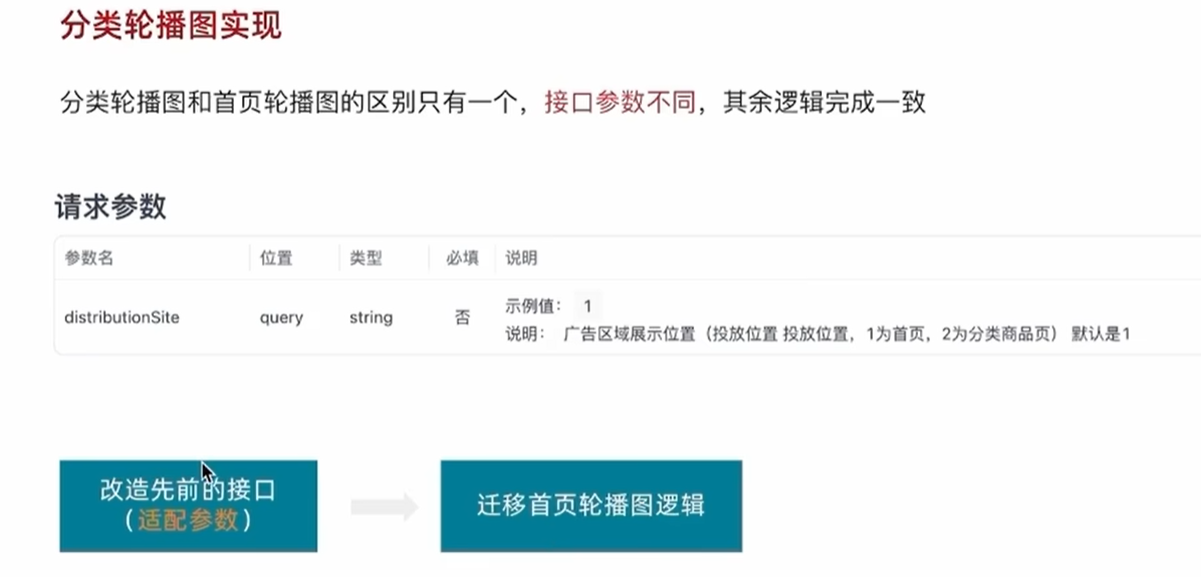
1. 适配接口 apis/home.js
export function getBannerAPI (params = {} ) { const { distributionSite = "1" } = params; return httpInstance ({ url : "/home/banner" , params : { distributionSite, }, }); }
2. 迁移首页Banner逻辑 <script setup> // 部分代码省略 import { getBannerAPI } from '@/apis/home' // 获取banner const bannerList = ref([]) const getBanner = async () => { const res = await getBannerAPI({ distributionSite: '2' }) console.log(res) bannerList.value = res.result } onMounted(() => getBanner()) </script> <template> <div class="top-category"> <div class="container m-top-20"> <!-- 面包屑 --> <div class="bread-container"> <el-breadcrumb separator=">"> <el-breadcrumb-item :to="{ path: '/' }">首页</el-breadcrumb-item> <el-breadcrumb-item>{{ categoryData.name }}</el-breadcrumb-item> </el-breadcrumb> </div> <!-- 轮播图 --> <div class="home-banner"> <el-carousel height="500px"> <el-carousel-item v-for="item in bannerList" :key="item.id"> <img :src="item.imgUrl" alt=""> </el-carousel-item> </el-carousel> </div> </div> </div> </template> <style scoped lang="scss"> // 部分代码省略 .home-banner { width: 1240px; height: 500px; margin: 0 auto; img { width: 100%; height: 500px; } } </style>
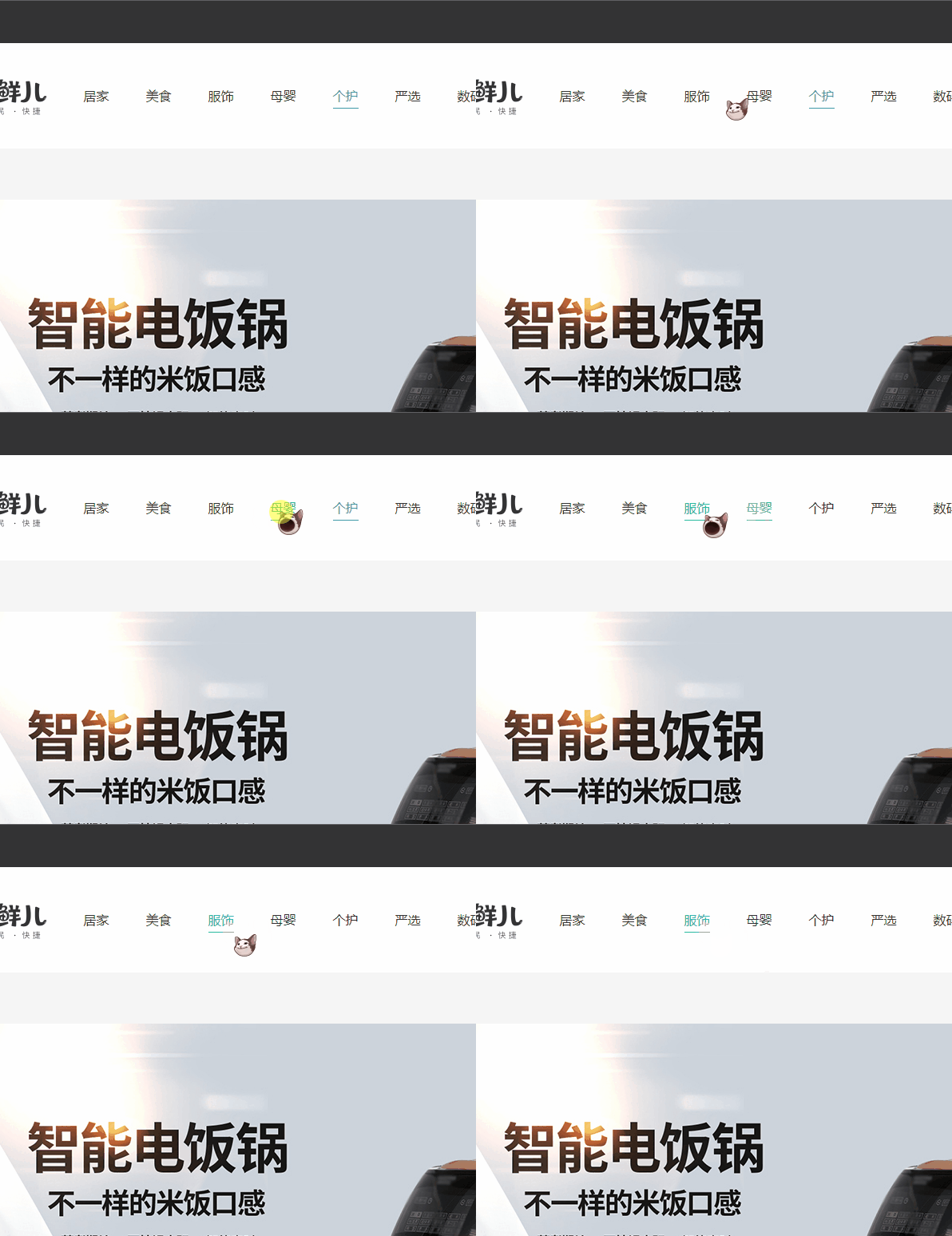
导航激活设置分类列表渲染 1. 导航激活状态设置 其实就是如果点击导航,然后点击的这个导航就会一直高亮的效果
src\views\Layout\components\LayoutHeader.vue
<!-- 这个active-class="active"的value是一个需要激活的class样式,样式写在了下面 -->
<RouterLink active-class="active" :to="`/category/${item.id}`">{{ item.name }}</RouterLink>
2. 分类数据模版
src\views\Category\index.vue
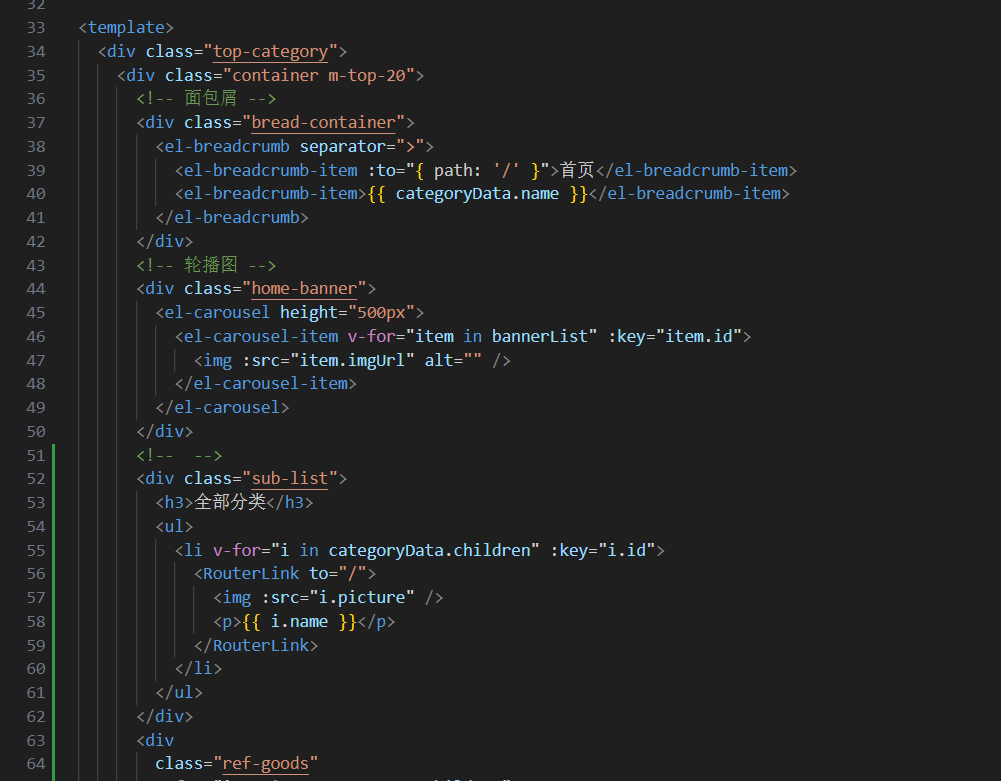
<div class ="sub-list" > <h3 > 全部分类</h3 > <ul > <li v-for ="i in categoryData.children" :key ="i.id" > <RouterLink to ="/" > <img :src ="i.picture" /> <p > {{ i.name }}</p > </RouterLink > </li > </ul > </div > <div class ="ref-goods" v-for ="item in categoryData.children" :key ="item.id" > <div class ="head" > <h3 > - {{ item.name }}-</h3 > </div > <div class ="body" > <GoodsItem v-for ="good in item.goods" :goods ="good" :key ="good.id" /> </div > </div >
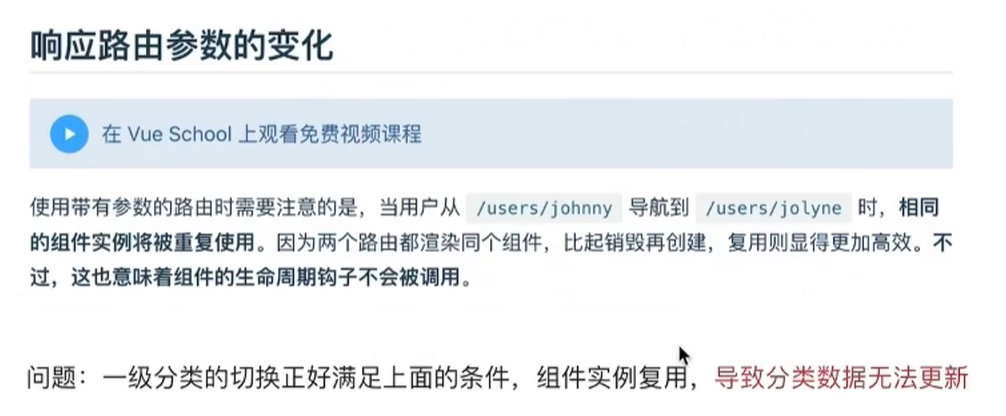
路由缓存问题解决
解决方案:
让组件实例不再复用,强制销毁重建
监听路由变化,变化之后执行数据更新操作
具体实现:
第一种方法 给 routerv-view 添加key属性,强制不添加缓存,破坏缓存,所以这个方法性能会比较差
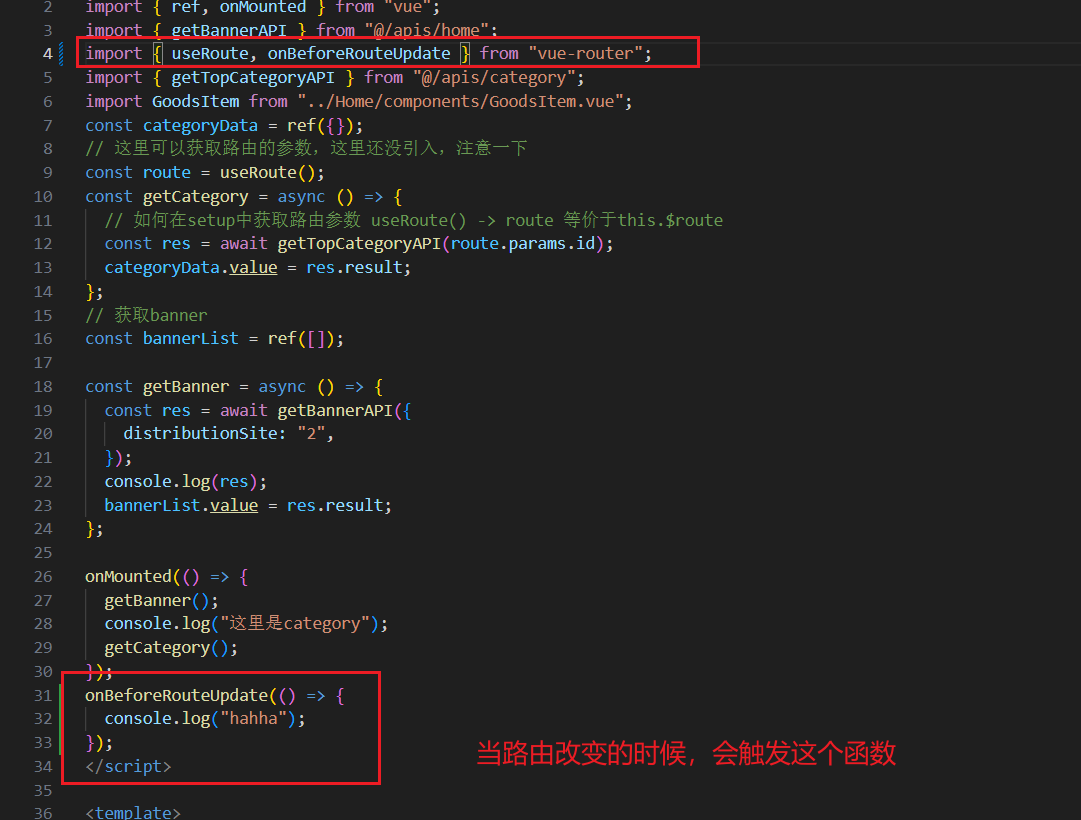
第二种方法 使用 onBeforeRouteUpdate钩子函数,做精确更新
src\views\Category\index.vue
<script setup>
import { ref, onMounted } from "vue";
import { getBannerAPI } from "@/apis/home";
import { useRoute, onBeforeRouteUpdate } from "vue-router";
import { getTopCategoryAPI } from "@/apis/category";
import GoodsItem from "../Home/components/GoodsItem.vue";
const categoryData = ref({});
// 这里可以获取路由的参数,这里还没引入,注意一下
const route = useRoute();
// 这里是给id付了一个初始值,是一种高级的写法,如果
const getCategory = async (id = route.params.id) => {
  // 如何在setup中获取路由参数 useRoute() -> route 等价于this.$route
  const res = await getTopCategoryAPI(id);
  categoryData.value = res.result;
};
// 获取banner
const bannerList = ref([]);

const getBanner = async () => {
  const res = await getBannerAPI({
    distributionSite: "2",
  });
  console.log(res);
  bannerList.value = res.result;
};

onMounted(() => {
  getBanner();
  console.log("这里是category");
  getCategory();
});
// 这里的to对象里面有跳转到指定网址的参数和信息
onBeforeRouteUpdate((to) => {
  console.log("hahha路由变化了");
  getCategory(to.params.id);
});
</script>

<template>
  <div class="top-category">
    <div class="container m-top-20">
      <!-- 面包屑 -->
      <div class="bread-container">
        <el-breadcrumb separator=">">
          <el-breadcrumb-item :to="{ path: '/' }">首页</el-breadcrumb-item>
          <el-breadcrumb-item>{{ categoryData.name }}</el-breadcrumb-item>
        </el-breadcrumb>
      </div>
      <!-- 轮播图 -->
      <div class="home-banner">
        <el-carousel height="500px">
          <el-carousel-item v-for="item in bannerList" :key="item.id">
            <img :src="item.imgUrl" alt="" />
          </el-carousel-item>
        </el-carousel>
      </div>
      <!--  -->
      <div class="sub-list">
        <h3>全部分类</h3>
        <ul>
          <li v-for="i in categoryData.children" :key="i.id">
            <RouterLink to="/">
              <img :src="i.picture" />
              <p>{{ i.name }}</p>
            </RouterLink>
          </li>
        </ul>
      </div>
      <div
        class="ref-goods"
        v-for="item in categoryData.children"
        :key="item.id"
      >
        <div class="head">
          <h3>- {{ item.name }}-</h3>
        </div>
        <div class="body">
          <GoodsItem v-for="good in item.goods" :goods="good" :key="good.id" />
        </div>
      </div>
    </div>
  </div>
</template>

<style scoped lang="scss">
// 部分代码省略
.home-banner {
  width: 1240px;
  height: 500px;
  margin: 0 auto;
  img {
    width: 100%;
    height: 500px;
  }
}
.top-category {
  h3 {
    font-size: 28px;
    color: #666;
    font-weight: normal;
    text-align: center;
    line-height: 100px;
  }

  .sub-list {
    margin-top: 20px;
    background-color: #fff;

    ul {
      display: flex;
      padding: 0 32px;
      flex-wrap: wrap;

      li {
        width: 168px;
        height: 160px;

        a {
          text-align: center;
          display: block;
          font-size: 16px;

          img {
            width: 100px;
            height: 100px;
          }

          p {
            line-height: 40px;
          }

          &:hover {
            color: $xtxColor;
          }
        }
      }
    }
  }

  .ref-goods {
    background-color: #fff;
    margin-top: 20px;
    position: relative;

    .head {
      .xtx-more {
        position: absolute;
        top: 20px;
        right: 20px;
      }

      .tag {
        text-align: center;
        color: #999;
        font-size: 20px;
        position: relative;
        top: -20px;
      }
    }

    .body {
      display: flex;
      justify-content: space-around;
      padding: 0 40px 30px;
    }
  }

  .bread-container {
    padding: 25px 0;
  }
}
</style>
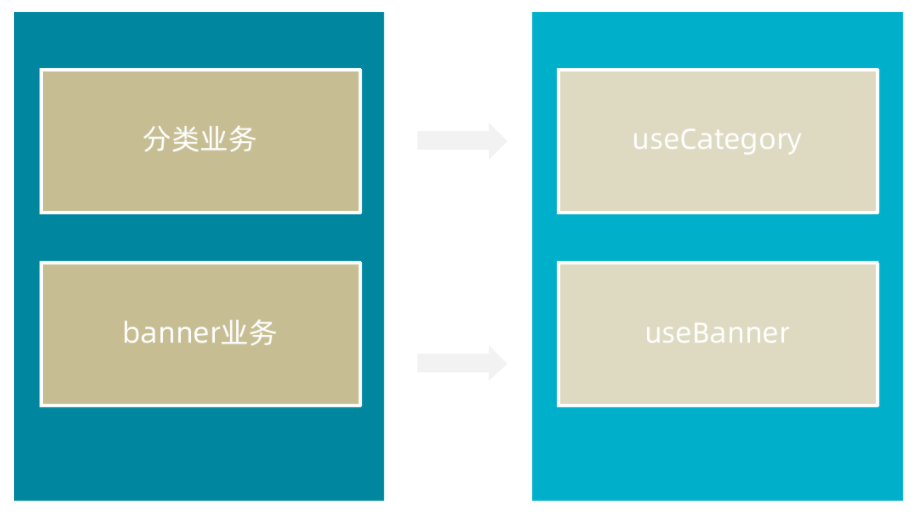
基于业务逻辑的函数拆分
基本思想:把组件内独立的业务逻辑通过 useXXX 函数做封装处理,在组件中做组合使用
实现步骤:
按照业务 声明以use打头的逻辑函数
把独立的业务逻辑封装到各个函数的内部
函数内部把组件中需要用到的数据或者方法return出去
在组件中调用函数然后把数据或者方法解构赋值进行使用
src\views\Category\composables\useBanner.js
import { onMounted, ref } from "vue" ;import { getTopCategoryAPI } from "@/apis/category" ;import { useRoute } from "vue-router" ;import { onBeforeRouteUpdate } from "vue-router" ;export function useCategory ( const categoryData = ref ({}); const route = useRoute (); const getCategory = async (id = route.params.id ) => { const res = await getTopCategoryAPI (id); categoryData.value = res.result ; }; onMounted (() => getCategory ()); onBeforeRouteUpdate ((to ) => { getCategory (to.params .id ); }); return { categoryData, }; }
src\views\Category\composables\useBanner.js
import { ref, onMounted } from 'vue' import { getBannerAPI } from '@/apis/home' export function useBanner () { const bannerList = ref ([]) const getBanner = async ( const res = await getBannerAPI ({ distributionSite : '2' }) console .log (res) bannerList.value = res.result } onMounted (() => getBanner ()) return { bannerList } }
src\views\Category\index.vue
<script setup>

import { useBanner } from './composables/useBanner'
import { useCategory } from './composables/useCategory'
const { bannerList } = useBanner()
const { categoryData } = useCategory()

</script>
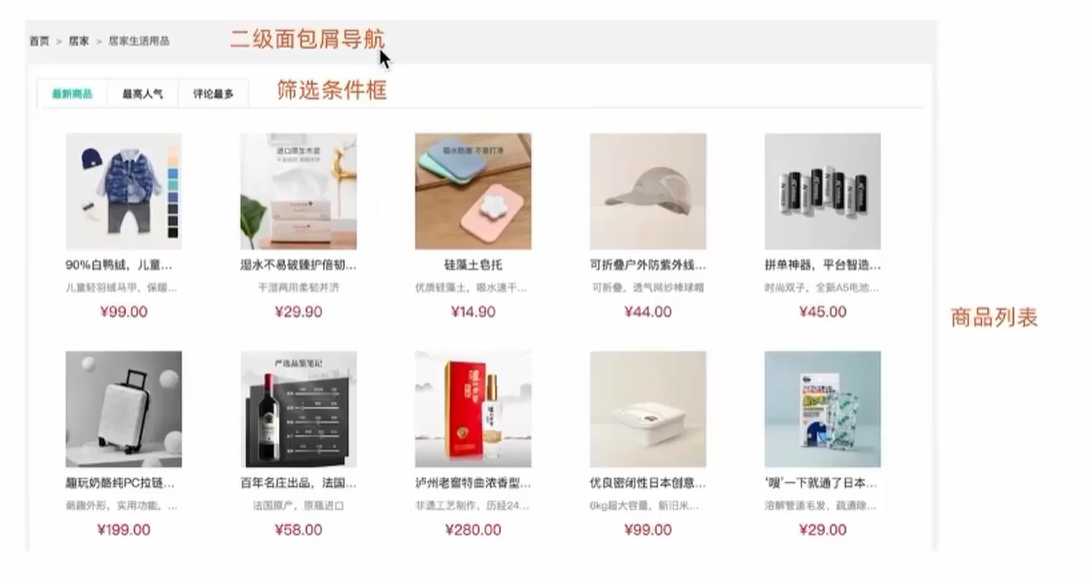
二级分类 整体业务认识和路由配置
1. 准备组件模版 src\views\SubCategory\index.vue
<script setup></script>

<template>
  <div class="container">
    <!-- 面包屑 -->
    <div class="bread-container">
      <el-breadcrumb separator=">">
        <el-breadcrumb-item :to="{ path: '/' }">首页</el-breadcrumb-item>
        <el-breadcrumb-item :to="{ path: '/' }">居家 </el-breadcrumb-item>
        <el-breadcrumb-item>居家生活用品</el-breadcrumb-item>
      </el-breadcrumb>
    </div>
    <div class="sub-container">
      <el-tabs>
        <el-tab-pane label="最新商品" name="publishTime"></el-tab-pane>
        <el-tab-pane label="最高人气" name="orderNum"></el-tab-pane>
        <el-tab-pane label="评论最多" name="evaluateNum"></el-tab-pane>
      </el-tabs>
      <div class="body">
        <!-- 商品列表-->
      </div>
    </div>
  </div>
</template>

<style lang="scss" scoped>
.bread-container {
  padding: 25px 0;
  color: #666;
}

.sub-container {
  padding: 20px 10px;
  background-color: #fff;

  .body {
    display: flex;
    flex-wrap: wrap;
    padding: 0 10px;
  }

  .goods-item {
    display: block;
    width: 220px;
    margin-right: 20px;
    padding: 20px 30px;
    text-align: center;

    img {
      width: 160px;
      height: 160px;
    }

    p {
      padding-top: 10px;
    }

    .name {
      font-size: 16px;
    }

    .desc {
      color: #999;
      height: 29px;
    }

    .price {
      color: $priceColor;
      font-size: 20px;
    }
  }

  .pagination-container {
    margin-top: 20px;
    display: flex;
    justify-content: center;
  }
}
</style>
2. 配置路由关系 src\router\index.js
import { createRouter, createWebHashHistory } from 'vue-router' import Layout from '@/views/Layout/index.vue' import Home from '@/views/Home/index.vue' import Category from '@/views/Category/index.vue' import SubCategory from '@/views/SubCategory/index.vue' const router = createRouter ({ history : createWebHashHistory (import .meta .env .BASE_URL ), routes : [ { path : '/' , name : 'layout' , component : Layout , children : [ { path : '' , name : 'home' , component : Home }, { path : 'category/:id' , name : 'category' , component : Category }, { path : 'category/sub/:id' , name : 'subCategory' , component : SubCategory }, ] }, { path : '/login' , name : 'login' , component : Login }, ] }) export default router
3. 跳转配置 src\views\Category\index.vue
<div class ="sub-list" > <h3 > 全部分类</h3 > <ul > <li v-for ="i in categoryData.children" :key ="i.id" > <RouterLink :to ="`/category/sub/${i.id}`" > <img :src ="i.picture" /> <p > {{ i.name }}</p > </RouterLink > </li > </ul > </div >
面包屑导航实现 1. 准备接口 src\apis\category.js
export const getCategoryFilterAPI = (id ) => { return request ({ url :'/category/sub/filter' , params :{ id } }) }
2. 获取数据渲染模版 src\views\SubCategory\index.vue
<script setup>
import { ref, onMounted } from "vue";
import { getCategoryFilterAPI } from "@/apis/category";
import { useRoute } from "vue-router";
// 获取面包屑导航数据
const route = useRoute();
const filterData = ref({});
const getFilterData = async () => {
  const res = await getCategoryFilterAPI(route.params.id);
  filterData.value = res.result;
};
onMounted(() => {
  getFilterData();
});
</script>

<template>
  <div class="container">
    <!-- 面包屑 -->
    <div class="bread-container">
      <el-breadcrumb separator=">">
        <el-breadcrumb-item :to="{ path: '/' }">首页</el-breadcrumb-item>
        <el-breadcrumb-item :to="{ path: `/category/${filterData.parentId}` }"
          >{{ filterData.parentName }}
        </el-breadcrumb-item>
        <el-breadcrumb-item>{{ filterData.name }}</el-breadcrumb-item>
      </el-breadcrumb>
    </div>
    <div class="sub-container">
      <el-tabs>
        <el-tab-pane label="最新商品" name="publishTime"></el-tab-pane>
        <el-tab-pane label="最高人气" name="orderNum"></el-tab-pane>
        <el-tab-pane label="评论最多" name="evaluateNum"></el-tab-pane>
      </el-tabs>
      <div class="body">
        <!-- 商品列表-->
      </div>
    </div>
  </div>
</template>
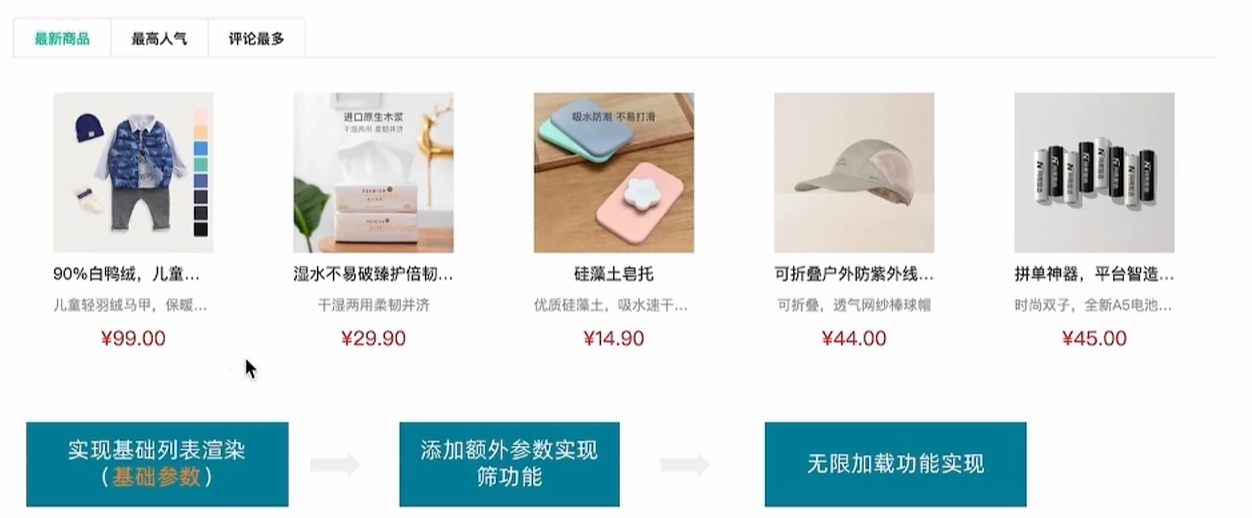
分类基础列表实现
这里我们先实现第一步,也就是得到基础的列表
1. 准备接口 @/apis/category.js
} export const getSubCategoryAPI = (data ) => { return request ({ url :'/category/goods/temporary' , method :'POST' , data }) }
2. 获取数据列表 src\views\SubCategory\index.vue
<script setup>
import GoodsItem from "../Home/components/GoodsItem.vue";
import { getSubCategoryAPI } from "@/apis/category.js";
// 获取基础列表数据渲染
const goodList = ref([])
const reqData = ref({
  categoryId: route.params.id,
  page: 1,
  pageSize: 20,
  sortField: 'publishTime'
})

const getGoodList = async () => {
  const res = await getSubCategoryAPI(reqData.value)
  console.log(res)
  goodList.value = res.result.items
}

onMounted(() => getGoodList())

</script>


      <div class="body">
        <!-- 商品列表-->
        <GoodsItem v-for="goods in goodList" :goods="goods" :key="goods.id" />
      </div>
列表筛选实现
思路:tab组件切换时修改reqData中的sortField字段,重新拉取接口列表
src\views\SubCategory\index.vue
<script setup>
// tab切换回调
const tabChange = () => {
  console.log('tab切换了', reqData.value.sortField)
  reqData.value.page = 1
  getGoodList()
}
</script>

<template>
  <el-tabs v-model="reqData.sortField" @tab-change="tabChange">
    <el-tab-pane label="最新商品" name="publishTime"></el-tab-pane>
    <el-tab-pane label="最高人气" name="orderNum"></el-tab-pane>
    <el-tab-pane label="评论最多" name="evaluateNum"></el-tab-pane>
  </el-tabs>
</template>
无限加载实现
基础思路
触底条件满足之后 page++,拉取下一页数据
新老数据做数组拼接
判断是否已经全部加载完毕,停止监听
src\views\SubCategory\index.vue
const disabled = ref (false )const load = async ( console .log ('加载更多数据咯' ) reqData.value .page ++ const res = await getSubCategoryAPI (reqData.value ) goodList.value = [...goodList.value , ...res.result .items ] if (res.result .items .length === 0 ) { disabled.value = true } }
在页面上监听load方法,并且设置如果到底的话不再加载新数据
<div class ="body" v-infinite-scroll ="load" :infinite-scroll-disabled ="disabled" > <GoodsItem v-for ="goods in goodList" :goods ="goods" :key ="goods.id" /> </div >
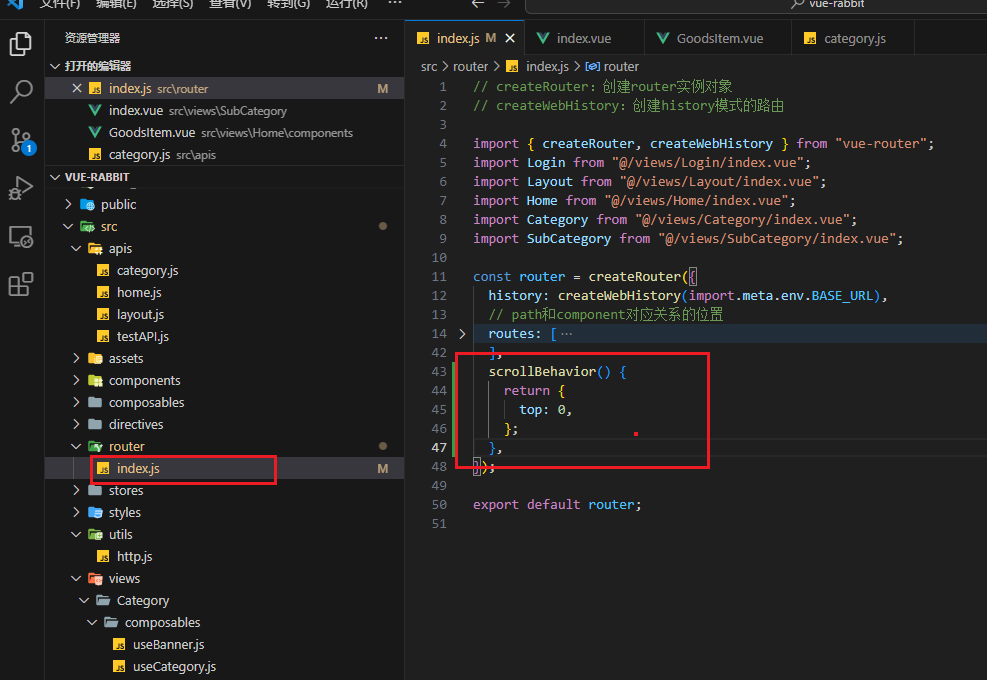
定制路由行为 定制路由行为可以让我们在切换不同路由的时候,可以自动滚动到页面的任何一个部分(比如说顶部),如果不配置默认会停留到原先的位置
配置
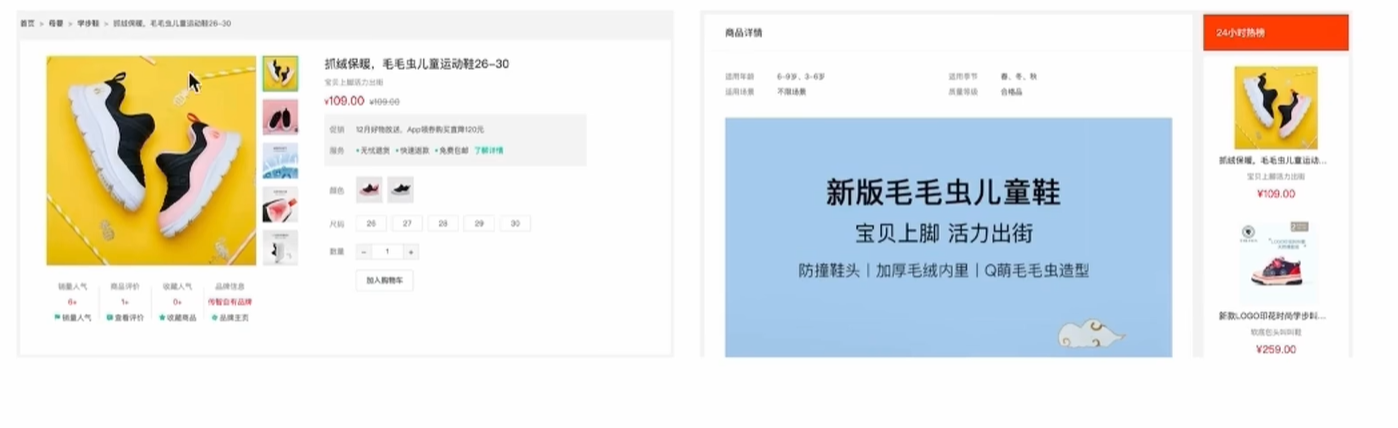
新鲜好物商品详情 整体认识和路由配置
1. 准备组件模版 src\views\Detail\index.vue
<script setup>


</script>

<template>
  <div class="xtx-goods-page">
    <div class="container">
      <div class="bread-container">
        <el-breadcrumb separator=">">
          <el-breadcrumb-item :to="{ path: '/' }">首页</el-breadcrumb-item>
          <el-breadcrumb-item :to="{ path: '/' }">母婴
          </el-breadcrumb-item>
          <el-breadcrumb-item :to="{ path: '/' }">跑步鞋
          </el-breadcrumb-item>
          <el-breadcrumb-item>抓绒保暖,毛毛虫子儿童运动鞋</el-breadcrumb-item>
        </el-breadcrumb>
      </div>
      <!-- 商品信息 -->
      <div class="info-container">
        <div>
          <div class="goods-info">
            <div class="media">
              <!-- 图片预览区 -->

              <!-- 统计数量 -->
              <ul class="goods-sales">
                <li>
                  <p>销量人气</p>
                  <p> 100+ </p>
                  <p><i class="iconfont icon-task-filling"></i>销量人气</p>
                </li>
                <li>
                  <p>商品评价</p>
                  <p>200+</p>
                  <p><i class="iconfont icon-comment-filling"></i>查看评价</p>
                </li>
                <li>
                  <p>收藏人气</p>
                  <p>300+</p>
                  <p><i class="iconfont icon-favorite-filling"></i>收藏商品</p>
                </li>
                <li>
                  <p>品牌信息</p>
                  <p>400+</p>
                  <p><i class="iconfont icon-dynamic-filling"></i>品牌主页</p>
                </li>
              </ul>
            </div>
            <div class="spec">
              <!-- 商品信息区 -->
              <p class="g-name"> 抓绒保暖,毛毛虫儿童鞋 </p>
              <p class="g-desc">好穿 </p>
              <p class="g-price">
                <span>200</span>
                <span> 100</span>
              </p>
              <div class="g-service">
                <dl>
                  <dt>促销</dt>
                  <dd>12月好物放送,App领券购买直降120元</dd>
                </dl>
                <dl>
                  <dt>服务</dt>
                  <dd>
                    <span>无忧退货</span>
                    <span>快速退款</span>
                    <span>免费包邮</span>
                    <a href="javascript:;">了解详情</a>
                  </dd>
                </dl>
              </div>
              <!-- sku组件 -->

              <!-- 数据组件 -->

              <!-- 按钮组件 -->
              <div>
                <el-button size="large" class="btn">
                  加入购物车
                </el-button>
              </div>

            </div>
          </div>
          <div class="goods-footer">
            <div class="goods-article">
              <!-- 商品详情 -->
              <div class="goods-tabs">
                <nav>
                  <a>商品详情</a>
                </nav>
                <div class="goods-detail">
                  <!-- 属性 -->
                  <ul class="attrs">
                    <li v-for="item in 3" :key="item.value">
                      <span class="dt">白色</span>
                      <span class="dd">纯棉</span>
                    </li>
                  </ul>
                  <!-- 图片 -->

                </div>
              </div>
            </div>
            <!-- 24热榜+专题推荐 -->
            <div class="goods-aside">

            </div>
          </div>
        </div>
      </div>
    </div>
  </div>
</template>


<style scoped lang='scss'>
.xtx-goods-page {
  .goods-info {
    min-height: 600px;
    background: #fff;
    display: flex;

    .media {
      width: 580px;
      height: 600px;
      padding: 30px 50px;
    }

    .spec {
      flex: 1;
      padding: 30px 30px 30px 0;
    }
  }

  .goods-footer {
    display: flex;
    margin-top: 20px;

    .goods-article {
      width: 940px;
      margin-right: 20px;
    }

    .goods-aside {
      width: 280px;
      min-height: 1000px;
    }
  }

  .goods-tabs {
    min-height: 600px;
    background: #fff;
  }

  .goods-warn {
    min-height: 600px;
    background: #fff;
    margin-top: 20px;
  }

  .number-box {
    display: flex;
    align-items: center;

    .label {
      width: 60px;
      color: #999;
      padding-left: 10px;
    }
  }

  .g-name {
    font-size: 22px;
  }

  .g-desc {
    color: #999;
    margin-top: 10px;
  }

  .g-price {
    margin-top: 10px;

    span {
      &::before {
        content: "¥";
        font-size: 14px;
      }

      &:first-child {
        color: $priceColor;
        margin-right: 10px;
        font-size: 22px;
      }

      &:last-child {
        color: #999;
        text-decoration: line-through;
        font-size: 16px;
      }
    }
  }

  .g-service {
    background: #f5f5f5;
    width: 500px;
    padding: 20px 10px 0 10px;
    margin-top: 10px;

    dl {
      padding-bottom: 20px;
      display: flex;
      align-items: center;

      dt {
        width: 50px;
        color: #999;
      }

      dd {
        color: #666;

        &:last-child {
          span {
            margin-right: 10px;

            &::before {
              content: "•";
              color: $xtxColor;
              margin-right: 2px;
            }
          }

          a {
            color: $xtxColor;
          }
        }
      }
    }
  }

  .goods-sales {
    display: flex;
    width: 400px;
    align-items: center;
    text-align: center;
    height: 140px;

    li {
      flex: 1;
      position: relative;

      ~li::after {
        position: absolute;
        top: 10px;
        left: 0;
        height: 60px;
        border-left: 1px solid #e4e4e4;
        content: "";
      }

      p {
        &:first-child {
          color: #999;
        }

        &:nth-child(2) {
          color: $priceColor;
          margin-top: 10px;
        }

        &:last-child {
          color: #666;
          margin-top: 10px;

          i {
            color: $xtxColor;
            font-size: 14px;
            margin-right: 2px;
          }

          &:hover {
            color: $xtxColor;
            cursor: pointer;
          }
        }
      }
    }
  }
}

.goods-tabs {
  min-height: 600px;
  background: #fff;

  nav {
    height: 70px;
    line-height: 70px;
    display: flex;
    border-bottom: 1px solid #f5f5f5;

    a {
      padding: 0 40px;
      font-size: 18px;
      position: relative;

      >span {
        color: $priceColor;
        font-size: 16px;
        margin-left: 10px;
      }
    }
  }
}

.goods-detail {
  padding: 40px;

  .attrs {
    display: flex;
    flex-wrap: wrap;
    margin-bottom: 30px;

    li {
      display: flex;
      margin-bottom: 10px;
      width: 50%;

      .dt {
        width: 100px;
        color: #999;
      }

      .dd {
        flex: 1;
        color: #666;
      }
    }
  }

  >img {
    width: 100%;
  }
}

.btn {
  margin-top: 20px;

}

.bread-container {
  padding: 25px 0;
}
</style>
2. 配置路由 src\router\index.js
const router = createRouter ({ history : createWebHistory (import .meta .env .BASE_URL ), routes : [ { path : '/' , component : Layout , children : [ { path : '' , component : Home }, { path : 'category/:id' , component : Category }, { path : 'category/sub/:id' , component : SubCategory }, { path : 'detail/:id' , component : Detail } ] }, { path : '/login' , component : Login } ], scrollBehavior () { return { top : 0 } } })
3. 绑定模版测试跳转 src\views\Home\components\HomeNew.vue
<RouterLink :to ="`/detail/${item.id}`" > <img :src ="item.picture" alt ="" /> <p class ="name" > {{ item.name }}</p > <p class ="price" > ¥ {{ item.price }}</p > </RouterLink >
渲染基础数据 1. 封装接口 src\apis\category.js
import request from '@/utils/http' export const getDetail = (id ) => { return request ({ url : '/goods' , params : { id } }) }
2. 获取数据渲染模版 src\views\Detail\index.vue
<script setup>
import { getDetail } from '@/apis/detail'
import { onMounted, ref } from 'vue'
import { useRoute } from 'vue-router'
const goods = ref({})
const route = useRoute()
const getGoods = async () => {
  const res = await getDetail(route.params.id)
  goods.value = res.result
}
onMounted(() => getGoods())
</script>

<template>
  <div class="xtx-goods-page">
    <div class="container" v-if="goods.details">
      <div class="bread-container">
        <el-breadcrumb separator=">">
          <el-breadcrumb-item :to="{ path: '/' }">首页</el-breadcrumb-item>
          <!--
            错误原因:goods一开始{}  {}.categories -> undefined  -> undefined[1]
            1. 可选链的语法?.
            2. v-if手动控制渲染时机 保证只有数据存在才渲染
           -->
          <el-breadcrumb-item :to="{ path: `/category/${goods.categories[1].id}` }">{{ goods.categories[1].name }}
          </el-breadcrumb-item>
          <el-breadcrumb-item :to="{ path: `/category/sub/${goods.categories[0].id}` }">{{
            goods.categories[0].name
          }}
          </el-breadcrumb-item>
          <el-breadcrumb-item>抓绒保暖,毛毛虫子儿童运动鞋</el-breadcrumb-item>
        </el-breadcrumb>
      </div>
      <!-- 商品信息 -->
      <div class="info-container">
        <div>
          <div class="goods-info">
            <div class="media">
              <!-- 图片预览区 -->

              <!-- 统计数量 -->
              <ul class="goods-sales">
                <li>
                  <p>销量人气</p>
                  <p> {{ goods.salesCount }}+ </p>
                  <p><i class="iconfont icon-task-filling"></i>销量人气</p>
                </li>
                <li>
                  <p>商品评价</p>
                  <p>{{ goods.commentCount }}+</p>
                  <p><i class="iconfont icon-comment-filling"></i>查看评价</p>
                </li>
                <li>
                  <p>收藏人气</p>
                  <p>{{ goods.collectCount }}+</p>
                  <p><i class="iconfont icon-favorite-filling"></i>收藏商品</p>
                </li>
                <li>
                  <p>品牌信息</p>
                  <p>{{ goods.brand.name }}</p>
                  <p><i class="iconfont icon-dynamic-filling"></i>品牌主页</p>
                </li>
              </ul>
            </div>
            <div class="spec">
              <!-- 商品信息区 -->
              <p class="g-name"> {{ goods.name }} </p>
              <p class="g-desc">{{ goods.desc }} </p>
              <p class="g-price">
                <span>{{ goods.oldPrice }}</span>
                <span> {{ goods.price }}</span>
              </p>
              <div class="g-service">
                <dl>
                  <dt>促销</dt>
                  <dd>12月好物放送,App领券购买直降120元</dd>
                </dl>
                <dl>
                  <dt>服务</dt>
                  <dd>
                    <span>无忧退货</span>
                    <span>快速退款</span>
                    <span>免费包邮</span>
                    <a href="javascript:;">了解详情</a>
                  </dd>
                </dl>
              </div>
              <!-- sku组件 -->

              <!-- 数据组件 -->

              <!-- 按钮组件 -->
              <div>
                <el-button size="large" class="btn">
                  加入购物车
                </el-button>
              </div>

            </div>
          </div>
          <div class="goods-footer">
            <div class="goods-article">
              <!-- 商品详情 -->
              <div class="goods-tabs">
                <nav>
                  <a>商品详情</a>
                </nav>
                <div class="goods-detail">
                  <!-- 属性 -->
                  <ul class="attrs">
                    <li v-for="item in goods.details.properties" :key="item.value">
                      <span class="dt">{{ item.name }}</span>
                      <span class="dd">{{ item.value }}</span>
                    </li>
                  </ul>
                  <!-- 图片 -->
                  <img v-for="img in goods.details.pictures" :src="img" :key="img" alt="">
                </div>
              </div>
            </div>
            <!-- 24热榜+专题推荐 -->
            <div class="goods-aside">

            </div>
          </div>
        </div>
      </div>
    </div>
  </div>
</template>
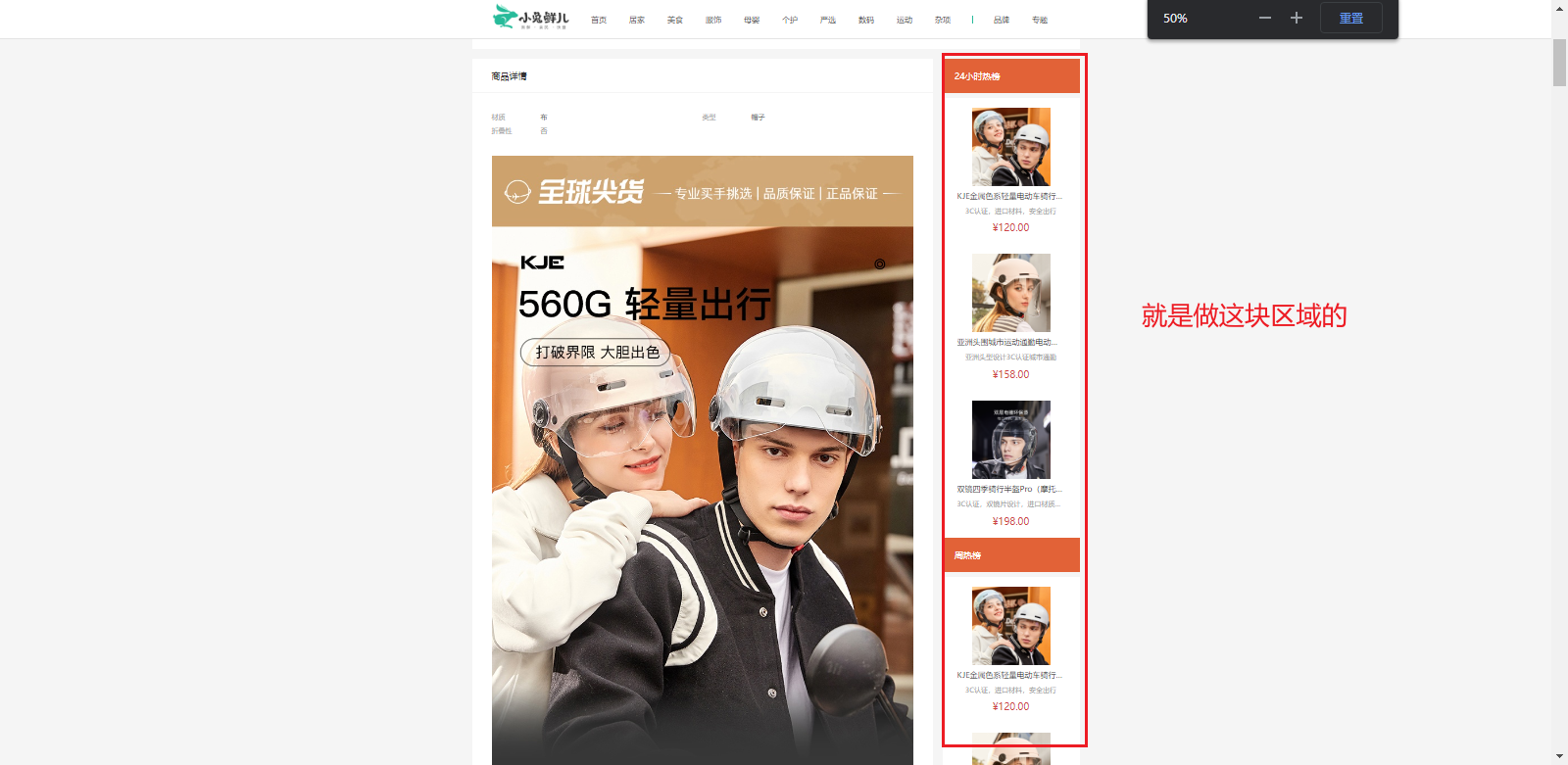
热榜区域
1. 渲染基础热榜数据 1- 准备模版
src\views\Detail\index.vue
<script setup> </script> <template> <div class="goods-hot"> <h3>周日榜单</h3> <!-- 商品区块 --> <RouterLink to="/" class="goods-item" v-for="item in 3" :key="item.id"> <img :src="item.picture" alt="" /> <p class="name ellipsis">一双男鞋</p> <p class="desc ellipsis">一双好穿的男鞋</p> <p class="price">¥200.00</p> </RouterLink> </div> </template> <style scoped lang="scss"> .goods-hot { h3 { height: 70px; background: $helpColor; color: #fff; font-size: 18px; line-height: 70px; padding-left: 25px; margin-bottom: 10px; font-weight: normal; } .goods-item { display: block; padding: 20px 30px; text-align: center; background: #fff; img { width: 160px; height: 160px; } p { padding-top: 10px; } .name { font-size: 16px; } .desc { color: #999; height: 29px; } .price { color: $priceColor; font-size: 20px; } } } </style>
2- 封装接口
src\apis\detail.js
export const fetchHotGoodsAPI = ({ id, type, limit = 3 } ) => { return request ({ url :'/goods/hot' , params :{ id, type, limit } }) }
3- 获取基础数据渲染模版
<script setup> import { ref } from 'vue' import { getHotGoodsAPI } from '@/apis/detail' import { useRoute } from 'vue-router' const goodList = ref([]) const route = useRoute() const getHotList = async () => { const res = await getHotGoodsAPI({ id: route.params.id, type: 1 }) goodList.value = res.result } getHotList() </script> <template> <div class="goods-hot"> <h3> 24小时热榜 </h3> <!-- 商品区块 --> <RouterLink :to="`/detail/${item.id}`" class="goods-item" v-for="item in goodList" :key="item.id"> <img :src="item.picture" alt="" /> <p class="name ellipsis">{{ item.name }}</p> <p class="desc ellipsis">{{ item.desc }}</p> <p class="price">¥{{ item.price }}</p> </RouterLink> </div> </template>
2. 适配热榜类型 1- 设计props参数type
src\views\Detail\components\DetailHot.vue
const props = defineProps ({ type : { type : Number , default : 1 } }) const res = await fetchHotGoodsAPI ({ id : route.params .id , type : props.type })
2- 使用组件传入不同的type
src\views\Detail\index.vue
<!-- 24小时热榜 -->
<DetailHot :type="1" />
<!-- 周热榜 -->
<DetailHot :type="2" />
3. 适配热榜title src\views\Detail\components\DetailHot.vue
const TITLEMAP = { 1 : '24小时热榜' , 2 : '周热榜' , } const title = computed (() => TITLEMAP [props.type ])
在页面中使用
src\views\Detail\components\DetailHot.vue
4.汇总热榜代码 src\views\Detail\components\DetailHot.vue
<script setup> import { ref, computed } from "vue"; import { fetchHotGoodsAPI } from "@/apis/detail"; import { useRoute } from "vue-router"; const goodList = ref([]); const route = useRoute(); // type适配不同类型热榜数据 const props = defineProps({ type: { type: Number, // 1代表24小时热销榜 2代表周热销榜 3代表总热销榜 可以使用type去适配title和数据列表 default: 1, }, }); const getHotList = async () => { const res = await fetchHotGoodsAPI({ id: route.params.id, // 这里传入type类型,是为了传参用来区别周榜和日榜 type: props.type, }); goodList.value = res.result; }; getHotList(); const TITLEMAP = { 1: "24小时热榜", 2: "周热榜", }; const title = computed(() => TITLEMAP[props.type]); </script> <template> <div class="goods-hot"> <h3>{{ title }}</h3> <!-- 商品区块 --> <RouterLink :to="`/detail/${item.id}`" class="goods-item" v-for="item in goodList" :key="item.id" > <img :src="item.picture" alt="" /> <p class="name ellipsis">{{ item.name }}</p> <p class="desc ellipsis">{{ item.desc }}</p> <p class="price">¥{{ item.price }}</p> </RouterLink> </div> </template> <style scoped lang="scss"> .goods-hot { h3 { height: 70px; background: $helpColor; color: #fff; font-size: 18px; line-height: 70px; padding-left: 25px; margin-bottom: 10px; font-weight: normal; } .goods-item { display: block; padding: 20px 30px; text-align: center; background: #fff; img { width: 160px; height: 160px; } p { padding-top: 10px; } .name { font-size: 16px; } .desc { color: #999; height: 29px; } .price { color: $priceColor; font-size: 20px; } } } </style>
图片预览组件封装
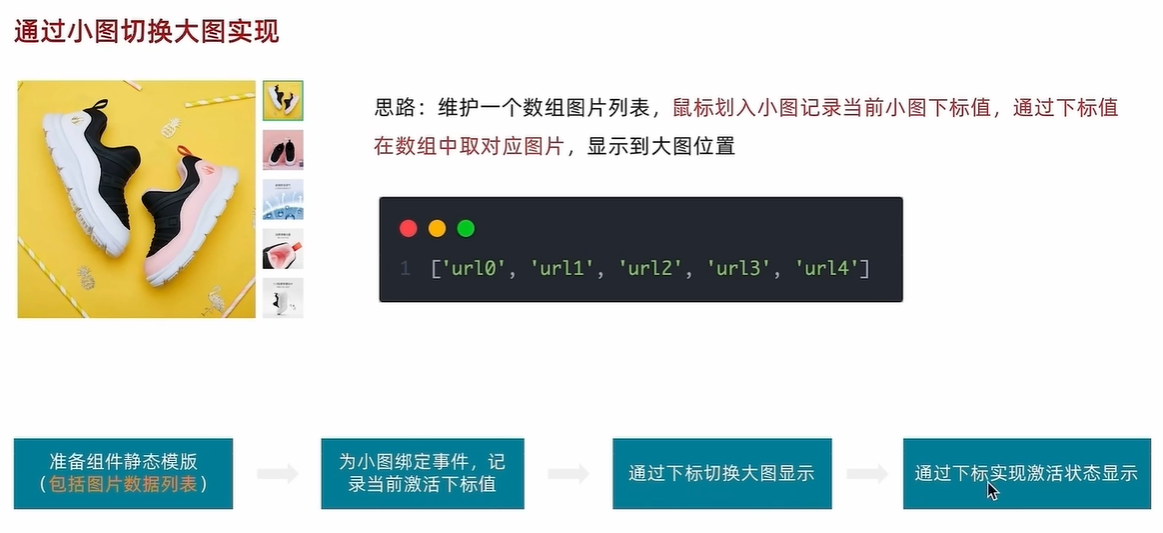
1. 小图切换大图显示 1- 准备模版
src\components\ImageView.vue
<script setup>
// 图片列表
const imageList = [
  "https://yanxuan-item.nosdn.127.net/d917c92e663c5ed0bb577c7ded73e4ec.png",
  "https://yanxuan-item.nosdn.127.net/e801b9572f0b0c02a52952b01adab967.jpg",
  "https://yanxuan-item.nosdn.127.net/b52c447ad472d51adbdde1a83f550ac2.jpg",
  "https://yanxuan-item.nosdn.127.net/f93243224dc37674dfca5874fe089c60.jpg",
  "https://yanxuan-item.nosdn.127.net/f881cfe7de9a576aaeea6ee0d1d24823.jpg"
]
</script>


<template>
  <div class="goods-image">
    <!-- 左侧大图-->
    <div class="middle" ref="target">
      <img :src="imageList[0]" alt="" />
      <!-- 蒙层小滑块 -->
      <div class="layer" :style="{ left: `0px`, top: `0px` }"></div>
    </div>
    <!-- 小图列表 -->
    <ul class="small">
      <li v-for="(img, i) in imageList" :key="i">
        <img :src="img" alt="" />
      </li>
    </ul>
    <!-- 放大镜大图 -->
    <div class="large" :style="[
      {
        backgroundImage: `url(${imageList[0]})`,
        backgroundPositionX: `0px`,
        backgroundPositionY: `0px`,
      },
    ]" v-show="false"></div>
  </div>
</template>

<style scoped lang="scss">
.goods-image {
  width: 480px;
  height: 400px;
  position: relative;
  display: flex;

  .middle {
    width: 400px;
    height: 400px;
    background: #f5f5f5;
  }

  .large {
    position: absolute;
    top: 0;
    left: 412px;
    width: 400px;
    height: 400px;
    z-index: 500;
    box-shadow: 0 0 10px rgba(0, 0, 0, 0.1);
    background-repeat: no-repeat;
    // 背景图:盒子的大小 = 2:1  将来控制背景图的移动来实现放大的效果查看 background-position
    background-size: 800px 800px;
    background-color: #f8f8f8;
  }

  .layer {
    width: 200px;
    height: 200px;
    background: rgba(0, 0, 0, 0.2);
    // 绝对定位 然后跟随咱们鼠标控制left和top属性就可以让滑块移动起来
    left: 0;
    top: 0;
    position: absolute;
  }

  .small {
    width: 80px;

    li {
      width: 68px;
      height: 68px;
      margin-left: 12px;
      margin-bottom: 15px;
      cursor: pointer;

      &:hover,
      &.active {
        border: 2px solid $xtxColor;
      }
    }
  }
}
</style>
2- 实现逻辑
src\components\ImageView.vue
<script setup>
import { ref } from 'vue'

// 实现鼠标移入交互
const curIndex = ref(0)
const mouseEnterFn = (i) => curIndex.value = i


</script>


<template>
  <div class="goods-image">
    <!-- 小图列表 -->
    <ul class="small">
      <li v-for="(img, i) in imageList"
        :key="i"
        @mouseenter="mouseEnterFn(i)"
        :class="{ active: i === curIndex }">
        <img :src="img" alt="" />
      </li>
    </ul>
  </div>
</template>
2. 放大镜效果实现 功能拆解:
左侧滑块跟随鼠标移动(这里用到了vueuese)
右侧大图放大效果实现
鼠标移入控制滑块和大图显示隐藏
<script setup>
import { ref, watch } from 'vue'
import { useMouseInElement } from '@vueuse/core'

// 图片列表
const imageList = [
  "https://yanxuan-item.nosdn.127.net/d917c92e663c5ed0bb577c7ded73e4ec.png",
  "https://yanxuan-item.nosdn.127.net/e801b9572f0b0c02a52952b01adab967.jpg",
  "https://yanxuan-item.nosdn.127.net/b52c447ad472d51adbdde1a83f550ac2.jpg",
  "https://yanxuan-item.nosdn.127.net/f93243224dc37674dfca5874fe089c60.jpg",
  "https://yanxuan-item.nosdn.127.net/f881cfe7de9a576aaeea6ee0d1d24823.jpg"
]

// 1.小图切换大图显示
const activeIndex = ref(0)

const enterhandler = (i) => {
  activeIndex.value = i
}

// 2. 获取鼠标相对位置
const target = ref(null)
const { elementX, elementY, isOutside } = useMouseInElement(target)

// 3. 控制滑块跟随鼠标移动(监听elementX/Y变化,一旦变化 重新设置left/top)
const left = ref(0)
const top = ref(0)

const positionX = ref(0)
const positionY = ref(0)
watch([elementX, elementY, isOutside], () => {
  console.log('xy变化了')
  // 如果鼠标没有移入到盒子里面 直接不执行后面的逻辑
  if (isOutside.value) return
  console.log('后续逻辑执行了')
  // 有效范围内控制滑块距离
  // 横向
  if (elementX.value > 100 && elementX.value < 300) {
    left.value = elementX.value - 100
  }
  // 纵向
  if (elementY.value > 100 && elementY.value < 300) {
    top.value = elementY.value - 100
  }

  // 处理边界
  if (elementX.value > 300) { left.value = 200 }
  if (elementX.value < 100) { left.value = 0 }

  if (elementY.value > 300) { top.value = 200 }
  if (elementY.value < 100) { top.value = 0 }

  // 控制大图的显示
  positionX.value = -left.value * 2
  positionY.value = -top.value * 2

})

</script>


<template>
  <div class="goods-image">

    <!-- 左侧大图-->
    <div class="middle" ref="target">
      <img :src="imageList[activeIndex]" alt="" />
      <!-- 蒙层小滑块 -->
      <div class="layer" v-show="!isOutside" :style="{ left: `${left}px`, top: `${top}px` }"></div>
    </div>
    <!-- 小图列表 -->
    <ul class="small">
      <li v-for="(img, i) in imageList" :key="i" @mouseenter="enterhandler(i)" :class="{ active: i === activeIndex }">
        <img :src="img" alt="" />
      </li>
    </ul>
    <!-- 放大镜大图 -->
    <div class="large" :style="[
      {
        backgroundImage: `url(${imageList[0]})`,
        backgroundPositionX: `${positionX}px`,
        backgroundPositionY: `${positionY}px`,
      },
    ]" v-show="!isOutside"></div>
  </div>
</template>

<style scoped lang="scss">
.goods-image {
  width: 480px;
  height: 400px;
  position: relative;
  display: flex;

  .middle {
    width: 400px;
    height: 400px;
    background: #f5f5f5;
  }

  .large {
    position: absolute;
    top: 0;
    left: 412px;
    width: 400px;
    height: 400px;
    z-index: 500;
    box-shadow: 0 0 10px rgba(0, 0, 0, 0.1);
    background-repeat: no-repeat;
    // 背景图:盒子的大小 = 2:1  将来控制背景图的移动来实现放大的效果查看 background-position
    background-size: 800px 800px;
    background-color: #f8f8f8;
  }

  .layer {
    width: 200px;
    height: 200px;
    background: rgba(0, 0, 0, 0.2);
    // 绝对定位 然后跟随咱们鼠标控制left和top属性就可以让滑块移动起来
    left: 0;
    top: 0;
    position: absolute;
  }

  .small {
    width: 80px;

    li {
      width: 68px;
      height: 68px;
      margin-left: 12px;
      margin-bottom: 15px;
      cursor: pointer;

      &:hover,
      &.active {
        border: 2px solid $xtxColor;
      }
    }
  }
}
</style>
SKU组件熟悉 全局组件统一插件化 存货单位,也翻译为库存单元,是一个会计学名词,定义为库存管理中的最小可用单元,例如纺织品中一个SKU通常表示规格、颜色、款式,而在连锁零售门店中有时称单品为一个SKU
1. 插件化开发 import ImageView from './ImageView/index.vue' import Sku from './XtxSku/index.vue' export const componentPlugin = { install (app) { app.component ('XtxImageView' , ImageView ) app.component ('XtxSku' , Sku ) } }
2. 插件注册 // 引入全局组件插件 import { componentPlugin } from '@/components' app.use(componentPlugin)
登录页 整体认识和路由配置 1. 准备模版 src\views\Login\index.vue
<script setup> </script> <template> <div> <header class="login-header"> <div class="container m-top-20"> <h1 class="logo"> <RouterLink to="/">小兔鲜</RouterLink> </h1> <RouterLink class="entry" to="/"> 进入网站首页 <i class="iconfont icon-angle-right"></i> <i class="iconfont icon-angle-right"></i> </RouterLink> </div> </header> <section class="login-section"> <div class="wrapper"> <nav> <a href="javascript:;">账户登录</a> </nav> <div class="account-box"> <div class="form"> <el-form label-position="right" label-width="60px" status-icon> <el-form-item label="账户"> <el-input/> </el-form-item> <el-form-item label="密码"> <el-input/> </el-form-item> <el-form-item label-width="22px"> <el-checkbox size="large"> 我已同意隐私条款和服务条款 </el-checkbox> </el-form-item> <el-button size="large" class="subBtn">点击登录</el-button> </el-form> </div> </div> </div> </section> <footer class="login-footer"> <div class="container"> <p> <a href="javascript:;">关于我们</a> <a href="javascript:;">帮助中心</a> <a href="javascript:;">售后服务</a> <a href="javascript:;">配送与验收</a> <a href="javascript:;">商务合作</a> <a href="javascript:;">搜索推荐</a> <a href="javascript:;">友情链接</a> </p> <p>CopyRight © 小兔鲜儿</p> </div> </footer> </div> </template> <style scoped lang='scss'> .login-header { background: #fff; border-bottom: 1px solid #e4e4e4; .container { display: flex; align-items: flex-end; justify-content: space-between; } .logo { width: 200px; a { display: block; height: 132px; width: 100%; text-indent: -9999px; background: url("@/assets/images/logo.png") no-repeat center 18px / contain; } } .sub { flex: 1; font-size: 24px; font-weight: normal; margin-bottom: 38px; margin-left: 20px; color: #666; } .entry { width: 120px; margin-bottom: 38px; font-size: 16px; i { font-size: 14px; color: $xtxColor; letter-spacing: -5px; } } } .login-section { background: url('@/assets/images/login-bg.png') no-repeat center / cover; height: 488px; position: relative; .wrapper { width: 380px; background: #fff; position: absolute; left: 50%; top: 54px; transform: translate3d(100px, 0, 0); box-shadow: 0 0 10px rgba(0, 0, 0, 0.15); nav { font-size: 14px; height: 55px; margin-bottom: 20px; border-bottom: 1px solid #f5f5f5; display: flex; padding: 0 40px; text-align: right; align-items: center; a { flex: 1; line-height: 1; display: inline-block; font-size: 18px; position: relative; text-align: center; } } } } .login-footer { padding: 30px 0 50px; background: #fff; p { text-align: center; color: #999; padding-top: 20px; a { line-height: 1; padding: 0 10px; color: #999; display: inline-block; ~a { border-left: 1px solid #ccc; } } } } .account-box { .toggle { padding: 15px 40px; text-align: right; a { color: $xtxColor; i { font-size: 14px; } } } .form { padding: 0 20px 20px 20px; &-item { margin-bottom: 28px; .input { position: relative; height: 36px; >i { width: 34px; height: 34px; background: #cfcdcd; color: #fff; position: absolute; left: 1px; top: 1px; text-align: center; line-height: 34px; font-size: 18px; } input { padding-left: 44px; border: 1px solid #cfcdcd; height: 36px; line-height: 36px; width: 100%; &.error { border-color: $priceColor; } &.active, &:focus { border-color: $xtxColor; } } .code { position: absolute; right: 1px; top: 1px; text-align: center; line-height: 34px; font-size: 14px; background: #f5f5f5; color: #666; width: 90px; height: 34px; cursor: pointer; } } >.error { position: absolute; font-size: 12px; line-height: 28px; color: $priceColor; i { font-size: 14px; margin-right: 2px; } } } .agree { a { color: #069; } } .btn { display: block; width: 100%; height: 40px; color: #fff; text-align: center; line-height: 40px; background: $xtxColor; &.disabled { background: #cfcdcd; } } } .action { padding: 20px 40px; display: flex; justify-content: space-between; align-items: center; .url { a { color: #999; margin-left: 10px; } } } } .subBtn { background: $xtxColor; width: 100%; color: #fff; } </style>
2. 配置路由跳转 src\views\Layout\components\LayoutNav.vue
<li><a href="javascript:;" @click="router.push('/login')">请先登录</a></li>
表单校验实现
1. 校验要求
用户名:不能为空,字段名为 account
2. 代码实现
这里用到了自定义校验规则
<script setup>
import { ref } from 'vue'
// 表单数据对象
const userInfo = ref({
  account: '1311111111',
  password: '123456',
  agree: true
})

// 规则数据对象
const rules = {
  account: [
    { required: true, message: '用户名不能为空' }
  ],
  password: [
    { required: true, message: '密码不能为空' },
    { min: 6, max: 24, message: '密码长度要求6-14个字符' }
  ],
  agree: [
    {
      validator: (rule, val, callback) => {
        return val ? callback() : new Error('请先同意协议')
      }
    }
  ]
}


</script>


<template>
    <div class="form">
      <el-form ref="formRef" :model="userInfo" :rules="rules" status-icon>
        <el-form-item prop="account" label="账户">
          <el-input v-model="userInfo.account" />
        </el-form-item>
        <el-form-item prop="password" label="密码">
          <el-input v-model="userInfo.password" />
        </el-form-item>
        <el-form-item prop="agree" label-width="22px">
          <el-checkbox v-model="userInfo.agree" size="large">
            我已同意隐私条款和服务条款
          </el-checkbox>
        </el-form-item>
        <el-button size="large" class="subBtn" @click="doLogin">点击登录</el-button>
      </el-form>
    </div>
</template>
登录基础业务实现
基础思想
调用登录接口获取用户信息
提示用户当前是否成功
跳转到首页
封装接口
src\apis\user.js
import request from "@/utils/http" ;export const loginAPI = ({ account, password } ) => { return request ({ url : "/login" , method : "POST" , data : { account, password, }, }); };
src\views\Login\index.vue
import { ElMessage } from "element-plus" ;import "element-plus/theme-chalk/el-message.css" ;import { useRouter } from "vue-router" ;import { loginAPI } from "@/apis/user.js" ;const router = useRouter ();const formRef = ref (null );const doLogin = ( const { account, password } = userInfo.value ; formRef.value .validate (async (valid) => { console .log (valid); if (valid) { await loginAPI ({ account, password }); ElMessage ({ type : "success" , message : "登录成功" }); router.replace ({ path : "/" }); } }); };
这里其实我有点不理解,这里如果登录失败就不会执行后面的语句,然后就会执行拦截器里面的语句了
src\utils\http.js
httpInstance.interceptors .response .use ( (res ) => res.data , (e ) => { ElMessage ({ type : "warning" , message : e.response .data .message , }); return Promise .reject (e); } );
Pinia管理用户数据
基本思想:Pinia负责用户数据相关的state和action,组件中只负责触发action函数并传递参数
src\stores\user.js
import { defineStore } from 'pinia' import { ref } from 'vue' import { loginAPI } from '@/apis/user' export const useUserStore = defineStore ('user' , () => { const userInfo = ref ({}) const getUserInfo = async ({ account, password } ) => { const res = await loginAPI ({ account, password }) userInfo.value = res.result } return { getUserInfo } }, { persist : true , })
使用pinia替换原来的api形式
src\views\Login\index.vue
import { ElMessage } from "element-plus" ;import "element-plus/theme-chalk/el-message.css" ;import { useRouter } from "vue-router" ;import { useUserStore } from "@/stores/user.js" ;const router = useRouter ();const userStore = useUserStore ();const formRef = ref (null );const doLogin = ( const { account, password } = userInfo.value ; formRef.value .validate (async (valid) => { console .log (valid); if (valid) { await userStore.getUserInfo ({ account, password }); ElMessage ({ type : "success" , message : "登录成功" }); router.replace ({ path : "/" }); } }); };
持久化用户数据
这个pinia的插件也是把token存储到localstorage中。只是更方便一些
请求拦截器携带token
基础思想:很多接口如果想要获取数据必须要带着有效的Token信息才可以,拦截器中做一次,用到axios实例的其他都可以拿到
httpInstance.interceptors .request .use (config => const userStore = useUserStore () const token = userStore.userInfo .token if (token) { config.headers .Authorization = `Bearer ${token} ` } return config }, e =>Promise .reject (e))
退出登录实现
基础思想:
清除用户信息
跳转到登录页
1- 新增清除用户信息action
const clearUserInfo = ( userInfo.value = {} }
2- 组件中执行业务逻辑
<script setup>
import { useUserStore } from '@/stores/userStore'
import { useRouter } from 'vue-router'
const userStore = useUserStore()
const router = useRouter()
const confirm = () => {
  console.log('用户要退出登录了')
  // 退出登录业务逻辑实现
  // 1.清除用户信息 触发action
  userStore.clearUserInfo()
  // 2.跳转到登录页
  router.push('/login')
}
</script>
购物车
本地购物车 1. 添加购物车
基础思想:如果已经添加过相同的商品,就在其数量count上加一,如果没有添加过,就直接push到购物车列表中
import { defineStore } from 'pinia' import { ref } from 'vue' export const useCartStore = defineStore ('cart' , () => { const cartList = ref ([]) const addCart = (goods ) => { console .log ('添加' , goods) const item = cartList.value .find ((item ) => goods.skuId === item.skuId ) if (item) { item.count ++ } else { cartList.value .push (goods) } } return { cartList, addCart } }, { persist : true , })
2. 头部购物车 2.1. 头部购物车组件模版 <script setup> </script> <template> <div class="cart"> <a class="curr" href="javascript:;"> <i class="iconfont icon-cart"></i><em>2</em> </a> <div class="layer"> <div class="list"> <!-- <div class="item" v-for="i in cartList" :key="i"> <RouterLink to=""> <img :src="i.picture" alt="" /> <div class="center"> <p class="name ellipsis-2"> {{ i.name }} </p> <p class="attr ellipsis">{{ i.attrsText }}</p> </div> <div class="right"> <p class="price">¥{{ i.price }}</p> <p class="count">x{{ i.count }}</p> </div> </RouterLink> <i class="iconfont icon-close-new" @click="store.delCart(i.skuId)"></i> </div> --> </div> <div class="foot"> <div class="total"> <p>共 10 件商品</p> <p>¥ 100.00 </p> </div> <el-button size="large" type="primary" >去购物车结算</el-button> </div> </div> </div> </template> <style scoped lang="scss"> .cart { width: 50px; position: relative; z-index: 600; .curr { height: 32px; line-height: 32px; text-align: center; position: relative; display: block; .icon-cart { font-size: 22px; } em { font-style: normal; position: absolute; right: 0; top: 0; padding: 1px 6px; line-height: 1; background: $helpColor; color: #fff; font-size: 12px; border-radius: 10px; font-family: Arial; } } &:hover { .layer { opacity: 1; transform: none; } } .layer { opacity: 0; transition: all 0.4s 0.2s; transform: translateY(-200px) scale(1, 0); width: 400px; height: 400px; position: absolute; top: 50px; right: 0; box-shadow: 0 0 10px rgba(0, 0, 0, 0.2); background: #fff; border-radius: 4px; padding-top: 10px; &::before { content: ""; position: absolute; right: 14px; top: -10px; width: 20px; height: 20px; background: #fff; transform: scale(0.6, 1) rotate(45deg); box-shadow: -3px -3px 5px rgba(0, 0, 0, 0.1); } .foot { position: absolute; left: 0; bottom: 0; height: 70px; width: 100%; padding: 10px; display: flex; justify-content: space-between; background: #f8f8f8; align-items: center; .total { padding-left: 10px; color: #999; p { &:last-child { font-size: 18px; color: $priceColor; } } } } } .list { height: 310px; overflow: auto; padding: 0 10px; &::-webkit-scrollbar { width: 10px; height: 10px; } &::-webkit-scrollbar-track { background: #f8f8f8; border-radius: 2px; } &::-webkit-scrollbar-thumb { background: #eee; border-radius: 10px; } &::-webkit-scrollbar-thumb:hover { background: #ccc; } .item { border-bottom: 1px solid #f5f5f5; padding: 10px 0; position: relative; i { position: absolute; bottom: 38px; right: 0; opacity: 0; color: #666; transition: all 0.5s; } &:hover { i { opacity: 1; cursor: pointer; } } a { display: flex; align-items: center; img { height: 80px; width: 80px; } .center { padding: 0 10px; width: 200px; .name { font-size: 16px; } .attr { color: #999; padding-top: 5px; } } .right { width: 100px; padding-right: 20px; text-align: center; .price { font-size: 16px; color: $priceColor; } .count { color: #999; margin-top: 5px; font-size: 16px; } } } } } } </style>
2.2 渲染头部购物车数据 <script setup> import { useCartStore } from '@/stores/cartStore' const cartStore = useCartStore() </script> <template> <div class="cart"> <a class="curr" href="javascript:;"> <i class="iconfont icon-cart"></i><em>{{ cartStore.cartList.length }}</em> </a> <div class="layer"> <div class="list"> <div class="item" v-for="i in cartStore.cartList" :key="i"> <RouterLink to=""> <img :src="i.picture" alt="" /> <div class="center"> <p class="name ellipsis-2"> {{ i.name }} </p> <p class="attr ellipsis">{{ i.attrsText }}</p> </div> <div class="right"> <p class="price">¥{{ i.price }}</p> <p class="count">x{{ i.count }}</p> </div> </RouterLink> <i class="iconfont icon-close-new" @click="cartStore.delCart(i.skuId)"></i> </div> </div> <div class="foot"> <div class="total"> <p>共 {{ cartStore.allCount }} 件商品</p> <p>¥ {{ cartStore.allPrice.toFixed(2) }} </p> </div> <el-button size="large" type="primary" @click="$router.push('/cartlist')">去购物车结算</el-button> </div> </div> </div> </template>
2.3 删除功能实现 1- 添加删除action函数
const delCart = async (skuId ) => { const idx = cartList.value .findIndex ((item ) => skuId === item.skuId ) cartList.value .splice (idx, 1 ) }
2- 组件触发action函数并传递参数
<i class="iconfont icon-close-new" @click="cartStore.delCart(i.skuId)"></i>
3. 列表购物车-基础内容渲染 3.1. 准备模版 <script setup> const cartList = [] </script> <template> <div class="xtx-cart-page"> <div class="container m-top-20"> <div class="cart"> <table> <thead> <tr> <th width="120"> <el-checkbox/> </th> <th width="400">商品信息</th> <th width="220">单价</th> <th width="180">数量</th> <th width="180">小计</th> <th width="140">操作</th> </tr> </thead> <!-- 商品列表 --> <tbody> <tr v-for="i in cartList" :key="i.id"> <td> <el-checkbox /> </td> <td> <div class="goods"> <RouterLink to="/"><img :src="i.picture" alt="" /></RouterLink> <div> <p class="name ellipsis"> {{ i.name }} </p> </div> </div> </td> <td class="tc"> <p>¥{{ i.price }}</p> </td> <td class="tc"> <el-input-number v-model="i.count" /> </td> <td class="tc"> <p class="f16 red">¥{{ (i.price * i.count).toFixed(2) }}</p> </td> <td class="tc"> <p> <el-popconfirm title="确认删除吗?" confirm-button-text="确认" cancel-button-text="取消" @confirm="delCart(i)"> <template #reference> <a href="javascript:;">删除</a> </template> </el-popconfirm> </p> </td> </tr> <tr v-if="cartList.length === 0"> <td colspan="6"> <div class="cart-none"> <el-empty description="购物车列表为空"> <el-button type="primary">随便逛逛</el-button> </el-empty> </div> </td> </tr> </tbody> </table> </div> <!-- 操作栏 --> <div class="action"> <div class="batch"> 共 10 件商品,已选择 2 件,商品合计: <span class="red">¥ 200.00 </span> </div> <div class="total"> <el-button size="large" type="primary" >下单结算</el-button> </div> </div> </div> </div> </template> <style scoped lang="scss"> .xtx-cart-page { margin-top: 20px; .cart { background: #fff; color: #666; table { border-spacing: 0; border-collapse: collapse; line-height: 24px; th, td { padding: 10px; border-bottom: 1px solid #f5f5f5; &:first-child { text-align: left; padding-left: 30px; color: #999; } } th { font-size: 16px; font-weight: normal; line-height: 50px; } } } .cart-none { text-align: center; padding: 120px 0; background: #fff; p { color: #999; padding: 20px 0; } } .tc { text-align: center; a { color: $xtxColor; } .xtx-numbox { margin: 0 auto; width: 120px; } } .red { color: $priceColor; } .green { color: $xtxColor; } .f16 { font-size: 16px; } .goods { display: flex; align-items: center; img { width: 100px; height: 100px; } >div { width: 280px; font-size: 16px; padding-left: 10px; .attr { font-size: 14px; color: #999; } } } .action { display: flex; background: #fff; margin-top: 20px; height: 80px; align-items: center; font-size: 16px; justify-content: space-between; padding: 0 30px; .xtx-checkbox { color: #999; } .batch { a { margin-left: 20px; } } .red { font-size: 18px; margin-right: 20px; font-weight: bold; } } .tit { color: #666; font-size: 16px; font-weight: normal; line-height: 50px; } } </style>
3.2. 绑定路由 import CartList from '@/views/CartList/index.vue' { path : 'cartlist' , component : CartList }
3.3. 渲染列表 <script setup> import { useCartStore } from '@/stores/cartStore' const cartStore = useCartStore() </script> <template> <div class="xtx-cart-page"> <div class="container m-top-20"> <div class="cart"> <table> <thead> <tr> <th width="120"> <el-checkbox /> </th> <th width="400">商品信息</th> <th width="220">单价</th> <th width="180">数量</th> <th width="180">小计</th> <th width="140">操作</th> </tr> </thead> <!-- 商品列表 --> <tbody> <tr v-for="i in cartStore.cartList" :key="i.id"> <td> <!-- 单选框 --> <el-checkbox/> </td> <td> <div class="goods"> <RouterLink to="/"><img :src="i.picture" alt="" /></RouterLink> <div> <p class="name ellipsis"> {{ i.name }} </p> </div> </div> </td> <td class="tc"> <p>¥{{ i.price }}</p> </td> <td class="tc"> <el-input-number v-model="i.count" /> </td> <td class="tc"> <p class="f16 red">¥{{ (i.price * i.count).toFixed(2) }}</p> </td> <td class="tc"> <p> <el-popconfirm title="确认删除吗?" confirm-button-text="确认" cancel-button-text="取消" @confirm="delCart(i)"> <template #reference> <a href="javascript:;">删除</a> </template> </el-popconfirm> </p> </td> </tr> <tr v-if="cartStore.cartList.length === 0"> <td colspan="6"> <div class="cart-none"> <el-empty description="购物车列表为空"> <el-button type="primary">随便逛逛</el-button> </el-empty> </div> </td> </tr> </tbody> </table> </div> <!-- 操作栏 --> <div class="action"> <div class="batch"> 共 10 件商品,已选择 2 件,商品合计: <span class="red">¥ 200.00 </span> </div> <div class="total"> <el-button size="large" type="primary" >下单结算</el-button> </div> </div> </div> </div> </template>
4. 列表购物车-单选功能实现
基本思想:通过skuId找到要进行单选操作的商品,把控制是否选中的selected字段修改为当前单选框的状态
1- 添加单选action
const singleCheck = (skuId, selected ) => { const item = cartList.value .find ((item ) => item.skuId === skuId) item.selected = selected }
2- 触发action函数
<script setup>
// 单选回调
const singleCheck = (i, selected) => {
  console.log(i, selected)
  // store cartList 数组 无法知道要修改谁的选中状态?
  // 除了selected补充一个用来筛选的参数 - skuId
  cartStore.singleCheck(i.skuId, selected)
}
</script>


<template>
  <td>
    <!-- 单选框 -->
    <el-checkbox :model-value="i.selected" @change="(selected) => singleCheck(i, selected)" />
  </td>
</template>
5. 列表购物车-全选功能实现
基础思想:
全选状态决定单选框状态 - 遍历cartList把每一项的selected都设置为何全选框状态一致
单选框状态决定全选状态 - 只有所有单选框的selected都为true, 全选框才为true
1- store中定义action和计算属性
const allCheck = (selected ) => { cartList.value .forEach (item =>selected = selected) } const isAll = computed (() => cartList.value .every ((item ) => item.selected ))
2- 组件中触发aciton和使用计算属性
<script setup>
const allCheck = (selected) => {
  cartStore.allCheck(selected)
}

</script>


<template>
  <!-- 全选框 -->
  <el-checkbox :model-value="cartStore.isAll" @change="allCheck" />
</template>
6. 列表购物车-统计数据功能实现 const selectedCount = computed (() => cartList.value .filter (item =>selected ).reduce ((a, c ) => a + c.count , 0 ))const selectedPrice = computed (() => cartList.value .filter (item =>selected ).reduce ((a, c ) => a + c.count * c.price , 0 ))
接口购物车 1. 加入购物车 1-接口封装
export const insertCartAPI = ({ skuId, count } ) => { return request ({ url : '/member/cart' , method : 'POST' , data : { skuId, count } }) }
2- action中适配登录和非登录
import { defineStore } from 'pinia' import { useUserStore } from './userStore' import { insertCartAPI } from '@/apis/cart' export const useCartStore = defineStore ('cart' , () => { const userStore = useUserStore () const isLogin = computed (() => userStore.userInfo .token ) const addCart = async (goods ) => { const { skuId, count } = goods if (isLogin.value ) { await insertCartAPI ({ skuId, count }) updateNewList () } else { const item = cartList.value .find ((item ) => goods.skuId === item.skuId ) if (item) { item.count ++ } else { cartList.value .push (goods) } } } }, { persist : true , })
2. 删除购物车 1- 封装接口
export const delCartAPI = (ids ) => { return request ({ url : '/member/cart' , method : 'DELETE' , data : { ids } }) }
2- action中适配登录和非登录
const delCart = async (skuId ) => { if (isLogin.value ) { await delCartAPI ([skuId]) updateNewList () } else { const idx = cartList.value .findIndex ((item ) => skuId === item.skuId ) cartList.value .splice (idx, 1 ) } }
订单页 路由配置和基础数据渲染 1. 准备组件模版 <script setup> const checkInfo = {} // 订单对象 const curAddress = {} // 地址对象 </script> <template> <div class="xtx-pay-checkout-page"> <div class="container"> <div class="wrapper"> <!-- 收货地址 --> <h3 class="box-title">收货地址</h3> <div class="box-body"> <div class="address"> <div class="text"> <div class="none" v-if="!curAddress">您需要先添加收货地址才可提交订单。</div> <ul v-else> <li><span>收<i />货<i />人:</span>{{ curAddress.receiver }}</li> <li><span>联系方式:</span>{{ curAddress.contact }}</li> <li><span>收货地址:</span>{{ curAddress.fullLocation }} {{ curAddress.address }}</li> </ul> </div> <div class="action"> <el-button size="large" @click="toggleFlag = true">切换地址</el-button> <el-button size="large" @click="addFlag = true">添加地址</el-button> </div> </div> </div> <!-- 商品信息 --> <h3 class="box-title">商品信息</h3> <div class="box-body"> <table class="goods"> <thead> <tr> <th width="520">商品信息</th> <th width="170">单价</th> <th width="170">数量</th> <th width="170">小计</th> <th width="170">实付</th> </tr> </thead> <tbody> <tr v-for="i in checkInfo.goods" :key="i.id"> <td> <a href="javascript:;" class="info"> <img :src="i.picture" alt=""> <div class="right"> <p>{{ i.name }}</p> <p>{{ i.attrsText }}</p> </div> </a> </td> <td>¥{{ i.price }}</td> <td>{{ i.price }}</td> <td>¥{{ i.totalPrice }}</td> <td>¥{{ i.totalPayPrice }}</td> </tr> </tbody> </table> </div> <!-- 配送时间 --> <h3 class="box-title">配送时间</h3> <div class="box-body"> <a class="my-btn active" href="javascript:;">不限送货时间:周一至周日</a> <a class="my-btn" href="javascript:;">工作日送货:周一至周五</a> <a class="my-btn" href="javascript:;">双休日、假日送货:周六至周日</a> </div> <!-- 支付方式 --> <h3 class="box-title">支付方式</h3> <div class="box-body"> <a class="my-btn active" href="javascript:;">在线支付</a> <a class="my-btn" href="javascript:;">货到付款</a> <span style="color:#999">货到付款需付5元手续费</span> </div> <!-- 金额明细 --> <h3 class="box-title">金额明细</h3> <div class="box-body"> <div class="total"> <dl> <dt>商品件数:</dt> <dd>{{ checkInfo.summary?.goodsCount }}件</dd> </dl> <dl> <dt>商品总价:</dt> <dd>¥{{ checkInfo.summary?.totalPrice.toFixed(2) }}</dd> </dl> <dl> <dt>运<i></i>费:</dt> <dd>¥{{ checkInfo.summary?.postFee.toFixed(2) }}</dd> </dl> <dl> <dt>应付总额:</dt> <dd class="price">{{ checkInfo.summary?.totalPayPrice.toFixed(2) }}</dd> </dl> </div> </div> <!-- 提交订单 --> <div class="submit"> <el-button type="primary" size="large" >提交订单</el-button> </div> </div> </div> </div> <!-- 切换地址 --> <!-- 添加地址 --> </template> <style scoped lang="scss"> .xtx-pay-checkout-page { margin-top: 20px; .wrapper { background: #fff; padding: 0 20px; .box-title { font-size: 16px; font-weight: normal; padding-left: 10px; line-height: 70px; border-bottom: 1px solid #f5f5f5; } .box-body { padding: 20px 0; } } } .address { border: 1px solid #f5f5f5; display: flex; align-items: center; .text { flex: 1; min-height: 90px; display: flex; align-items: center; .none { line-height: 90px; color: #999; text-align: center; width: 100%; } >ul { flex: 1; padding: 20px; li { line-height: 30px; span { color: #999; margin-right: 5px; >i { width: 0.5em; display: inline-block; } } } } >a { color: $xtxColor; width: 160px; text-align: center; height: 90px; line-height: 90px; border-right: 1px solid #f5f5f5; } } .action { width: 420px; text-align: center; .btn { width: 140px; height: 46px; line-height: 44px; font-size: 14px; &:first-child { margin-right: 10px; } } } } .goods { width: 100%; border-collapse: collapse; border-spacing: 0; .info { display: flex; text-align: left; img { width: 70px; height: 70px; margin-right: 20px; } .right { line-height: 24px; p { &:last-child { color: #999; } } } } tr { th { background: #f5f5f5; font-weight: normal; } td, th { text-align: center; padding: 20px; border-bottom: 1px solid #f5f5f5; &:first-child { border-left: 1px solid #f5f5f5; } &:last-child { border-right: 1px solid #f5f5f5; } } } } .my-btn { width: 228px; height: 50px; border: 1px solid #e4e4e4; text-align: center; line-height: 48px; margin-right: 25px; color: #666666; display: inline-block; &.active, &:hover { border-color: $xtxColor; } } .total { dl { display: flex; justify-content: flex-end; line-height: 50px; dt { i { display: inline-block; width: 2em; } } dd { width: 240px; text-align: right; padding-right: 70px; &.price { font-size: 20px; color: $priceColor; } } } } .submit { text-align: right; padding: 60px; border-top: 1px solid #f5f5f5; } .addressWrapper { max-height: 500px; overflow-y: auto; } .text { flex: 1; min-height: 90px; display: flex; align-items: center; &.item { border: 1px solid #f5f5f5; margin-bottom: 10px; cursor: pointer; &.active, &:hover { border-color: $xtxColor; background: lighten($xtxColor, 50%); } >ul { padding: 10px; font-size: 14px; line-height: 30px; } } } </style>
2. 配置路由 3. 封装接口 import request from '@/utils/request' export const getCheckoutInfoAPI = ( return request ({ url :'/member/order/pre' }) }
4. 渲染数据 切换地址-打开弹框交互 1. 准备弹框模版 <el-dialog title ="切换收货地址" width ="30%" center > <div class ="addressWrapper" > <div class ="text item" v-for ="item in checkInfo.userAddresses" :key ="item.id" > <ul > <li > <span > 收<i /> 货<i /> 人:</span > {{ item.receiver }} </li > <li > <span > 联系方式:</span > {{ item.contact }}</li > <li > <span > 收货地址:</span > {{ item.fullLocation + item.address }}</li > </ul > </div > </div > <template #footer > <span class ="dialog-footer" > <el-button > 取消</el-button > <el-button type ="primary" > 确定</el-button > </span > </template > </el-dialog >
2. 控制弹框打开 const showDialog = ref(false) <el-button size="large" @click="showDialog = true">切换地址</el-button> <el-dialog v-model="showDialog" title="切换收货地址" width="30%" center> <!-- 省略 --> </el-dialog>
切换地址-地址切换交互
基础思想:记录当前点击项,通过动态class判断当前div是否有激活类名
<script setup>
// 切换地址
const activeAddress = ref({})
const switchAddress = (item) => {
  activeAddress.value = item
}
</script>

<template>
<div class="text item"
  :class="{ active: activeAddress.id === item.id }"
  @click="switchAddress(item)"
  :key="item.id">
  <!-- 省略... -->
</div>
</template>
创建订单生成订单ID 1. 准备支付页组件并绑定路由 <script setup> const payInfo = {} </script> <template> <div class="xtx-pay-page"> <div class="container"> <!-- 付款信息 --> <div class="pay-info"> <span class="icon iconfont icon-queren2"></span> <div class="tip"> <p>订单提交成功!请尽快完成支付。</p> <p>支付还剩 <span>24分30秒</span>, 超时后将取消订单</p> </div> <div class="amount"> <span>应付总额:</span> <span>¥{{ payInfo.payMoney?.toFixed(2) }}</span> </div> </div> <!-- 付款方式 --> <div class="pay-type"> <p class="head">选择以下支付方式付款</p> <div class="item"> <p>支付平台</p> <a class="btn wx" href="javascript:;"></a> <a class="btn alipay" :href="payUrl"></a> </div> <div class="item"> <p>支付方式</p> <a class="btn" href="javascript:;">招商银行</a> <a class="btn" href="javascript:;">工商银行</a> <a class="btn" href="javascript:;">建设银行</a> <a class="btn" href="javascript:;">农业银行</a> <a class="btn" href="javascript:;">交通银行</a> </div> </div> </div> </div> </template> <style scoped lang="scss"> .xtx-pay-page { margin-top: 20px; } .pay-info { background: #fff; display: flex; align-items: center; height: 240px; padding: 0 80px; .icon { font-size: 80px; color: #1dc779; } .tip { padding-left: 10px; flex: 1; p { &:first-child { font-size: 20px; margin-bottom: 5px; } &:last-child { color: #999; font-size: 16px; } } } .amount { span { &:first-child { font-size: 16px; color: #999; } &:last-child { color: $priceColor; font-size: 20px; } } } } .pay-type { margin-top: 20px; background-color: #fff; padding-bottom: 70px; p { line-height: 70px; height: 70px; padding-left: 30px; font-size: 16px; &.head { border-bottom: 1px solid #f5f5f5; } } .btn { width: 150px; height: 50px; border: 1px solid #e4e4e4; text-align: center; line-height: 48px; margin-left: 30px; color: #666666; display: inline-block; &.active, &:hover { border-color: $xtxColor; } &.alipay { background: url(https://cdn.cnbj1.fds.api.mi-img.com/mi-mall/7b6b02396368c9314528c0bbd85a2e06.png) no-repeat center / contain; } &.wx { background: url(https://cdn.cnbj1.fds.api.mi-img.com/mi-mall/c66f98cff8649bd5ba722c2e8067c6ca.jpg) no-repeat center / contain; } } } </style>
2. 准备生成订单接口 export const createOrderAPI = (data ) => { return request ({ url : '/member/order' , method : 'POST' , data }) }
3. 调用接口携带id跳转路由 <script setup> import { createOrderAPI } from '@/apis/checkout' // 创建订单 const createOrder = async () => { const res = await createOrderAPI({ deliveryTimeType: 1, payType: 1, payChannel: 1, buyerMessage: '', goods: checkInfo.value.goods.map(item => { return { skuId: item.skuId, count: item.count } }), addressId: curAddress.value.id }) const orderId = res.result.id router.push({ path: '/pay', query: { id: orderId } }) } </script> <template> <!-- 提交订单 --> <div class="submit"> <el-button @click="createOrder" type="primary" size="large">提交订单</el-button> </div> </template>
支付页 基础数据渲染 1. 准备接口 import request from '@/utils/http' export const getOrderAPI = (id ) => { return request ({ url : `/member/order/${id} ` }) }
2. 获取数据渲染内容 <script setup> import { getOrderAPI } from '@/apis/pay' import { onMounted, ref } from 'vue' import { useRoute } from 'vue-router' // 获取订单数据 const route = useRoute() const payInfo = ref({}) const getPayInfo = async () => { const res = await getOrderAPI(route.query.id) payInfo.value = res.result } onMounted(() => getPayInfo()) </script> <template> <div class="xtx-pay-page"> <div class="container"> <!-- 付款信息 --> <div class="pay-info"> <span class="icon iconfont icon-queren2"></span> <div class="tip"> <p>订单提交成功!请尽快完成支付。</p> <p>支付还剩 <span>{{ formatTime }}</span>, 超时后将取消订单</p> </div> <div class="amount"> <span>应付总额:</span> <span>¥{{ payInfo.payMoney?.toFixed(2) }}</span> </div> </div> <!-- 付款方式 --> <div class="pay-type"> <p class="head">选择以下支付方式付款</p> <div class="item"> <p>支付平台</p> <a class="btn wx" href="javascript:;"></a> <a class="btn alipay" :href="payUrl"></a> </div> <div class="item"> <p>支付方式</p> <a class="btn" href="javascript:;">招商银行</a> <a class="btn" href="javascript:;">工商银行</a> <a class="btn" href="javascript:;">建设银行</a> <a class="btn" href="javascript:;">农业银行</a> <a class="btn" href="javascript:;">交通银行</a> </div> </div> </div> </div> </template>
支付功能实现
1. 支付携带参数 const baseURL = 'http://pcapi-xiaotuxian-front-devtest.itheima.net/' const backURL = 'http://127.0.0.1:5173/paycallback' const redirectUrl = encodeURIComponent (backURL)const payUrl = `${baseURL} pay/aliPay?orderId=${route.query.id} &redirect=${redirectUrl} `
2. 支付宝沙箱账号信息
支付结果页展示 1. 准备模版 <script setup> </script> <template> <div class="xtx-pay-page"> <div class="container"> <!-- 支付结果 --> <div class="pay-result"> <span class="iconfont icon-queren2 green"></span> <span class="iconfont icon-shanchu red"></span> <p class="tit">支付成功</p> <p class="tip">我们将尽快为您发货,收货期间请保持手机畅通</p> <p>支付方式:<span>支付宝</span></p> <p>支付金额:<span>¥200.00</span></p> <div class="btn"> <el-button type="primary" style="margin-right:20px">查看订单</el-button> <el-button>进入首页</el-button> </div> <p class="alert"> <span class="iconfont icon-tip"></span> 温馨提示:小兔鲜儿不会以订单异常、系统升级为由要求您点击任何网址链接进行退款操作,保护资产、谨慎操作。 </p> </div> </div> </div> </template> <style scoped lang="scss"> .pay-result { padding: 100px 0; background: #fff; text-align: center; margin-top: 20px; >.iconfont { font-size: 100px; } .green { color: #1dc779; } .red { color: $priceColor; } .tit { font-size: 24px; } .tip { color: #999; } p { line-height: 40px; font-size: 16px; } .btn { margin-top: 50px; } .alert { font-size: 12px; color: #999; margin-top: 50px; } } </style>
2. 绑定路由 { path : 'paycallback' , component : PayBack },
3. 渲染数据 <script setup> import { getOrderAPI } from '@/apis/pay' import { onMounted, ref } from 'vue' import { useRoute } from 'vue-router' const route = useRoute() const orderInfo = ref({}) const getOrderInfo = async () => { const res = await getOrderAPI(route.query.orderId) orderInfo.value = res.result } onMounted(() => getOrderInfo()) </script> <template> <div class="xtx-pay-page"> <div class="container"> <!-- 支付结果 --> <div class="pay-result"> <!-- 路由参数获取到的是字符串而不是布尔值 --> <span class="iconfont icon-queren2 green" v-if="$route.query.payResult === 'true'"></span> <span class="iconfont icon-shanchu red" v-else></span> <p class="tit">支付{{ $route.query.payResult === 'true' ? '成功' : '失败' }}</p> <p class="tip">我们将尽快为您发货,收货期间请保持手机畅通</p> <p>支付方式:<span>支付宝</span></p> <p>支付金额:<span>¥{{ orderInfo.payMoney?.toFixed(2) }}</span></p> <div class="btn"> <el-button type="primary" style="margin-right:20px">查看订单</el-button> <el-button>进入首页</el-button> </div> <p class="alert"> <span class="iconfont icon-tip"></span> 温馨提示:小兔鲜儿不会以订单异常、系统升级为由要求您点击任何网址链接进行退款操作,保护资产、谨慎操作。 </p> </div> </div> </div> </template>
倒计时逻辑函数封装 import { computed, onUnmounted, ref } from 'vue' import dayjs from 'dayjs' export const useCountDown = ( let timer = null const time = ref (0 ) const formatTime = computed (() => dayjs.unix (time.value ).format ('mm分ss秒' )) const start = (currentTime ) => { time.value = currentTime timer = setInterval (() => { time.value -- }, 1000 ) } onUnmounted (() => { timer && clearInterval (timer) }) return { formatTime, start } }
会员中心 路由配置 1. 准备路由模版 <script setup> </script> <template> <div class="container"> <div class="xtx-member-aside"> <div class="user-manage"> <h4>我的账户</h4> <div class="links"> <RouterLink to="/member/user">个人中心</RouterLink> </div> <h4>交易管理</h4> <div class="links"> <RouterLink to="/member/order">我的订单</RouterLink> </div> </div> </div> <div class="article"> <!-- 三级路由的挂载点 --> <!-- <RouterView /> --> </div> </div> </template> <style scoped lang="scss"> .container { display: flex; padding-top: 20px; .xtx-member-aside { width: 220px; margin-right: 20px; border-radius: 2px; background-color: #fff; .user-manage { background-color: #fff; h4 { font-size: 18px; font-weight: 400; padding: 20px 52px 5px; border-top: 1px solid #f6f6f6; } .links { padding: 0 52px 10px; } a { display: block; line-height: 1; padding: 15px 0; font-size: 14px; color: #666; position: relative; &:hover { color: $xtxColor; } &.active, &.router-link-exact-active { color: $xtxColor; &:before { display: block; } } &:before { content: ''; display: none; width: 6px; height: 6px; border-radius: 50%; position: absolute; top: 19px; left: -16px; background-color: $xtxColor; } } } } .article { width: 1000px; background-color: #fff; } } </style>
2. 配置路由 import Member from '@/views/Member/index.vue' { path : '/member' , component : Member , }
3. 准备个人信息和我的订单路由组件 <script setup> const userStore = {} </script> <template> <div class="home-overview"> <!-- 用户信息 --> <div class="user-meta"> <div class="avatar"> <img :src="userStore.userInfo?.avatar" /> </div> <h4>{{ userStore.userInfo?.account }}</h4> </div> <div class="item"> <a href="javascript:;"> <span class="iconfont icon-hy"></span> <p>会员中心</p> </a> <a href="javascript:;"> <span class="iconfont icon-aq"></span> <p>安全设置</p> </a> <a href="javascript:;"> <span class="iconfont icon-dw"></span> <p>地址管理</p> </a> </div> </div> <div class="like-container"> <div class="home-panel"> <div class="header"> <h4 data-v-bcb266e0="">猜你喜欢</h4> </div> <div class="goods-list"> <!-- <GoodsItem v-for="good in likeList" :key="good.id" :good="good" /> --> </div> </div> </div> </template> <style scoped lang="scss"> .home-overview { height: 132px; background: url(@/assets/images/center-bg.png) no-repeat center / cover; display: flex; .user-meta { flex: 1; display: flex; align-items: center; .avatar { width: 85px; height: 85px; border-radius: 50%; overflow: hidden; margin-left: 60px; img { width: 100%; height: 100%; } } h4 { padding-left: 26px; font-size: 18px; font-weight: normal; color: white; } } .item { flex: 1; display: flex; align-items: center; justify-content: space-around; &:first-child { border-right: 1px solid #f4f4f4; } a { color: white; font-size: 16px; text-align: center; .iconfont { font-size: 32px; } p { line-height: 32px; } } } } .like-container { margin-top: 20px; border-radius: 4px; background-color: #fff; } .home-panel { background-color: #fff; padding: 0 20px; margin-top: 20px; height: 400px; .header { height: 66px; border-bottom: 1px solid #f5f5f5; padding: 18px 0; display: flex; justify-content: space-between; align-items: baseline; h4 { font-size: 22px; font-weight: 400; } } .goods-list { display: flex; justify-content: space-around; } } </style>
<script setup>
// tab列表
const tabTypes = [
  { name: "all", label: "全部订单" },
  { name: "unpay", label: "待付款" },
  { name: "deliver", label: "待发货" },
  { name: "receive", label: "待收货" },
  { name: "comment", label: "待评价" },
  { name: "complete", label: "已完成" },
  { name: "cancel", label: "已取消" }
]
// 订单列表
const orderList = []

</script>

<template>
  <div class="order-container">
    <el-tabs>
      <!-- tab切换 -->
      <el-tab-pane v-for="item in tabTypes" :key="item.name" :label="item.label" />

      <div class="main-container">
        <div class="holder-container" v-if="orderList.length === 0">
          <el-empty description="暂无订单数据" />
        </div>
        <div v-else>
          <!-- 订单列表 -->
          <div class="order-item" v-for="order in orderList" :key="order.id">
            <div class="head">
              <span>下单时间:{{ order.createTime }}</span>
              <span>订单编号:{{ order.id }}</span>
              <!-- 未付款,倒计时时间还有 -->
              <span class="down-time" v-if="order.orderState === 1">
                <i class="iconfont icon-down-time"></i>
                <b>付款截止: {{order.countdown}}</b>
              </span>
            </div>
            <div class="body">
              <div class="column goods">
                <ul>
                  <li v-for="item in order.skus" :key="item.id">
                    <a class="image" href="javascript:;">
                      <img :src="item.image" alt="" />
                    </a>
                    <div class="info">
                      <p class="name ellipsis-2">
                        {{ item.name }}
                      </p>
                      <p class="attr ellipsis">
                        <span>{{ item.attrsText }}</span>
                      </p>
                    </div>
                    <div class="price">¥{{ item.realPay?.toFixed(2) }}</div>
                    <div class="count">x{{ item.quantity }}</div>
                  </li>
                </ul>
              </div>
              <div class="column state">
                <p>{{ order.orderState }}</p>
                <p v-if="order.orderState === 3">
                  <a href="javascript:;" class="green">查看物流</a>
                </p>
                <p v-if="order.orderState === 4">
                  <a href="javascript:;" class="green">评价商品</a>
                </p>
                <p v-if="order.orderState === 5">
                  <a href="javascript:;" class="green">查看评价</a>
                </p>
              </div>
              <div class="column amount">
                <p class="red">¥{{ order.payMoney?.toFixed(2) }}</p>
                <p>(含运费:¥{{ order.postFee?.toFixed(2) }})</p>
                <p>在线支付</p>
              </div>
              <div class="column action">
                <el-button  v-if="order.orderState === 1" type="primary"
                  size="small">
                  立即付款
                </el-button>
                <el-button v-if="order.orderState === 3" type="primary" size="small">
                  确认收货
                </el-button>
                <p><a href="javascript:;">查看详情</a></p>
                <p v-if="[2, 3, 4, 5].includes(order.orderState)">
                  <a href="javascript:;">再次购买</a>
                </p>
                <p v-if="[4, 5].includes(order.orderState)">
                  <a href="javascript:;">申请售后</a>
                </p>
                <p v-if="order.orderState === 1"><a href="javascript:;">取消订单</a></p>
              </div>
            </div>
          </div>
          <!-- 分页 -->
          <div class="pagination-container">
            <el-pagination background layout="prev, pager, next" />
          </div>
        </div>
      </div>

    </el-tabs>
  </div>

</template>

<style scoped lang="scss">
.order-container {
  padding: 10px 20px;

  .pagination-container {
    display: flex;
    justify-content: center;
  }

  .main-container {
    min-height: 500px;

    .holder-container {
      min-height: 500px;
      display: flex;
      justify-content: center;
      align-items: center;
    }
  }
}

.order-item {
  margin-bottom: 20px;
  border: 1px solid #f5f5f5;

  .head {
    height: 50px;
    line-height: 50px;
    background: #f5f5f5;
    padding: 0 20px;
    overflow: hidden;

    span {
      margin-right: 20px;

      &.down-time {
        margin-right: 0;
        float: right;

        i {
          vertical-align: middle;
          margin-right: 3px;
        }

        b {
          vertical-align: middle;
          font-weight: normal;
        }
      }
    }

    .del {
      margin-right: 0;
      float: right;
      color: #999;
    }
  }

  .body {
    display: flex;
    align-items: stretch;

    .column {
      border-left: 1px solid #f5f5f5;
      text-align: center;
      padding: 20px;

      >p {
        padding-top: 10px;
      }

      &:first-child {
        border-left: none;
      }

      &.goods {
        flex: 1;
        padding: 0;
        align-self: center;

        ul {
          li {
            border-bottom: 1px solid #f5f5f5;
            padding: 10px;
            display: flex;

            &:last-child {
              border-bottom: none;
            }

            .image {
              width: 70px;
              height: 70px;
              border: 1px solid #f5f5f5;
            }

            .info {
              width: 220px;
              text-align: left;
              padding: 0 10px;

              p {
                margin-bottom: 5px;

                &.name {
                  height: 38px;
                }

                &.attr {
                  color: #999;
                  font-size: 12px;

                  span {
                    margin-right: 5px;
                  }
                }
              }
            }

            .price {
              width: 100px;
            }

            .count {
              width: 80px;
            }
          }
        }
      }

      &.state {
        width: 120px;

        .green {
          color: $xtxColor;
        }
      }

      &.amount {
        width: 200px;

        .red {
          color: $priceColor;
        }
      }

      &.action {
        width: 140px;

        a {
          display: block;

          &:hover {
            color: $xtxColor;
          }
        }
      }
    }
  }
}
</style>
4. 配置三级路由 import MemberInfo from '@/views/Member/components/UserInfo.vue' import MemberOrder from '@/views/Member/components/UserOrder.vue' { path : '/member' , component : Member , children : [ { path : '' , component : MemberInfo }, { path : 'order' , component : MemberOrder } ] }
个人中心信息渲染 1. 使用Pinia数据渲染个人信息 <script setup> // 导入userStore import { useUserStore } from '@/stores/userStore' const userStore = useUserStore() </script> <template> <!-- 用户信息 --> <div class="user-meta"> <div class="avatar"> <img :src="userStore.userInfo?.avatar" /> </div> <h4>{{ userStore.userInfo?.account }}</h4> </div> </template>
2. 封装猜你喜欢接口 export const getLikeListAPI = ({ limit = 4 } ) => { return request ({ url :'/goods/relevant' , params : { limit } }) }
3. 渲染猜你喜欢数据 <script setup> import { onMounted, ref } from 'vue' // 导入GoodsItem组件 import GoodsItem from '@/views/Home/components/GoodsItem.vue' // 获取猜你喜欢列表 const likeList = ref([]) const getLikeList = async () => { const res = await getLikeListAPI({ limit: 4 }) likeList.value = res.result } onMounted(() => getLikeList()) </script> <template> <div class="goods-list"> <GoodsItem v-for="good in likeList" :key="good.id" :goods="good" /> </div> </template>
我的订单 1. 基础列表渲染 export const getUserOrder = (params ) => { return request ({ url :'/member/order' , method :'GET' , params }) }
<script setup>
import { getUserOrder } from '@/apis/order'
import { onMounted, ref } from 'vue'

// 获取订单列表
const orderList = ref([])
const params = ref({
  orderState: 0,
  page: 1,
  pageSize: 2
})
const getOrderList = async () => {
  const res = await getUserOrder(params.value)
  orderList.value = res.result.items
  total.value = res.result.counts
}
onMounted(() => getOrderList())
</script>
2. tab切换实现 <script setup> // tab列表 const tabTypes = [ { name: "all", label: "全部订单" }, { name: "unpay", label: "待付款" }, { name: "deliver", label: "待发货" }, { name: "receive", label: "待收货" }, { name: "comment", label: "待评价" }, { name: "complete", label: "已完成" }, { name: "cancel", label: "已取消" } ] // tab切换 const tabChange = (type) => { params.value.orderState = type getOrderList() } </script> <template> <el-tabs @tab-change="tabChange"> <!-- 省略... --> </el-tabs> </template>
3. 分页逻实现
页数 = 总条数 / 每页条数
<script setup>
// 补充总条数
const total = ref(0)
const getOrderList = async () => {
  const res = await getUserOrder(params.value)
  // 存入总条数
  total.value = res.result.counts
}
// 页数切换
const pageChange = (page) => {
  params.value.page = page
  getOrderList()
}
</script>

<template>
   <el-pagination
     :total="total"
     @current-change="pageChange"
     :page-size="params.pageSize"
     background
     layout="prev, pager, next" />
</template>
细节优化 1. 默认三级路由设置 { path : 'member' , component : Member , children : [ { path : '' , component : UserInfo }, { path : 'order' , component : UserOrder } ] }
2. 订单状态显示适配 <script setup> // 创建格式化函数 const fomartPayState = (payState) => { const stateMap = { 1: '待付款', 2: '待发货', 3: '待收货', 4: '待评价', 5: '已完成', 6: '已取消' } return stateMap[payState] } </script> <template> <!-- 调用函数适配显示 --> <p>{{ fomartPayState(order.orderState)}}</p> </template>
拓展部分 Sku组件封装 1. 准备模版渲染规格数据
使用Vite快速创建一个Vue项目,在项目中添加请求插件axios,然后新增一个SKU组件,在根组件中把它渲染出来,下面是规格内容的基础模板
<script setup>
import { onMounted, ref } from 'vue'
import axios from 'axios'
// 商品数据
const goods = ref({})
const getGoods = async () => {
  // 1135076  初始化就有无库存的规格
  // 1369155859933827074 更新之后有无库存项(蓝色-20cm-中国)
  const res = await axios.get('http://pcapi-xiaotuxian-front-devtest.itheima.net/goods?id=1369155859933827074')
  goods.value = res.data.result
}
onMounted(() => getGoods())

</script>

<template>
  <div class="goods-sku">
    <dl v-for="item in goods.specs" :key="item.id">
      <dt>{{ item.name }}</dt>
      <dd>
        <template v-for="val in item.values" :key="val.name">
          <!-- 图片类型规格 -->
          <img v-if="val.picture" :src="val.picture" :title="val.name">
          <!-- 文字类型规格 -->
          <span v-else>{{ val.name }}</span>
        </template>
      </dd>
    </dl>
  </div>
</template>

<style scoped lang="scss">
@mixin sku-state-mixin {
  border: 1px solid #e4e4e4;
  margin-right: 10px;
  cursor: pointer;

  &.selected {
    border-color: #27ba9b;
  }

  &.disabled {
    opacity: 0.6;
    border-style: dashed;
    cursor: not-allowed;
  }
}

.goods-sku {
  padding-left: 10px;
  padding-top: 20px;

  dl {
    display: flex;
    padding-bottom: 20px;
    align-items: center;

    dt {
      width: 50px;
      color: #999;
    }

    dd {
      flex: 1;
      color: #666;

      >img {
        width: 50px;
        height: 50px;
        margin-bottom: 4px;
        @include sku-state-mixin;
      }

      >span {
        display: inline-block;
        height: 30px;
        line-height: 28px;
        padding: 0 20px;
        margin-bottom: 4px;
        @include sku-state-mixin;
      }
    }
  }
}
</style>
2. 选中和取消选中实现
基本思路:
每一个规格按钮都拥有自己的选中状态数据-selected,true为选中,false为取消选中
配合动态class,把选中状态selected作为判断条件,true让active类名显示,false让active类名不显示
点击的是未选中,把同一个规格的其他取消选中,当前点击项选中;点击的是已选中,直接取消
<script setup>
// 省略代码

// 选中和取消选中实现
const changeSku = (item, val) => {
  // 点击的是未选中,把同一个规格的其他取消选中,当前点击项选中,点击的是已选中,直接取消
  if (val.selected) {
    val.selected = false
  } else {
    item.values.forEach(valItem => valItem.selected = false)
    val.selected = true
  }
}

</script>

<template>
  <div class="goods-sku">
    <dl v-for="item in goods.specs" :key="item.id">
      <dt>{{ item.name }}</dt>
      <dd>
        <template v-for="val in item.values" :key="val.name">
          <img v-if="val.picture"
            @click="changeSku(item, val)"
            :class="{ selected: val.selected }"
            :src="val.picture"
            :title="val.name">
          <span v-else
            @click="changeSku(val)"
            :class="{ selected: val.selected }">{{ val.name }}</span>
        </template>
      </dd>
    </dl>
  </div>
</template>
3. 规格禁用功能实现 整体思路 分析
生成路径字典 幂集算法
export default function bwPowerSet (originalSet) { const subSets = [] const numberOfCombinations = 2 ** originalSet.length for (let combinationIndex = 0 ; combinationIndex < numberOfCombinations; combinationIndex += 1 ) { const subSet = [] for (let setElementIndex = 0 ; setElementIndex < originalSet.length ; setElementIndex += 1 ) { if (combinationIndex & (1 << setElementIndex)) { subSet.push (originalSet[setElementIndex]) } } subSets.push (subSet) } return subSets }
const getPathMap = (goods ) => { const pathMap = {} const effectiveSkus = goods.skus .filter (sku =>inventory > 0 ) effectiveSkus.forEach (sku => const selectedValArr = sku.specs .map (val =>valueName ) const valueArrPowerSet = powerSet (selectedValArr) valueArrPowerSet.forEach (arr => const key = arr.join ('-' ) if (pathMap[key]) { pathMap[key].push (sku.id ) } else { pathMap[key] = [sku.id ] } }) }) return pathMap } let pathMap = {}const getGoods = async ( const res = await axios.get ('http://pcapi-xiaotuxian-front-devtest.itheima.net/goods?id=1135076' ) goods.value = res.data .result pathMap = getPathMap (goods.value ) initDisabledState (goods.value .specs , pathMap) }
根据路径字典设置初始化状态
思路:判断规格的name属性是否能在有效路径字典中找到,如果找不到就禁用
const initDisabledState = (specs, pathMap ) => { specs.forEach (item => item.values .forEach (val => val.disabled = !pathMap[val.name ] }) }) } let patchMap = {}const getGoods = async ( const res = await axios.get ('http://pcapi-xiaotuxian-front-devtest.itheima.net/goods?id=1135076' ) goods.value = res.data .result pathMap = getPathMap (goods.value ) initDisabledState (goods.value .specs , pathMap) } <img :class ="{ selected: val.selected, disabled: val.disabled }" /> <span :class ="{ selected: val.selected, disabled: val.disabled }" > {{val.name }}</span >
根据路径字典设置组合状态
思路:
根据当前选中规格,生成顺序规格数组 => [‘黑色’, undefined, undefined ]
遍历每一个规格按钮
如何规格按钮已经选中,忽略判断
const getSelectedValues = (specs ) => { const arr = [] specs.forEach (spec => const selectedVal = spec.values .find (value =>selected ) arr.push (selectedVal ? selectedVal.name : undefined ) }) return arr } const updateDisabledState = (specs, pathMap ) => { specs.forEach ((item, i ) => { const selectedValues = getSelectedValues (specs) item.values .forEach (val => if (val.selected ) return const _seletedValues = [...selectedValues] _seletedValues[i] = val.name const key = _seletedValues.filter (value =>join ('*' ) val.disabled = !pathMap[key] }) }) }
4. 产出Prop数据 const changeSku = (item, val ) => { const index = getSelectedValues (goods.value .specs ).findIndex (item =>undefined ) if (index > -1 ) { console .log ('找到了,信息不完整' ) } else { console .log ('没有找到,信息完整,可以产出' ) const key = getSelectedValues (goods.value .specs ).join ('*' ) const skuIds = pathMap[key] console .log (skuIds) const skuObj = goods.value .skus .find (item =>id === skuIds[0 ]) console .log ('sku对象为' , skuObj) } }